Description
FRZ News Indicator for MT4 & MT5
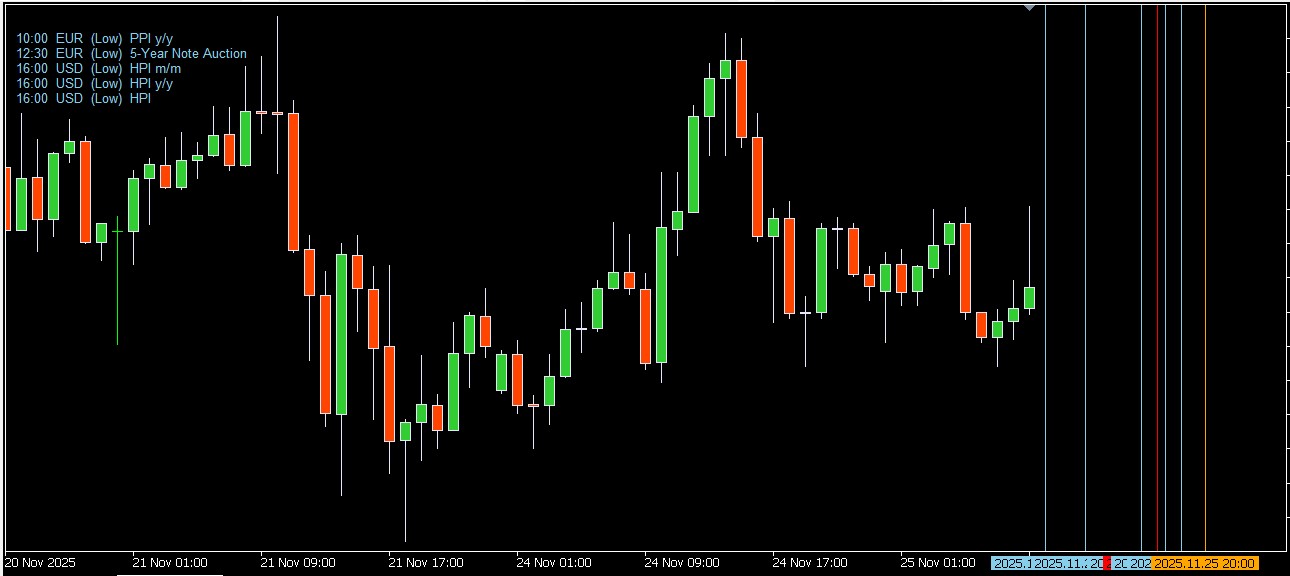
FRZ News Indicator shows upcoming economic news events directly on your MT4 and MT5 chart. Each event is drawn as a vertical line at its release time, coloured by impact (high, medium or low) and labelled with the currency, time and event name. A compact panel in the corner lists the next events with a countdown, so you always know when the next release is due.
By default only the news for the two currencies of the chart symbol are shown (for example EUR and USD on EURUSD), and you can choose which impact levels to include. Event times are shown in your broker’s server time, the same time as the chart. You can also get an alert a set number of minutes before an important release.
MT5: uses MetaTrader 5’s built-in economic calendar, so no extra setup is needed.
MT4: MT4 has no built-in calendar, so the indicator downloads the current week’s calendar itself, at most every 12 hours, and keeps it in a local cache. For this it uses Windows’ own internet functions, so tick Allow DLL imports on the indicator’s Common tab when you attach it. No other DLL is used.
On both platforms, the minutes to the next event and its impact are also available as indicator buffers (buffer 0 and 1).
Screenshot

Specs
| Product name | FRZ News Indicator |
| Platform supported | MT4 & MT5 |
| Type | Indicator |
| Timeframes | Any |
| Currency pairs | Any |
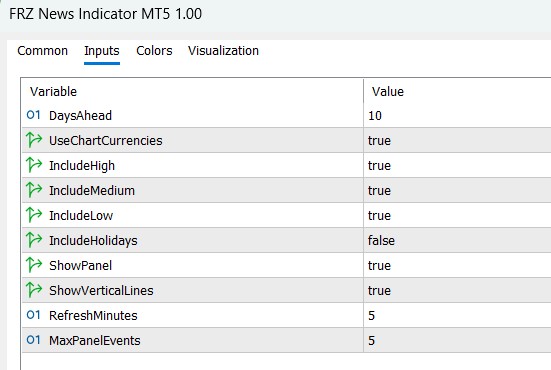
Settings
Installation (MT5): in MetaTrader 5, open File > Open Data Folder, copy the .ex5 file into MQL5/Indicators, restart MetaTrader, then drag the indicator from Navigator > Indicators onto your chart.
Installation (MT4): in MetaTrader 4, open File > Open Data Folder, copy the .ex4 file into MQL4/Indicators, restart MetaTrader, then drag the indicator from Navigator > Indicators onto your chart. On the Common tab, tick Allow DLL imports so it can download the news calendar.
The settings below appear on the Inputs tab, numbered the same way.
News Settings
- Days Ahead to Show (default: 3) – how many days of upcoming events are shown. Events from earlier today are also drawn. On MT4 the calendar covers the current week only.
- Only the Chart’s Currencies (default: true) – shows only news for the two currencies of the chart symbol. Set to false to show news for all currencies.
- Show High Impact News (default: true).
- Show Medium Impact News (default: true).
- Show Low Impact News (default: true).
- Show Bank Holidays (default: false) – also shows bank holidays, which often mean thin liquidity.
- Refresh Every (minutes) (default: 5) – how often the event list is reloaded.
Alert Settings
- Alert Before News (default: false) – when true, notifies you once for each event shortly before its release.
- Minutes Before News (default: 15) – how many minutes before the release the alert is given.
- Alert Impact (default: High only) – the lowest impact level that triggers an alert: High only, Medium and above, or Low and above.
- Alert Notification (default: true) – shows a MetaTrader alert popup with the event, currency and time.
- Sound Notification (default: true) – plays a sound with the alert.
- Email Notification (default: false) – sends the alert by email. Set up your email account first under Tools > Options > Email.
- Phone Notification (default: false) – sends a push notification to the MetaTrader mobile app. Enter your MetaQuotes ID under Tools > Options > Notifications first.
Settings 9-14 only apply when setting 8 is switched on.
Display Settings
- Show Upcoming News Panel (default: true) – the list of the next events with a countdown, in the top-left corner.
- Events in Panel (default: 5).
- Show Vertical News Lines (default: true) – a dotted line at each event’s release time.
- Show Line Labels (default: true) – the currency, time and event name written along each line. Hover over a line to see the details as well.
- High Impact Color (default: red).
- Medium Impact Color (default: orange).
- Low Impact Color (default: dodger blue) – also used for bank holidays.
- Panel Title Color (default: gray).
- Font Size (default: 8).
Recommended Broker & VPS
We recommend using a low-spread broker and a reliable VPS.
- Recommended Broker: IC Markets. If ICMarkets not available in your country, please use IC Trading.
- Recommended VPS Provider: Contabo VPS.
You may contact us on live chat in case you need any support in this regard.
Risk Disclaimer
Trading in financial markets involves substantial risk and may not be suitable for all investors. Our software is provided “as is” without any guarantee of profit. You are advised to test thoroughly on demo accounts before trading live. Please review our full terms and conditions before purchasing.


Avery –
Using it for few weeks; doing fine
Charles Hari –
This works fine!
Dylan E –
Just installed… looking good
Phoenix –
Thank you for installation support