
Our EAs need to connect to our servers to validate license. This guideline is provided if you are experiencing “no license” error while you have a valid license. In such cases, first you need to try the following.
Download the Troubleshooting EA for your platform:
How to use the Troubleshooting EA:
- Place the downloaded file into your MetaTrader → MQL4/Experts or MQL5/Experts folder depending on your platform.
- Restart MetaTrader.
- Attach the EA to any chart.
- Look at the Experts tab messages.
- Make a full screenshot of the experts tab messages and send it to us via email or live chat. We may be able to identify the issue with this info.
However, in case we are still unable to identify the issue, the following steps may need consideration.
1. Make sure FRZ server is correctly added under allowed URLs
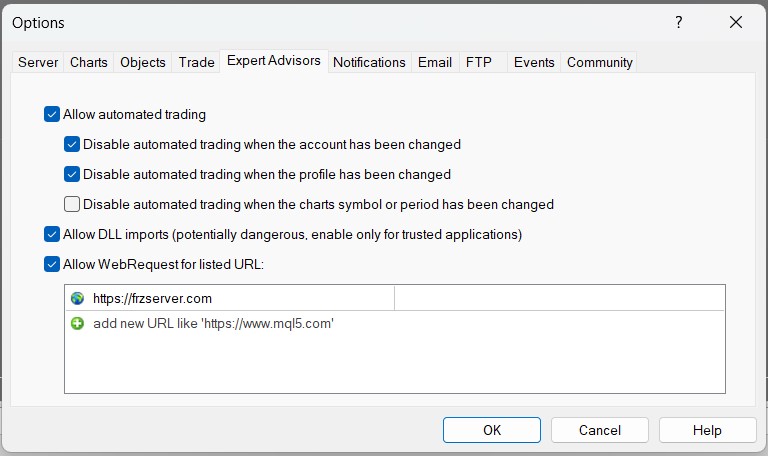
- Open MetaTrader. Go to Tools → Options → Expert Advisors.
- Make sure “Allow WebRequest for listed URL” is checked.
- Copy-paste this URL to the list: https://frzserver.com (copy-paste the URL to avoid any typos. Also make sure there are no leading/ending spaces) and then click OK.
It should looks like below:
2. Check MT4 Proxy Settings:
- Go to Tools > Options > Server in MT4. If a proxy is configured, ensure it allows outbound HTTPS requests to frzserver.com. Test with no proxy (set to “No proxy”) if possible.
3. Try a different Wi-Fi or use a mobile hotspot
If possible, try a different Wi-Fi or use a mobile hotspot and see if the issue is solved.
4. Try a different PC or VPS
If possible, try a different PC or VPS, and see if the issue is solved.
5. Make sure your MT4/5 is the latest version
How to Update MetaTrader Automatically
- Close MetaTrader.
- Right-click on the MetaTrader shortcut and select “Run as administrator.”
- If an update is available, MetaTrader will download and install it automatically.
- Re-open MetaTrader and check the build number again
6. Make sure Antivirus/Firewall does not block FRZ Server
- WebRequest() blocked – Add MetaTrader to allowed applications in your firewall.
- Overprotective antivirus (e.g., Kaspersky, Norton) – Temporarily disable antivirus to test if it is blocking the license check.
Whitelist terminal.exe and frzserver.com in your antivirus/firewall settings:
1. Whitelist terminal.exe (MetaTrader) in Windows Defender
If you’re using Windows Defender, follow these steps: Start → search for “Windows Security” → open it.
2. Go to:
Virus & threat protection → under “Virus & threat protection settings”, click “Manage settings”.
3. Scroll to “Exclusions” → click “Add or remove exclusions”.
4. Click “+ Add an exclusion” → choose File.
5. Navigate to your MetaTrader installation folder:
Example path: C:\Users\<YourName>\AppData\Roaming\MetaQuotes\Terminal\<LongHexCode>\terminal.exe
6. Select terminal.exe.
Whitelist Domain frzserver.com in Windows Defender Firewall
Open Control Panel → System and Security → Windows Defender Firewall.
On the left, click “Advanced settings”.
Under Outbound Rules, click New Rule…
Choose the following:
- Rule Type: Custom
- Program: Select path to terminal.exe
- Protocol and Ports: Leave as default (any)
- Scope: Add frzserver.com or 74.208.82.41 (if IP needed)
- Action: Allow the connection
- Profile: All
- Name: Allow MetaTrader to frzserver.com
If You Use 3rd Party Antivirus/Firewall (e.g., Kaspersky, Bitdefender, ESET)
Look for these settings:
Exclusions / Exceptions → Add:
- File: terminal.exe
- Domain or IP: frzserver.com and/or 74.208.82.41
Web/Internet Protection:
- Disable SSL scanning temporarily.
- Add frzserver.com under trusted sites.
7. Windows 7 users – Make sure you have KB3140245 update
Windows 7 users: Install all Windows Updates Specifically: KB3140245 enables TLS 1.1/1.2 in WinHTTP (used by WebRequest) and enable TLS 1.2 support.