
FRZ Synthetic Indices EA – User Manual
- Related Product: FRZ Synthetic Indices EA
- Browse Similar Tools: Synthetic Indices Trading
- Before You Start
- WebRequest Setup
- Installation
- Demo Version
- Quick Specifications
- On-Chart HUD Panel
- Input Settings
- Set Files
- Recommended Starting Setup
- Troubleshooting
- Get Support
- Useful Links
Before You Start
- Broker with synthetic indices: the EA trades synthetic indices such as Volatility, Jump, Step, Boom and Crash indices. These are only offered by specific brokers (e.g. Deriv, “CFDs | Standard” MT5 account). A normal forex broker account will not have these symbols.
- MetaTrader 5 only. There is no MT4 version.
- One chart only. Attach the EA to a single M5 chart. From that one chart it trades every symbol in its Trading Symbols list – you do not need a chart per symbol. Attaching it to a second chart shows “Another instance of FRZ Synthetic Indices EA is already running on this terminal.” and the second copy stops.
- Use a Volatility or Jump index chart (e.g. Volatility 75 Index) for that one chart. Drawdown Recovery places its trades on the chart’s own symbol.
- Hedging account: Drawdown Recovery only works on an MT5 hedging account. On a netting account the EA still trades, but the recovery module stays off. You can check the account type in MT5’s Navigator (the account line shows “Hedge” or “Netting”).
- Enable Algo Trading (the “Algo Trading” button in the MT5 toolbar must be green).
- License: the full version requires a valid license for your trading account number. The demo version does not.
- WebRequest access to https://frzserver.com is required by the full version (license check and update notices) – see the next section.
- Check each symbol’s minimum lot size before trading. Right-click the symbol in Market Watch > Specification and look at “Minimal volume”. Set the Lot Sizes input to match (see Input Settings).
- Backtesting the full version: attach it to a live or demo chart once first so it can verify your license online. After that, the Strategy Tester is unlocked for that account.
WebRequest Setup
- Open Tools > Options > Expert Advisors.
- Enable Allow WebRequest for listed URL.
- Add this URL:
https://frzserver.com - Click OK and restart the EA if it was already attached.
If this is missing, the EA shows the popup “frzserver.com is not in your MT5 allowed URLs.” and stops.
Installation
MT5 Installation
- Download the MT5 version of the EA from your account dashboard and unzip it.
- In MT5, open File > Open Data Folder, then go to MQL5 > Experts and copy the
.ex5file there. - Restart MT5, or right-click Expert Advisors in the Navigator panel and select Refresh.
- Open Market Watch (Ctrl+M), right-click > Symbols (Ctrl+U) and make sure every symbol you want to trade is shown. The EA can only trade symbols your broker offers.
- Open one chart of a Volatility or Jump index (e.g. Volatility 75 Index) and set it to M5. If you attach the EA to another timeframe, it shows “This EA works on the M5 timeframe only. Changing chart timeframe to M5.” and switches the chart for you.
- Drag the EA onto that chart, review the Inputs tab (especially Trading Symbols and Lot Sizes), and click OK.
- Enable Algo Trading. The HUD panel appears in the top-left corner with “Status: MONITORING”.
Demo Version
The demo version is for the MT5 Strategy Tester only. It uses the same trading rules and the same inputs as the full version, with these limits:
- Backtest-only: on a live chart it shows “FRZ Synthetic Indices EA DEMO works in Strategy Tester only.” and does not load.
- 15 new trades per test run: after 15 initial trades, no new trades are opened. Averaging trades and closing of already-open trades continue, so the last trades finish normally. The chart then shows “DEMO LIMIT REACHED!”. You can run another test on a different period.
- No license check and no update notices.
- One symbol per test: the Strategy Tester only runs the chart’s symbol, so a demo test shows fewer trades than live trading across the whole symbol list.
Quick Specifications
| Product name | FRZ Synthetic Indices EA |
| Platform supported | MT5 |
| Timeframes supported | M5 |
| Trading pair(s) | Synthetic indices. Default list: Jump 10 Index, Jump 25 Index, Jump 50 Index, Volatility 75 Index, Step Index, Crash 50 Index, Boom 50 Index, Multi Step 2 Index. Other synthetic indices can be added to the list. |
| Suitable market sessions | Synthetic indices trade 24/7. By default the EA opens new trades 01:00-23:00 broker time, Monday to Friday (both adjustable). |
| Recommended min. deposit | $500 minimum, $1,000 recommended. With less than $1,000, remove Step Index, Multi Step 2 Index, Boom 50 Index and Crash 50 Index from the list (their minimum lot is 0.1). |
| Minimum leverage | The higher, the better – use the highest leverage available on your account. |
| VPS requirement | This software needs to run 24/7. A Windows VPS is recommended unless you can keep your own PC running continuously 24/7 – For a VPS, we can recommend this VPS provider. You can purchase the cheapest VPS Windows package with this provider (4GB RAM is usually enough as a minimum). More instructions on buying and setting up VPS are given on our VPS page. |
| Recommended broker | Synthetic indices are only available at brokers that offer them – this EA does not work with regular forex brokers such as IC Markets or IC Trading. We recommend Deriv (MT5 “CFDs | Standard” account). Existing Deriv clients can ask Deriv’s live chat to tag their account under our partner code 6YAAEFCKCSYG. Clients under our partner code who deposit the minimum amount specified on our VIP Club page can get this EA free. |
On-Chart HUD Panel
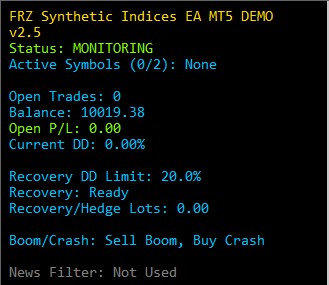
| HUD Item | Meaning |
|---|---|
| Title | Product name and version. The demo shows “DEMO” in the title. |
| Status | MONITORING (green) – no open trades, waiting for a setup. ACTIVE (green) – the EA has open trades. RECOVERY MODE (orange) – Drawdown Recovery is running; new trades and averaging on all symbols are paused until it finishes. No action needed. DD PROTECTION (red) – Max DD % Allowed was reached and the EA is closing all its trades (see setting 16). Trading resumes once they are closed. WRONG TIMEFRAME (red, Strategy Tester only) – the test is not on M5; no trades will be opened. |
| Active Symbols (x/y) | How many symbols currently have open EA trades (x) out of the Max Concurrent Trading Symbols limit (y), followed by those symbols and their lot size, e.g. “Active Symbols (1/2): Jump 25 Index (0.01)”. “None” means no open trades. |
| Open Trades | Number of open EA trades across all symbols (not counting recovery/hedge trades). |
| Balance | Account balance. |
| Open P/L | Floating profit/loss of the EA’s trades, including swap and commission. Green when 0 or positive, red when negative. |
| Current DD | Open loss as a % of balance. Example: balance $2,000 and Open P/L -$100 shows “Current DD: 5.00%”. |
| Recovery DD Limit | The DD Recovery Threshold % setting. |
| Recovery | “Ready” – enabled and waiting. “Active” (orange) – a recovery cycle is running. “Off” (gray) – disabled in the settings. |
| Recovery/Hedge Lots | Total lots of the recovery hedge trade(s). 0.00 when no recovery is running. |
| Boom/Crash | The setting 7 choice: “Both Directions”, “Sell Boom, Buy Crash” (Drift Only) or “Buy Boom, Sell Crash” (Spike Only). |
| News Filter | “Not Used” – this EA does not pause for news (synthetic indices are not affected by economic news). |
Other on-chart notices you may see:
- “Recovery Chart Notice – Drawdown recovery trades this chart’s symbol. Attach the EA to e.g. Volatility 75 Index, not Boom/Crash.” – shown when the EA is attached to a Boom or Crash chart with recovery enabled. Move the EA to a Volatility or Jump index chart.
- “Backtest trades only this one symbol.” (Strategy Tester, top-right) – the tester can only run the chart’s own symbol.
- “WRONG SYMBOL/TIMEFRAME – Supports 5-minute timeframe only” (Strategy Tester) – rerun the test on M5.
- “FULL VERSION BACKTEST LOCKED” (Strategy Tester) – attach the full version to a live/demo chart once so it can verify your license, then restart the backtest.
Input Settings
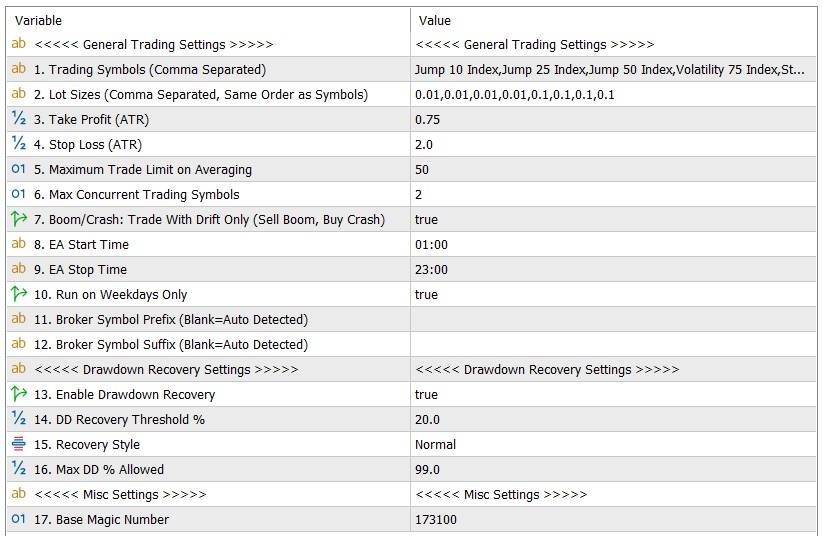
ATR below means the Average True Range – the average candle size over the last 100 M5 candles. Several settings are ATR multipliers, so their distances adapt automatically when a symbol becomes more or less volatile.
| No. | Setting | Explanation |
|---|---|---|
| General Trading Settings | ||
| 1 | Trading Symbols (Comma Separated) | The symbols the EA trades, separated by commas. Default: Jump 10 Index,Jump 25 Index,Jump 50 Index,Volatility 75 Index,Step Index,Crash 50 Index,Boom 50 Index,Multi Step 2 Index.Type each name exactly as it appears in your Market Watch. You can remove symbols or add other synthetic indices. Example: to trade only three symbols, enter Jump 25 Index,Volatility 75 Index,Step Index (and give Lot Sizes three values).Common mistake: Volatility75 or V75 – these do not match the broker’s symbol name. If a name cannot be found, the EA shows a popup listing it (“pair(s) could not be matched to a broker symbol automatically”) and skips that symbol; the others still trade. |
| 2 | Lot Sizes (Comma Separated, Same Order as Symbols) | The lot size for each symbol, in the same order as setting 1. Default: 0.01,0.01,0.01,0.01,0.1,0.1,0.1,0.1 (the minimum lots at Deriv at the time of writing).Example: with the default list, the 4th symbol is Volatility 75 Index, so the 4th value (0.01) is its lot. To double only Volatility 75 Index, change the 4th value to 0.02: 0.01,0.01,0.01,0.02,0.1,0.1,0.1,0.1.Every averaging trade on that symbol uses the same lot. If you remove a symbol from setting 1, remove its value here too so the order still matches. Safety behavior: a missing or invalid value uses the symbol’s broker minimum lot; a value below the broker minimum is raised to the minimum, and above the maximum is reduced. Each case is logged in the Experts tab as “[Lot Sizes] …”. |
| 3 | Take Profit (ATR) | Take-profit distance as a multiple of ATR. Default 0.75. Higher = fewer but larger wins; lower = more frequent, smaller wins. When several trades are open in the same direction on a symbol, they share one take-profit, which moves closer to the average entry as trades are added. Example (Volatility 75 Index): ATR is 169 -> take profit = 169 x 0.75 = about 127 in price, e.g. a buy at 47,089.29 gets its take-profit near 47,216. |
| 4 | Stop Loss (ATR) | Not a hard stop loss. It is the distance (ATR multiple) price must move against the latest trade before the EA may add an averaging trade. Default 2.0. Higher = averaging trades are spaced further apart (fewer trades, lower exposure); lower = closer together. Example: ATR is 169 -> the next averaging trade is only considered once price is 169 x 2.0 = 338 against the latest trade (and a confirmation signal appears). |
| 5 | Maximum Trade Limit on Averaging | The maximum number of trades the EA holds on one symbol, including the first trade. Default 50. Set 1 to disable averaging completely (one trade per symbol). Example: set to 5 -> at most 1 initial trade plus 4 averaging trades on each symbol. |
| 6 | Max Concurrent Trading Symbols | How many different symbols may have open trades at the same time. Default 2. Symbols that already have trades can keep adding averaging trades; the limit only stops a new symbol from starting. Example: with 2, if Jump 25 Index and Step Index both have open trades, a new signal on Volatility 75 Index is skipped until one of them closes. |
| 7 | Boom/Crash Trade Direction | Default Both Directions. Controls which way the EA may trade on Boom and Crash indices (any symbol with “Boom” or “Crash” in its name). Boom indices drift down between sudden upward spikes; Crash indices drift up between sudden downward spikes. Choose: Both Directions – buys and sells allowed, like any other symbol. Drift Only (Sell Boom, Buy Crash) – trades follow the slow drift; a sudden spike can move sharply against open trades. Spike Only (Buy Boom, Sell Crash) – trades wait for a spike; the slow drift works against open trades in the meantime. Other symbols always trade both directions. Test each choice in the Strategy Tester before using it live. Example: with Drift Only, a sell signal on Boom 50 Index is taken but a buy signal on Boom 50 Index is skipped. |
| 8 | EA Start Time | Time from which new trades may open, in broker (MT5 server) time, format HH:MM. Default 01:00. Averaging trades and closing of open trades are not limited by this. Example: Start 22:00 and Stop 06:00 means new trades only between 22:00 and 06:00 (overnight). |
| 9 | EA Stop Time | Time after which no new trades open, broker time, HH:MM. Default 23:00. Open trades continue to be managed. |
| 10 | Run on Weekdays Only | Default true: new trades only Monday to Friday (broker time). Synthetic indices also trade at weekends – set false to allow new trades on Saturday and Sunday too. Open trades are managed every day either way. |
| 11 | Broker Symbol Prefix (Blank=Auto Detected) | Leave blank – the EA finds the broker’s symbol names automatically. Only fill this in if your broker adds text before every symbol name and the EA reports a symbol as not found. Example: if Market Watch shows m.Volatility 75 Index, enter m. |
| 12 | Broker Symbol Suffix (Blank=Auto Detected) | Same as setting 11 but for text added after the symbol name. Example: if Market Watch shows Volatility 75 Index.pro, enter .pro |
| Drawdown Recovery Settings | ||
| 13 | Enable Drawdown Recovery | Default true. When the account’s open loss reaches the threshold in setting 14, the recovery module locks the loss with a hedge trade and then works to recover it step by step using recovery trades on the chart’s symbol. While it runs, the HUD shows “RECOVERY MODE” and normal trading on all symbols pauses. Requires a hedging account. Set false to disable. |
| 14 | DD Recovery Threshold % | Open loss (as % of balance) that starts Drawdown Recovery. Default 20. Enter the number without the “%” sign. Example: balance $2,000 and threshold 20 -> recovery starts when the open loss reaches $400 (20% of $2,000). |
| 15 | Recovery Style | How the recovery trades are spaced and sized. Normal (default) is balanced. Conservative spaces recovery trades further apart and uses fewer of them (up to 6) – slower but lower exposure. Aggressive spaces them closer and allows more (up to 14) – recovers faster but with higher exposure. Normal allows up to 10. |
| 16 | Max DD % Allowed | Hard safety limit. If the EA’s open loss reaches this % of balance, it immediately closes all of its trades (including recovery trades) and the HUD briefly shows “DD PROTECTION”. Once they are closed, the EA continues trading normally. Default 99 (effectively off). Set a lower value for stricter protection. Example: balance $2,000 and 50 -> all EA trades are closed if their open loss reaches $1,000. |
| Misc Settings | ||
| 17 | Base Magic Number | Default 173100. The EA uses this to recognize its own trades (each symbol gets its own number derived from it). Leave it unchanged. Only change it if another EA on the same account uses the same number, and never while the EA has open trades – it would no longer recognize them. |
Set Files
FRZ Synthetic Indices EA does not use .set files. Most settings (ATR-based distances, drawdown thresholds, etc.) are dynamic and adapt to your account balance and current market conditions, so a fixed .set file would not reflect the correct values for your account. Use the Input Settings table above (or the Recommended Starting Setup below) as your starting configuration instead.
Recommended Starting Setup
Standard account ($1,000 or more): keep all defaults. Attach the EA to one Volatility 75 Index M5 chart.
Small account ($500-$1,000): trade only the symbols with a 0.01 minimum lot. Change only these two settings:
- 1. Trading Symbols:
Jump 10 Index,Jump 25 Index,Jump 50 Index,Volatility 75 Index - 2. Lot Sizes:
0.01,0.01,0.01,0.01
Lower-risk setup (any size): keep the defaults but set 6. Max Concurrent Trading Symbols to 1 and 16. Max DD % Allowed to 50.
Always test your chosen settings in the Strategy Tester or on a demo account first.
Troubleshooting
| Issue | What to check |
|---|---|
| EA is attached but opens no trades | 1) Algo Trading button is green. 2) HUD shows “Status: MONITORING” (not DD PROTECTION). 3) Current time is inside EA Start/Stop time (broker time) and, with Run on Weekdays Only on, it is Monday-Friday. 4) Max Concurrent Trading Symbols is not already reached (HUD “Active Symbols (2/2)”). 5) The EA waits for its own entry signals – several hours without a trade can be normal. |
| Popup “Your account number does not currently have an active license.” | License your account number at frzsoftware.com/license (first use), or transfer your license to the new account in the self-service portal. |
| Popup “frzserver.com is not in your MT5 allowed URLs.” | Complete the WebRequest Setup above, then reattach the EA. |
| Popup “Unable to reach the FRZ license server after 3 attempts.” | Check your internet connection and the WebRequest setting, then reattach the EA. |
| Alert “FRZ Synthetic Indices EA: no valid trading symbols found.” and the EA stops | None of the names in setting 1 exist at your broker. Copy the exact symbol names from Market Watch into setting 1 (or set the Prefix/Suffix, settings 11-12) and attach the EA again. |
| Popup “… pair(s) could not be matched to a broker symbol automatically” | The listed symbol names do not exist at your broker. Correct them in setting 1 (copy the exact names from Market Watch) or set the Prefix/Suffix (settings 11-12). |
| Experts tab shows “[Lot Sizes] … adjusted to …” or “No valid lot for …” | A value in setting 2 was below the broker minimum, missing, or not in the same position as its symbol. Check that settings 1 and 2 have the same number of entries in the same order. |
| Trades rejected with “not enough money” | The account cannot cover the lot size. Lower the lots in setting 2, remove the 0.1-lot symbols (Step, Multi Step, Boom, Crash), or add funds. |
| Recovery never starts | Setting 13 is true and the account is a hedging account. On a netting account the Experts tab shows “FRZ Recovery MT5 requires a hedging account to match MT4 recovery behavior.” |
| “Another instance of FRZ Synthetic Indices EA is already running on this terminal.” | The EA is already on another chart. Keep only one chart with the EA – it trades all symbols from there. |
| Backtest shows “FULL VERSION BACKTEST LOCKED” or “Tester Not Licensed” | Attach the full version to a live/demo chart once so it verifies your license, then run the backtest again. Or use the demo version. |
| Backtest opens no trades and shows “WRONG TIMEFRAME” | Set the Strategy Tester’s timeframe to M5. |
| Backtest balance or profit looks unrealistic (huge or negative) | In the Strategy Tester’s Settings tab, set the deposit currency to USD (not “pips”/points) and use a realistic deposit. Use “Every tick based on real ticks” for synthetic indices. |
| After an EA update, backtest settings look wrong | MT5 keeps the previous inputs. In the Strategy Tester’s Inputs tab, right-click > Reset to load the new defaults. |
| Backtest window stays on “Waiting For Update” | Close and reopen MT5. If it persists, another program on your PC may be using the tester’s local port (3000) – close it and try again. |
Get Support
Online AI chat: https://t.me/FRZSupportBot
Discord Forum: https://www.frzsoftware.com/discord
Useful Links
Recommended VPS: https://www.frzsoftware.com/getvps
Join VIP Club: https://www.frzsoftware.com/vipclub
Social Links: https://www.frzsoftware.com/socials
Disclaimer
Our software is provided “as is”, without any warranty or condition of any kind, express, implied or statutory. You are advised to do necessary testing on demo accounts before using the software on a live account. Trading carries a high level of risk to your capital and you should only trade with money you can afford to lose. Past performance of any trading system is not necessarily indicative of future results.