
FRZ Synthetic Indices EA – User Manual
- Related Product: FRZ Synthetic Indices EA
- Browse Similar Tools: Synthetic Indices Trading
FRZ Synthetic Indices EA is a fully automated trading robot that is designed to trade synthetic indices that are offered by Deriv and other similar brokers. The EA uses a trend reversal recognizing algorithm to enter trades. The EA is designed for following indices only:
Jump 10 Index
Jump 25 Index
Jump 50 Index
Volatility 75 Index
Step Index
Crash 50 Index
Boom 50 Index
Multi Step 2 Index
A VPS server is recommended for this EA as it needs to be running 24/7. You can load the EA on all the supported pairs. This is not an aggressive EA that opens trades every minute or every hour. Therefore it is recommended you open all the supported pairs with the EA. However, EA will not trade all pairs at once (you can control this under settings). If you have less than $1000 as deposit, we recommended you do not use Step, Boom & Crash pairs as their minimum lot size is 0.1.
Note on Deriv volatility indices
Not all indices can be traded using 0.01 lot size in indices. In forex, all pairs can be traded using the lowest lot size of 0.01 and this helps in risk management. But this is not the case with volatility indices as most of the indices do not allow 0.01 lot size. The table below shows some indices and their smallest lot sizes allowed for trading on Deriv. Therefore you need to be careful with your deposit and leverage before using larger lot sizes.
How to Check Minimum Lot Size:
-
Right-click on the symbol in your Market Watch window.
-
Select Specifications.
-
Look for the “Minimal volume” entry to see the lowest allowed trade size.
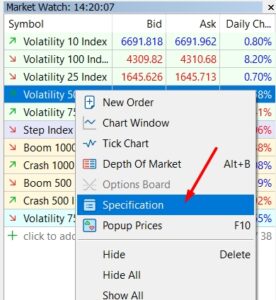
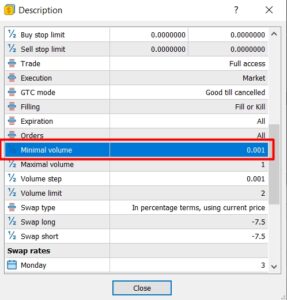
Minimum lot sizes
| Symbol | Minimum Lot |
| Volatility 75 Index | 0.001 |
| Jump 10 Index | 0.01 |
| Jump 25 Index | 0.01 |
| Jump 50 Index | 0.01 |
| Step Index | 0.1 |
| Multi Step 2 Index | 0.1 |
| Crash 50 Index | 0.2 |
| Boom 50 Index | 0.2 |
Installation Steps
1. Go to MT5>Options>Expert Advisors and Allow automated trading
2. Place EA file in the Experts folder of your MT5
3. Place indicator files in Indicators folder of your MT5 (do not place under subfolders)
4. Refresh/restart MT5
5. Open the applicable charts and load the EA onto them
6. Change the lot size and other settings if necessary (default settings are fine to start with)
Settings Explanations
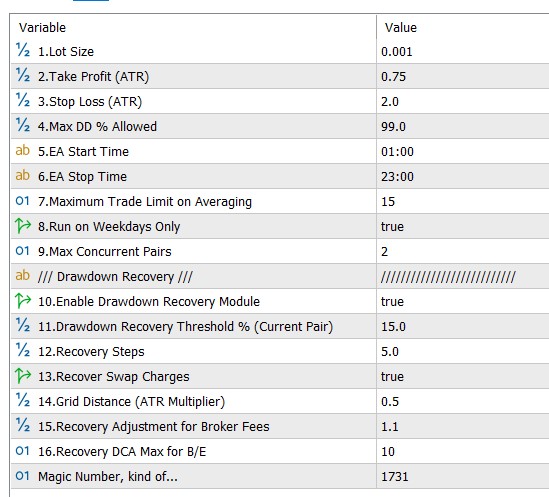
1. Initial Lot Size => This is the lot size. In case if you have more than 1 under settings 6, then additional trades can be added when price goes against you.
2.Take Profit (ATR Multiplier) => You can set the TP as 14-period ATR distance (Not in pips). Example: If the current ATR is 50 pips, and you add 1 here, then it means the TP is 50 pips. However, the ATR is dynamic and it changes every time you enter a trade.
3.Stop Loss (ATR Multiplier) => You can set the SL as 14-period ATR distance (Not in pips). Example: If the current ATR is 50 pips, and you add 1 here, then it means the TP is 50 pips. However, the ATR is dynamic and it changes every time you enter a trade. This stop loss is not actually a hard stop loss. Instead, this acts as the price level for the DCA trades.
4. Max DD % Allowed =>If the drawdown goes below this level, EA will close all the trades and stop trading.
5.EA Start (Broker Time) => You can set a daily start time here on broker (MT5) time.
6.EA End (Broker Time) => You can set a daily end time here. EA will not add fresh trades of the initial lot size after this time.
7.Maximum Trade Limit on DCA Averaging => You can control the maximum no of trades to have per pair on DCA here. If you set this as 1 then it means DCA disabled.
8.Run on Weekdays Only => If enabled, EA will start new trades on weekdays only. However, DCA trades or recovery trades may be created irrespective of this setting.
9.Max Concurrent Pairs => This determines the maximum simultaneous trading pairs. If you set this to 2, then there will be only one trading pairs at any given time. This setting may be ignored rarely by the EA if you get two signals at the exact same time.
Drawdown Recovery Settings
Drawdown recovery function can be activated if the account reaches a specified level of drawdown. This module will divide the total drawdown into part and then try to recovery the drawdown part by part. This uses a DCA and grid based algorithm.
10.Enable Drawdown Recovery Module => You can enable or disable the drawdown recovery module here.
11.Drawdown Recovery Threshold % (Current Pair) => This is the drawdown level that activates the recovery module (use it without “%” sign).
12.Recpvery Steps => You can decide the no of steps in the recovery process. For instance, if you have 10 here and your drawdown was $150, the recovery module will try to recover $15 per round and total would be recovered in 10 rounds.
13.Recover Swap Charges => If you enable this, EA will consider the swap charges also to amount to be recovered. Please note swap charges will accumulate on a daily basis depending on your broker.
14. Grid Distance (ATR Multiplier) => This determines the minimum distance as an ATR multiplier from one trade to another in DCA recovery trades.
15.Recovery Adjustment for Broker Fees => Here you can adjust the recovery amount for any potential broker fees. Usually trading commissions, slippage, spreads, etc. can impact the total amount recovered and then the total amount recovered can be less than the actual drawdown amount. This setting can be used to minimize this difference. For instance, if you want to increase the amount to be recovered by 1%, then you need to set this as 1.01. If you want to increase it by 5%, then set this as 1.05.
16.Recovery DCA Max for B/E => If the no of recovery trades goes over this number, then the EA will try to close the those recovery trades at breakeven without waiting for the recovery step amount in order to minimize the risk. Please note this does NOT limit the no of recovery trades.
Magic Number => You can change this if required but not necessary.