
FRZ Pine Meta Connector – User Manual
- Related Product: FRZ Pine Meta Connector
- Browse Similar Tools: Indicator Automation Tools
- Video Guide
- Before You Start
- WebRequest Setup
- Installation
- TradingView Alert Setup
- Demo Version
- Quick Specifications
- On-Chart Panel
- Input Settings
- Alert Message Format
- Example Alerts
- SL/TP from Your Strategy or Indicator
- Set Files
- Troubleshooting
- Support Links
Video Guide
(This is from an older version – always consider the written text below as the updated guide. A new video is planned.)
Before You Start
- You need a TradingView plan that includes webhook alerts (the free TradingView plan does not have webhooks).
- You need your personal API key. It is sent to you after purchase. The same key goes into the EA and into every TradingView alert.
- The full version requires a valid license for your trading account number. The DEMO version needs no license but works on demo accounts only.
- Enable Algo Trading (MT5) / AutoTrading (MT4) in your platform, otherwise every signal fails with “AutoTrading is disabled”.
- Allow WebRequest for
http://167.86.99.208andhttps://frzserver.com(see the next section). If the email you received after purchase gives a different server address, use that one instead. - Attach the EA to one chart only, in one terminal per account. It trades every symbol your alerts send, whatever chart it is on. If you attach it to a second chart in the same terminal, the second copy shows “Another instance of FRZ Pine Meta Connector is already running on this terminal” and stops.
- Keep MetaTrader running (a VPS is recommended). Signals that arrive while the terminal is closed are not executed later – see setting 4.
WebRequest Setup
- Open Tools > Options > Expert Advisors.
- Enable Allow WebRequest for listed URL.
- Add these two URLs, each on its own line:
http://167.86.99.208andhttps://frzserver.com - Click OK and attach (or re-attach) the EA.
Type the addresses exactly as shown – http:// (not https) for the IP address, and no path after it. If the first one is missing, the panel shows “Allow WebRequest for http://167.86.99.208 (Tools > Options > Expert Advisors)”. If frzserver.com is missing, the license cannot be checked and the full version does not start.
Installation
MT4 Installation
- Download the MT4 version of the EA and unzip it.
- In MT4 open File > Open Data Folder and copy the
.ex4file intoMQL4/Experts. - Restart MT4, or right-click Expert Advisors in the Navigator panel and select Refresh.
- Drag the EA onto any one chart (any symbol, any timeframe).
- On the Inputs tab paste your API key into setting 1, adjust the other settings, then click OK.
- Enable AutoTrading on the toolbar. The panel should turn green: “Connected – waiting for signals”.
MT5 Installation
- Download the MT5 version of the EA and unzip it.
- In MT5 open File > Open Data Folder and copy the
.ex5file intoMQL5/Experts. - Restart MT5, or right-click Expert Advisors in the Navigator panel and select Refresh.
- Drag the EA onto any one chart (any symbol, any timeframe).
- On the Inputs tab paste your API key into setting 1, adjust the other settings, then click OK.
- Enable Algo Trading on the toolbar. The panel should turn green: “Connected – waiting for signals”.
MT5 works on both hedging and netting accounts. On a netting account MT5 keeps one position per symbol, so an opposite alert (e.g. a sell while you hold a buy) reduces or reverses that position instead of opening a second trade.
When the EA starts it also changes the chart to the standard FRZ colours (grey background, coloured candles) so the panel is easy to read.
TradingView Alert Setup
- On your TradingView chart click Alert (the clock icon) and choose the condition – a price level, an indicator, or your strategy (“Order fills” for a strategy).
- Click the Message row and replace its text with the JSON alert message, for example:
{"apiKey":"YOUR_API_KEY","symbol":"{{ticker}}","action":"buy","sl":20,"tp":40,"lot":0.1}– with your own API key. The message must contain only the JSON, with nothing before or after it. - Click the Notifications row, tick Webhook URL and enter
http://167.86.99.208/webhook - Click Create.
When the alert fires, the trade normally appears in MetaTrader within 2-3 seconds, and the panel’s “Last:” line shows the result. All message formats are listed in Alert Message Format and Example Alerts.
Demo Version
The DEMO version is for trying the connector with real TradingView alerts on a demo account. Its limits:
- Works on demo accounts only. On a real account it shows “FRZ Pine Meta Connector DEMO works on demo accounts only” and does not start.
- No license is required.
- Uses the shared DEMO API key, which is already filled into setting 1. Use the same key in your TradingView alerts. Because the key is shared, other demo users’ alerts can also reach your demo account.
- Every trade and pending order it opens is closed 5 minutes after opening.
- After 10 minutes it closes everything it opened, shows “FRZ Pine Meta Connector DEMO stopped after 10 minutes (DEMO limit)” and removes itself from the chart. Attach it again to keep testing.
- The last panel line shows the limits and a countdown, e.g. “DEMO: trades close after 5 min, EA stops in 7 min”.
The full version has none of these limits and uses your own private API key.
Quick Specifications
| Item | Details |
|---|---|
| Product name | FRZ Pine Meta Connector |
| Platform supported | MT4 and MT5 (MT5 hedging and netting accounts) |
| Timeframes supported | Any – the chart the EA is attached to does not matter |
| Trading pair(s) | Any symbol your broker offers (forex, metals, indices, crypto) |
| Suitable market sessions | Any – trades are placed whenever your alerts arrive and the market is open |
| Recommended min. deposit | Depends on the lot sizes your alerts and settings use. With 0.01-lot trades, $100 is enough to start. You can use cent accounts as well. |
| Minimum leverage | Depends on your strategy. 1:100 or higher is recommended so margin does not block trades; if a trade needs more margin than you have, the signal fails with “not enough free margin”. |
| VPS requirement | This software needs to run 24/7. A Windows VPS is recommended unless you can keep your own PC running continuously 24/7 – For a VPS, we can recommend this VPS provider. You can purchase the cheapest VPS Windows package with this provider (4GB RAM is usually enough as a minimum). More instructions on buying and setting up VPS are given on our VPS page. |
| Recommended broker | EA works on any broker that offers MetaTrader. However, we can recommend ICMarkets and if it is not available for your country, then we can recommend ICTrading. |
On-Chart Panel
The EA draws a dark panel in the top-left corner of the chart. It refreshes every second.
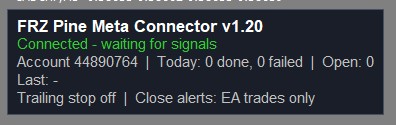
| Panel line | Meaning |
|---|---|
| FRZ Pine Meta Connector v… | The EA name and version. |
| Status (2nd line) | Green “Connected – waiting for signals” = everything works. Orange-red messages need action: “Enter your API key in the EA inputs” – setting 1 is empty. “Allow WebRequest for http://167.86.99.208 (Tools > Options > Expert Advisors)” – see WebRequest Setup. “Cannot reach the server (error …), retrying” – internet or server problem; the EA keeps retrying. “API key not accepted (invalid, blocked or expired)” – check the key, or contact support. “This API key is already in use on N account(s), the maximum allowed” – your key is running on its maximum number of accounts at the same time. “This API key is not enabled for MT4/MT5” – contact support. |
| Account … | Today: … done, … failed | Open: … | Your account number, how many signals were executed or failed today, and how many trades/pending orders from alerts are open now. |
| Last: … | The most recent signal and its result, e.g. “Last: #57 buy EURUSD: done (0.10 lots EURUSD)” or “Last: #58 sell XAUUSD: failed (market is closed)”. The reason is the same text shown in the troubleshooting table below. |
| Trailing stop on/off | Close alerts: … | Whether the trailing stop is enabled (setting 14) and which trades close/cancel alerts act on (setting 10). In the DEMO version this line shows the demo limits instead. |
Every signal is also written to the Experts tab, e.g. “FRZ Pine Meta Connector: signal #57 buy EURUSD: done (0.10 lots EURUSD) ticket 123456”.
Input Settings
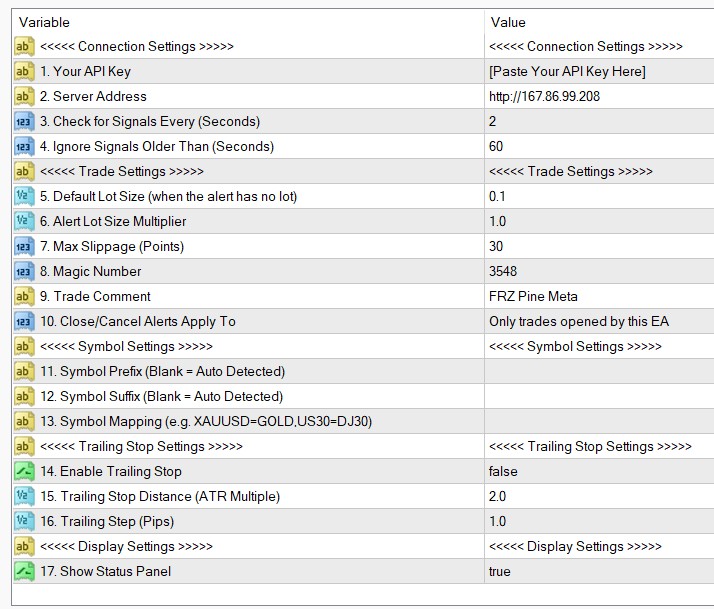
| No. | Setting | Explanation |
|---|---|---|
| Connection Settings | ||
| 1 | Your API Key | Your personal key from the purchase email. It identifies you to the server – only alerts sent with this same key reach this EA. Paste it exactly, with no spaces. The DEMO version comes with the shared demo key already filled in. |
| 2 | Server Address | The address of the FRZ signal server. Default http://167.86.99.208. Only change it if we tell you to. If you paste an old-style address such as http://167.86.99.208/api/trades/poll, the EA uses just the http://167.86.99.208 part. |
| 3 | Check for Signals Every (Seconds) | How often the EA asks the server for new signals. Default 2 seconds. Lower = faster execution; there is no need to go below 1. If you see repeated connection errors on a slow internet connection, try 3-5. Example: setting 2 -> an alert is executed at most about 2 seconds after it reaches the server. |
| 4 | Ignore Signals Older Than (Seconds) | A safety limit. A signal that reaches the EA later than this many seconds after TradingView sent it is not executed and is reported as “skipped”. Default 60 seconds. This stops a terminal that was offline, or restarted, from opening trades at old prices. Raise it only if your internet is often slow; never set it very high. Example: your VPS restarts at 10:00:00 and an alert arrives at 10:00:20. The EA is back at 10:01:30 – the signal is 90 seconds old, so with the default 60 it is skipped instead of opening a late trade. |
| Trade Settings | ||
| 5 | Default Lot Size (when the alert has no lot) | The lot size used when the alert message has no lot value. Default 0.1.Example: alert {“action”:”buy”,”symbol”:”EURUSD”,…} with no lot -> the trade is 0.10 lots. |
| 6 | Alert Lot Size Multiplier | Multiplies the lot size that comes from the alert. Default 1.0 (use the alert’s lot as it is). Useful when the same alerts trade several accounts of different sizes. It does not change setting 5. Example: the alert says “lot”:0.20 and this setting is 0.5 -> the trade is 0.20 x 0.5 = 0.10 lots. Every lot is then rounded down to your broker’s lot step. If it is below the broker’s minimum lot, the broker minimum is used and the result says “lot raised to the broker minimum”; above the maximum, the maximum is used. |
| 7 | Max Slippage (Points) | The largest price difference (in points, the smallest price step) you accept between the price when the order is sent and the fill price. Default 30 points = 3 pips on a 5-digit pair like EURUSD (1.10003). Many market-execution brokers ignore this setting. If you get “requote” or “off quotes” results often, raise it. |
| 8 | Magic Number | A number stamped on every trade the EA opens, so it can recognise its own trades. Default 3548 (MT4) / 9516 (MT5). Change it only if another EA on the same account uses the same number. An alert can also set its own magic number with the magic field – the EA remembers those numbers and treats those trades as its own too. |
| 9 | Trade Comment | The comment written on each trade. Default “FRZ Pine Meta”. An alert can set its own comment with the comment field (up to 30 characters), e.g. the strategy name. |
| 10 | Close/Cancel Alerts Apply To | Which trades the close and cancel alerts (close_all, close_symbol, close_side, cancel_pending_all, cancel_pending_symbol) act on. Default Only trades opened by this EA – your manual trades and other EAs’ trades are never touched. Choose All trades on the account only if you want alerts to close everything. close_magic always closes the trades with the magic number given in the alert, whatever this setting. Example: you have a manual EURUSD trade and an EURUSD trade from an alert. A close_symbol EURUSD alert closes only the alert’s trade (default), or both (All trades). |
| Symbol Settings | ||
| 11 | Symbol Prefix (Blank = Auto Detected) | Text your broker puts before symbol names, e.g. m. for “m.EURUSD”. Leave blank in most cases – the EA first tries the plain name and then finds your broker’s version automatically. |
| 12 | Symbol Suffix (Blank = Auto Detected) | Text your broker puts after symbol names, e.g. .a for “EURUSD.a” or m for “EURUSDm”. Leave blank in most cases (auto detected). Fill it in only if the broker offers several versions of a symbol and the result says “matches several symbols”.Example: the alert sends EURUSD, your broker has EURUSD.a only -> with this blank the EA finds and uses EURUSD.a automatically. |
| 13 | Symbol Mapping (e.g. XAUUSD=GOLD,US30=DJ30) | For symbols that have a different name at your broker. Format: TradingViewName=BrokerName, several separated by commas, no spaces needed. Default blank.Correct: XAUUSD=GOLD,US30=DJ30,NAS100=USTECCommon mistake: GOLD=XAUUSD (the wrong way round) – the TradingView name always goes on the left.If the broker name on the right does not exist, the EA ignores that pair and writes “symbol mapping … ignored” in the Experts tab. A symbol that cannot be found makes the signal fail with “… not found at this broker – check Symbol Mapping / suffix”. |
| Trailing Stop Settings | ||
| 14 | Enable Trailing Stop | When true, the EA moves the stop loss of its open trades to follow the price. Default false (off – stop losses stay where the alert put them). It only ever moves a stop loss in the trade’s favour, and only on trades the EA opened. A trade with no stop loss gets one as soon as trailing starts. |
| 15 | Trailing Stop Distance (ATR Multiple) | How far behind the price the trailing stop sits, as a multiple of ATR (Average True Range – the average candle size over the last 14 candles). Each trade uses the ATR of its own symbol, on the timeframe of the chart the EA is attached to. Default 2.0. Higher = looser stop that survives bigger pullbacks. Example: the EA is on an H1 chart and EURUSD’s H1 ATR is 12 pips -> the stop trails 12 x 2.0 = 24 pips behind the price. |
| 16 | Trailing Step (Pips) | The minimum improvement before the stop is moved again, in pips. Default 1.0. Higher = fewer stop changes. Example: step 1.0 -> the stop is moved each time the new trailing level is at least 1 pip better than the current stop. |
| Display Settings | ||
| 17 | Show Status Panel | Shows or hides the on-chart panel. Default true. The EA works the same with the panel hidden; results are still written to the Experts tab. |
Pips: sl, tp and the trailing step are in pips. On 5- and 3-digit symbols (e.g. EURUSD 1.10003, USDJPY 150.003) 1 pip = 10 points. On other symbols (e.g. gold quoted 2375.50) 1 pip = 1 point = the last price digit, so “sl”:250 on gold is 2.50 in price.
Alert Message Format
Every alert message is a JSON object – field names in double quotes, text values in double quotes, numbers without quotes.
| Field | Meaning |
|---|---|
| apiKey | Your API key. Required in every alert. |
| action | What to do. Required. One of: buy, sell, buy_limit, sell_limit, buy_stop, sell_stop, close_all, close_symbol, close_side, close_magic, cancel_pending_symbol, cancel_pending_all. Also accepted: long = buy, short = sell, close / exit / flat = close_symbol. TradingView’s {{strategy.order.action}} placeholder (buy/sell) works too. |
| symbol | The symbol, e.g. EURUSD or {{ticker}} (TradingView fills in the chart’s symbol). Exchange prefixes like OANDA: are removed automatically. Required for opening orders, close_symbol, close_side and cancel_pending_symbol. |
| price | Entry price for pending orders (required for *_limit and *_stop). Ignored for market orders. |
| sl, tp | Stop loss / take profit distance in pips from the entry price. |
| sl_price, tp_price | Stop loss / take profit as exact prices. If both are given, the price versions are used instead of sl / tp. |
| tp_multiplier | Take profit = stop loss distance x this number, used when there is no tp / tp_price. Example: “sl”:25,”tp_multiplier”:3 -> TP 75 pips. |
| lot | Lot size (also accepted: lot_size, lots). Optional – without it setting 5 is used. Setting 6 multiplies it. |
| side | buy or sell. Required for close_side. |
| magic | Magic number. For opening orders it is put on the trade; for close_magic it selects which trades to close. |
| comment | Trade comment, up to 30 characters (optional). |
If a stop loss or take profit is closer to the price than your broker allows, the EA moves it out to the broker’s minimum distance and notes “SL widened to the broker minimum distance” in the result. If your broker refuses stops on the opening order, the EA opens the trade first and then sets the stops.
Not supported yet: moving an existing trade’s stop loss to breakeven by alert, modifying an open trade’s SL/TP by alert, and partial closes.
Example Alerts
Replace YOUR_API_KEY with your own key.
1) Market Orders
1.1 Market Buy (lot size from the EA settings)
{
"apiKey": "YOUR_API_KEY",
"symbol": "{{ticker}}",
"action": "buy"
}
1.2 Market Buy with lot size
{
"apiKey": "YOUR_API_KEY",
"symbol": "EURUSD",
"action": "buy",
"lot": 0.05
}
1.3 Market Sell with SL/TP in pips
{
"apiKey": "YOUR_API_KEY",
"symbol": "EURUSD",
"action": "sell",
"sl": 20,
"tp": 40
}
1.4 Market Buy with exact SL/TP prices
{
"apiKey": "YOUR_API_KEY",
"symbol": "EURUSD",
"action": "buy",
"sl_price": 1.0820,
"tp_price": 1.0880
}
1.5 Market Buy with risk:reward (TP = SL x 3)
{
"apiKey": "YOUR_API_KEY",
"symbol": "GBPUSD",
"action": "buy",
"sl": 25,
"tp_multiplier": 3
}
2) Pending Orders
2.1 Buy Limit
{
"apiKey": "YOUR_API_KEY",
"symbol": "EURUSD",
"action": "buy_limit",
"price": 1.0950,
"sl": 20,
"tp": 40
}
2.2 Sell Limit
{
"apiKey": "YOUR_API_KEY",
"symbol": "XAUUSD",
"action": "sell_limit",
"price": 2375.50,
"sl": 250,
"tp": 500
}
2.3 Buy Stop
{
"apiKey": "YOUR_API_KEY",
"symbol": "GBPUSD",
"action": "buy_stop",
"price": 1.2800,
"sl": 30,
"tp": 60
}
2.4 Sell Stop
{
"apiKey": "YOUR_API_KEY",
"symbol": "BTCUSD",
"action": "sell_stop",
"price": 118000,
"sl": 400,
"tp": 800
}
A pending order price must be on the correct side of the market (a buy limit below the current price, a buy stop above it), otherwise the broker refuses it with “invalid price”.
3) Trade Management
3.1 Close all trades (only the EA’s trades, unless setting 10 says all trades)
{
"apiKey": "YOUR_API_KEY",
"action": "close_all"
}
3.2 Close the trades of one symbol
{
"apiKey": "YOUR_API_KEY",
"symbol": "EURUSD",
"action": "close_symbol"
}
3.3 Close only the buys (or sells) of one symbol
{
"apiKey": "YOUR_API_KEY",
"symbol": "EURUSD",
"action": "close_side",
"side": "buy"
}
3.4 Close the trades with a magic number
{
"apiKey": "YOUR_API_KEY",
"action": "close_magic",
"magic": 1001
}
3.5 Cancel all pending orders
{
"apiKey": "YOUR_API_KEY",
"action": "cancel_pending_all"
}
3.6 Cancel the pending orders of one symbol
{
"apiKey": "YOUR_API_KEY",
"symbol": "GBPUSD",
"action": "cancel_pending_symbol"
}
If there is nothing to close or cancel, the result is “nothing to close” / “nothing to cancel” – that is not an error.
SL/TP from Your Strategy or Indicator
TradingView can insert values from your strategy or indicator into the alert message, so stops do not have to be fixed numbers.
Example A – pip distances from plotted values
{
"apiKey": "YOUR_API_KEY",
"symbol": "{{ticker}}",
"action": "{{strategy.order.action}}",
"sl": {{plot_0}},
"tp": {{plot_1}}
}
Example B – exact SL/TP prices from plotted values
{
"apiKey": "YOUR_API_KEY",
"symbol": "{{ticker}}",
"action": "{{strategy.order.action}}",
"sl_price": {{plot_0}},
"tp_price": {{plot_1}}
}{{ticker}}– replaced with the chart’s symbol (e.g. EURUSD).{{strategy.order.action}}– becomes “buy” or “sell” from your strategy’s order. Only strategies have this placeholder, not indicators.{{plot_0}},{{plot_1}}– the values of the first and second plot of your script (e.g. a stop-loss line and a target line).- Use
sl/tpwhen your script outputs pip distances, andsl_price/tp_pricewhen it outputs prices.
Pine Script example – strategy that sends its own alerts
This EMA-cross strategy places the stop loss at the lowest low (buys) or highest high (sells) of the last 5 candles and the take profit at 2x the risk. It sends the alert message itself with alert(), so create the TradingView alert with the condition “alert() function calls only” and the webhook URL – the Message box is not used. Inside alert() TradingView does not fill in {{...}} placeholders, so the script uses syminfo.ticker for the symbol.
//@version=5
strategy("EMA Cross with SL/TP Alerts", overlay=true, margin_long=100, margin_short=100)

emaFast = ta.ema(close, 10)
emaSlow = ta.ema(close, 20)
longCond  = ta.crossover(emaFast, emaSlow)
shortCond = ta.crossunder(emaFast, emaSlow)

longSL  = ta.lowest(low, 5)
shortSL = ta.highest(high, 5)
longTP  = close + (close - longSL) * 2
shortTP = close - (shortSL - close) * 2

if (longCond)
    strategy.entry("Long", strategy.long)
    alert('{"apiKey":"YOUR_API_KEY","symbol":"' + syminfo.ticker + '","action":"buy","sl_price":' + str.tostring(longSL) + ',"tp_price":' + str.tostring(longTP) + '}', alert.freq_once_per_bar_close)

if (shortCond)
    strategy.entry("Short", strategy.short)
    alert('{"apiKey":"YOUR_API_KEY","symbol":"' + syminfo.ticker + '","action":"sell","sl_price":' + str.tostring(shortSL) + ',"tp_price":' + str.tostring(shortTP) + '}', alert.freq_once_per_bar_close)

plot(emaFast, color=color.orange)
plot(emaSlow, color=color.blue)
Set Files
FRZ Pine Meta Connector does not use .set files. What it trades is decided by your TradingView alerts, and settings such as the lot size, magic number and symbol mapping depend on your own account and broker, so a fixed .set file would not reflect the correct values for your account. Use the Input Settings table above as your starting configuration instead.
Troubleshooting
| Issue | What to check |
|---|---|
| Panel says “Allow WebRequest for http://167.86.99.208 …” | The server address is not in the WebRequest list. Add http://167.86.99.208 exactly as shown in WebRequest Setup (MT4 error 4060 / MT5 error 4014). |
| Panel says “Cannot reach the server (error 5200…5203), retrying” | An internet or server problem – the EA keeps retrying by itself. Error 5200 can also mean setting 2 (Server Address) was changed; set it back to http://167.86.99.208. If it lasts more than a few minutes, contact support. |
| Panel says “API key not accepted (invalid, blocked or expired)” | Copy the key again from your purchase email into setting 1, with no spaces. If it is correct, contact support. |
| Panel says “This API key is already in use on N account(s), the maximum allowed” | Your key is connected on its maximum number of accounts at the same time. Close the EA on an account you no longer use; that account is released after about 10 minutes. Contact us if you need more accounts. |
| The EA does not start – license message | The full version needs a license for this account number, and https://frzserver.com in the WebRequest list. Use the self-service portal to move your license to a new account. |
| The alert fired in TradingView but nothing happened in MT4/MT5 | 1) Check the panel is green. 2) Check the alert’s Webhook URL is http://167.86.99.208/webhook. 3) Check the Message is only the JSON, with your correct apiKey, and that every field name and text value is in double quotes. 4) Make sure the alert has the fields its action needs – e.g. a pending order needs a price, close_side needs a side. If you are still stuck, send us the exact alert message and the time it fired; we can see on the server whether it arrived and why it was refused. |
| Result “failed (AutoTrading is disabled)” | Turn on AutoTrading (MT4) / Algo Trading (MT5) on the toolbar, and tick “Allow live trading” / “Allow Algo Trading” on the EA’s Common tab. |
| Result “failed (… not found at this broker – check Symbol Mapping / suffix)” | Your broker uses a different symbol name. Add it to setting 13, e.g. XAUUSD=GOLD, or set the suffix in setting 12. Check the exact name in MetaTrader’s Market Watch (right-click > Show All). |
| Result “failed (… matches several symbols …)” | Your broker has more than one version of the symbol. Add the one you want to setting 13, e.g. EURUSD=EURUSD.a. |
| Result “skipped (older than 60s)” | The signal reached the EA too late (terminal closed, internet down, or the PC was asleep). Keep the terminal running on a VPS. See setting 4. |
| Result “failed (invalid stops …)” or MT4 “OrderSend error 130” | The SL or TP is on the wrong side of the price, or a pending price is wrong. Check your alert values – for a buy, SL must be below and TP above the entry. |
| Result “failed (market is closed)” / “trading is disabled for this symbol” | The market for that symbol was closed when the signal arrived, or your account cannot trade it. The signal is not repeated later. |
| Result “failed (not enough money)” / “not enough free margin” | Use a smaller lot (alert lot, setting 5 or setting 6) or add funds. |
| Lot size is different from the alert | Check setting 6 (multiplier). The lot is also rounded to your broker’s lot step and limits – the result says “lot raised to the broker minimum” / “lot reduced to the broker maximum”. |
| A close alert did not close my manual trades | By default close alerts only act on the EA’s own trades (setting 10). Change setting 10 to “All trades on the account” if you want them to close everything. |
| “Another instance of FRZ Pine Meta Connector is already running on this terminal” | The EA only runs on one chart per terminal. Remove the extra copy; one chart trades all symbols. |
| The same trade opened twice | Check that you do not have two TradingView alerts for the same signal. The EA never executes the same signal twice on one account. |
| After updating from v1.1 | Your API key and TradingView alerts stay the same. Re-enter the EA inputs (the input list has changed) and check the panel is green. |
Get Support
Online AI chat: https://t.me/FRZSupportBot
Discord Forum: https://www.frzsoftware.com/discord
Useful Links
Recommended VPS: https://www.frzsoftware.com/getvps
Join VIP Club: https://www.frzsoftware.com/vipclub
Social Links: https://www.frzsoftware.com/socials
Disclaimer
Our software is provided “as is”, without any warranty or condition of any kind, express, implied or statutory. You are advised to do necessary testing on demo accounts before using the software on a live account. Trading carries a high level of risk to your capital and you should only trade with money you can afford to lose. Past performance of any trading system is not necessarily indicative of future results.