
FRZ News Trader – User Manual
- Related Product: FRZ News Trader
- Browse Similar Tools: Forex Trading Robots
Contents
- Before You Start
- WebRequest Setup
- Installation
- Quick Specifications
- Free vs Pro Comparison
- On-Chart HUD Panel
- Input Settings
- Set Files
- Troubleshooting
- Get Support
- Useful Links
Before You Start
- Enable Algo Trading / AutoTrading in your trading platform.
- Attach the EA to one chart only. It manages every pair you configure from that single chart – the chart’s own symbol and timeframe do not matter. A second copy on another chart will not start.
- For MT5, use a hedging account. MT5 netting accounts are not supported (the strategy holds a buy and a sell order at the same time).
- This EA cannot be run in the Strategy Tester. The economic calendar is downloaded live over the internet, which the Strategy Tester blocks, so a backtest places no trades. Evaluate the EA on a demo account instead.
- The Free version does not require a license. Pro version features require a valid license.
- WebRequest access is required to the news URL for your version:
- Pro version:
https://frzserver.com - Free version:
https://faireconomy.media
- Pro version:
WebRequest Setup
- Open Tools > Options > Expert Advisors.
- Enable Allow WebRequest for listed URL.
- Add the URL for your version:
https://frzserver.com(Pro) orhttps://faireconomy.media(Free). - Click OK and restart the EA if needed.
If the URL is missing or your connection is down, the EA shows a “News Calendar Unavailable” message and stops – it will not trade without news data.
Installation
MT4 Installation
- Download the MT4 version of the EA.
- Copy the .ex4 file into your MT4 MQL4/Experts folder.
- Restart MT4 or right-click the Navigator panel and select Refresh.
- Attach the EA to any single chart (a 1-minute chart is fine; the timeframe does not affect the strategy).
- Enter your pairs in the settings (see Input Settings below).
- Enable AutoTrading.
MT5 Installation
- Download the MT5 version of the EA.
- Copy the .ex5 file into your MT5 MQL5/Experts folder.
- Restart MT5 or right-click the Navigator panel and select Refresh.
- Attach the EA to any single chart, on an MT5 hedging account.
- Enter your pairs in the settings (see Input Settings below).
- Enable Algo Trading.
Quick Specifications
| Product name | FRZ News Trader |
| Platform supported | MT4 or MT5 (MT5 requires a hedging account) |
| Timeframes supported | Any – the EA uses 1-minute data internally regardless of the chart timeframe |
| Trading pair(s) | Set per news currency in the inputs (for example USD news on AUDUSD). The EA is attached to one chart but places trades on the pairs you list, not on the chart symbol. |
| Suitable market sessions | Runs around scheduled high-impact news releases in any session. |
| Recommended min. deposit | Any amount. Use a small lot size on a small account – for example 0.01 lot if your deposit is under $250, and do not risk more than about 2% of capital per trade. You can use cent accounts as well. |
| Minimum leverage | The higher, the better. 1:100 or more is comfortable; 1:30 works with small lot sizes. Increase your deposit if your leverage is only at the bare minimum. |
| VPS requirement | This software needs to run 24/7. A Windows VPS is recommended unless you can keep your own PC running continuously 24/7 – For a VPS, we can recommend this VPS provider. You can purchase the cheapest VPS Windows package with this provider (4GB RAM is usually enough as a minimum). More instructions on buying and setting up VPS are given on our VPS page. |
| Recommended broker | EA works on any broker that offers MetaTrader. However, we can recommend ICMarkets and if it is not available for your country, then we can recommend ICTrading. |
Free vs Pro Comparison
| Feature | Free | Pro |
|---|---|---|
| USD news straddles (including NFP) | Yes | Yes |
| EUR, GBP, CAD, NZD and AUD news straddles | No | Yes |
| Multiple trading pairs per news currency | Yes (USD only) | Yes (all currencies) |
| License required | No | Yes |
| News calendar source | Public feed (faireconomy.media) | FRZ news feed (frzserver.com) |
| MT4 and MT5 | Yes | Yes |
| On-chart HUD, trailing stop, breakeven, post-news review close | Yes | Yes |
In the Free version the EUR / GBP / CAD / NZD / AUD rows in the settings show “Upgrade to PRO” and are ignored; only the USD News row is used.
On-Chart HUD Panel
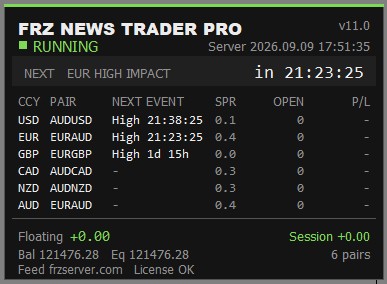
| HUD Item | Meaning |
|---|---|
| Title / status | EA name and a status light: RUNNING (green) or AUTOTRADING OFF (red). |
| Server | Your broker’s server time. |
| NEXT … in … | The soonest upcoming high-impact / NFP release across all your configured currencies, with a countdown. Turns red inside the final hour. |
| CCY | News currency for that row. |
| PAIR | The broker symbol the EA will straddle for that currency’s news. |
| NEXT EVENT | That currency’s next high-impact / NFP release and its countdown. Shows ARMED while the pending orders are being placed. |
| SPR | Current spread on that pair, in pips. Red if it is above your Max Spread Allowed. |
| OPEN | Number of open trades on that pair. |
| P/L | Floating profit or loss on that pair’s open trades. |
| Floating | Total floating profit or loss across all the EA’s open trades. |
| Session | Realized profit or loss since the EA was attached. |
| Bal / Eq | Account balance and equity. |
| Feed / License | Which news feed is in use and (Pro) the license status. |
Input Settings
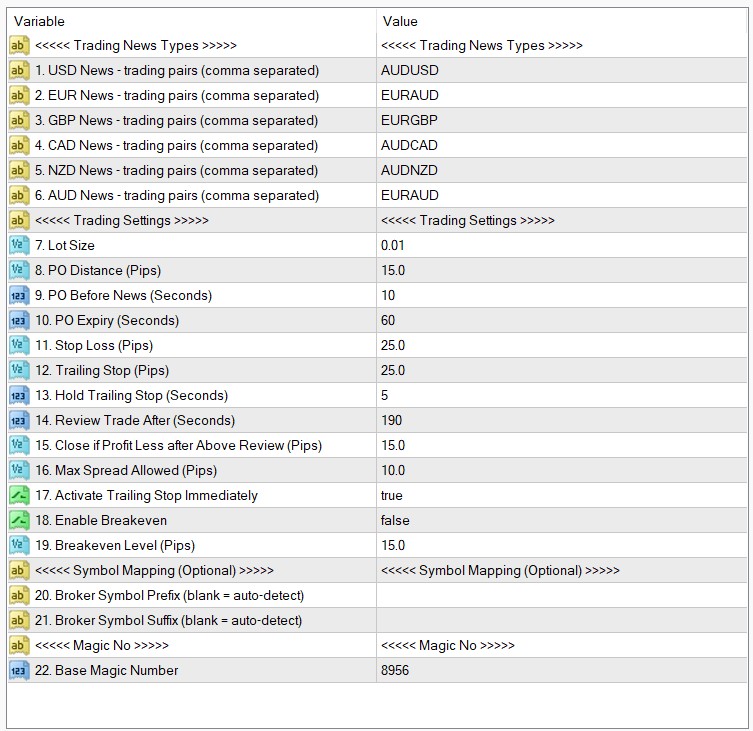
Settings Explanations
| No. | Setting | Explanation |
|---|---|---|
| Trading News Types | ||
| 1 | USD News – trading pairs (comma separated) | The pair(s) to straddle when a USD high-impact or NFP release is due, e.g. AUDUSD or AUDUSD, GBPUSD. Leave blank to skip USD news. |
| 2 | EUR News – trading pairs (comma separated) (Pro only) | The pair(s) to straddle on EUR high-impact news. In the Free version this is ignored. |
| 3 | GBP News – trading pairs (comma separated) (Pro only) | The pair(s) to straddle on GBP high-impact news. Free version ignores this. |
| 4 | CAD News – trading pairs (comma separated) (Pro only) | The pair(s) to straddle on CAD high-impact news. Free version ignores this. |
| 5 | NZD News – trading pairs (comma separated) (Pro only) | The pair(s) to straddle on NZD high-impact news. Free version ignores this. |
| 6 | AUD News – trading pairs (comma separated) (Pro only) | The pair(s) to straddle on AUD high-impact news. Free version ignores this. |
| Trading Settings | ||
| 7 | Lot Size | Fixed lot size for each pending order. Use a small size on a small account. |
| 8 | PO Distance (Pips) | How far above and below the current price the buy-stop and sell-stop are placed. A smaller distance catches smaller spikes but increases the chance of a fakeout. |
| 9 | PO Before News (Seconds) | How many seconds before the release the pending orders are placed. |
| 10 | PO Expiry (Seconds) | Unfilled pending orders are deleted this many seconds after being placed. A longer time can catch delayed moves but also weak ones. |
| 11 | Stop Loss (Pips) | Stop loss for each order. News can spike both ways in the first seconds, so leave enough room not to be stopped by the initial fake move. |
| 12 | Trailing Stop (Pips) | Trailing stop distance once a trade is open. The EA may also close a trade early if it judges the move has failed. |
| 13 | Hold Trailing Stop (Seconds) | The trailing stop only starts acting after the trade has been open for this many seconds, to ride out the first volatile moments. |
| 14 | Review Trade After (Seconds) | After this long the EA reviews the trade; if it is not showing enough profit (next setting) and the move has stalled, it may close it. The EA can also close a losing trade before this time. |
| 15 | Close if Profit Less after Above Review (Pips) | The minimum profit, in pips, a trade must show at the review above. Below this, and with no momentum, the trade may be closed. |
| 16 | Max Spread Allowed (Pips) | If a pair’s spread is wider than this at placement time, no orders are placed on it. Brokers often widen spreads around news. |
| 17 | Activate Trailing Stop Immediately | If true, the trailing stop follows the price from the start. If false, it only starts once the trade is in profit by the Trailing Stop distance. |
| 18 | Enable Breakeven | Turns the break-even stop move on or off. |
| 19 | Breakeven Level (Pips) | Profit in pips that triggers moving the stop loss to the entry price. |
| Symbol Mapping (Optional) | ||
| 20 | Broker Symbol Prefix (blank = auto-detect) | Only needed if your broker adds a prefix to symbol names. Leave blank and the EA detects the naming automatically. |
| 21 | Broker Symbol Suffix (blank = auto-detect) | Only needed if your broker adds a suffix to symbol names (for example .m or +). Leave blank for auto-detect. Set it only if the EA reports a pair as skipped / ambiguous. |
| Magic No | ||
| 22 | Base Magic Number | Starting ID number for the EA’s trades. The EA assigns a unique number to each currency-and-pair combination automatically. You do not normally need to change this. |
Set Files
FRZ News Trader does not use .set files. The pairs you trade are entered directly in the settings, and the remaining values are simple pip/second inputs, so a fixed .set file would not add anything. Use the Input Settings table above as your starting configuration.
Troubleshooting
| Issue | What To Check |
|---|---|
| “BACKTESTING NOT AVAILABLE” notice in the Strategy Tester | This EA cannot be backtested – the news calendar needs a live connection. Test on a demo account instead. |
| “News Calendar Unavailable” pop-up | Add the news URL to your allowed WebRequest list (Tools > Options > Expert Advisors): https://frzserver.com for Pro, https://faireconomy.media for Free. Also check your internet connection. |
| MT5 says the account type is not supported | Use an MT5 hedging account. Netting accounts are not supported. |
| A second copy of the EA will not start | The EA runs on one chart only and manages all pairs from there. Remove the extra instance. |
| License or server error (Pro) | License your account number at frzsoftware.com/license and make sure https://frzserver.com is in your allowed WebRequest URLs. |
| EUR / GBP / CAD / NZD / AUD rows show “- PRO ONLY -“ | Those currencies are Pro-only. Upgrade to the Pro version to trade them. |
| No orders are being placed | Check AutoTrading / Algo Trading is on, that you have entered pairs under the correct currency, that a high-impact release is actually due (see the HUD “NEXT” line), and that the pair’s spread is under Max Spread Allowed. |
| A pair is skipped or reported ambiguous | Set the Broker Symbol Prefix / Suffix to match your broker’s symbol naming, then restart the EA. |
Get Support
Online AI chat: https://t.me/FRZSupportBot
Discord Forum: https://www.frzsoftware.com/discord
Useful Links
Recommended VPS: https://www.frzsoftware.com/getvps
Join VIP Club: https://www.frzsoftware.com/vipclub
Social Links: https://www.frzsoftware.com/socials
Disclaimer
Our software is provided “as is”, without any warranty or condition of any kind, express, implied or statutory. You are advised to do necessary testing on demo accounts before using the software on a live account. Trading carries a high level of risk to your capital and you should only trade with money you can afford to lose. Past performance of any trading system is not necessarily indicative of future results.