
FRZ Genesis Matrix Trading Assistant – User Manual
- Related Product: FRZ Genesis Matrix Trading Assistant
- Browse Similar Tools: Trading Systems & Strategies
- Before You Start
- Installation
- Quick Specifications
- HUD / On-Chart Panel
- Chart Drawings
- Trade Buttons
- Input Settings
- Set Files
- Troubleshooting
- Support Links
Before You Start
- The assistant is an Expert Advisor (EA): it is installed in the Experts folder and attached from the Navigator’s Expert Advisors list, not the Indicators list.
- It never opens a trade by itself. It shows the Genesis Matrix, a checklist and setup arrows; trades are opened only when you click a button.
- Enable AutoTrading (MT4) or Algo Trading (MT5) so the buttons can place trades.
- It is free. It needs no license, no WebRequest (internet URL) setup and no extra indicator files – everything is calculated inside the EA.
- Recommended chart: M5. With the default Signal Timeframe the buy/sell signal is then read from the M15 matrix (the “5-15” method).
- One EA per chart. MetaTrader allows only one EA on a chart, so use a separate chart if you run another EA on the same pair.
- Practise on a demo account before trading live.
Installation
MT4 Installation
- Download the MT4 version and unzip it.
- In MT4, click File > Open Data Folder and copy the
.ex4file into MQL4/Experts. - Restart MT4, or right-click Expert Advisors in the Navigator panel and select Refresh.
- Open an M5 chart of the pair you want to trade and drag the EA onto it. On the Common tab, tick Allow live trading.
- Click the AutoTrading button on the toolbar so it turns green.
MT5 Installation
- Download the MT5 version and unzip it.
- In MT5, click File > Open Data Folder and copy the
.ex5file into MQL5/Experts. - Restart MT5, or right-click Expert Advisors in the Navigator panel and select Refresh.
- Open an M5 chart of the pair you want to trade and drag the EA onto it. On the Common tab, tick Allow Algo Trading.
- Click the Algo Trading button on the toolbar so it turns green.
When attached, the EA applies the FRZ chart colours, hides the normal candles and draws Heiken Ashi candles instead (see Chart Drawings). When you remove it, the normal candles come back.
Quick Specifications
| Product name | FRZ Genesis Matrix Trading Assistant |
| Platform supported | MT4 & MT5 |
| Timeframes supported | Any – M5 recommended (signal read from M15) |
| Trading pair(s) | Any symbol, one chart per symbol – low-spread forex pairs recommended (e.g. EURUSD, GBPUSD, EURJPY, AUDUSD) |
| Suitable market sessions | From the Frankfurt open (1 hour before London) until about 3 hours after the New York open. Avoid the quiet Asian session. Adjustable with settings 19-21. |
| Recommended min. deposit | You choose the lot size for every trade. $200 or more with 0.01 lots is sensible for the swing-based stop losses. You can use cent accounts as well. |
| Minimum leverage | The higher, the better – use the highest leverage available. However, 1:100 can be recommended as the bare minimum. Consider increasing your deposit if your leverage is only at the bare minimum. |
| VPS requirement | This software needs to run 24/7. A Windows VPS is recommended unless you can keep your own PC running continuously 24/7 – For a VPS, we can recommend this VPS provider. You can purchase the cheapest VPS Windows package with this provider (4GB RAM is usually enough as a minimum). More instructions on buying and setting up VPS are given on our VPS page. |
| Recommended broker | EA works on any broker that offers MetaTrader. However, we can recommend ICMarkets and if it is not available for your country, then we can recommend ICTrading. |
HUD / On-Chart Panel
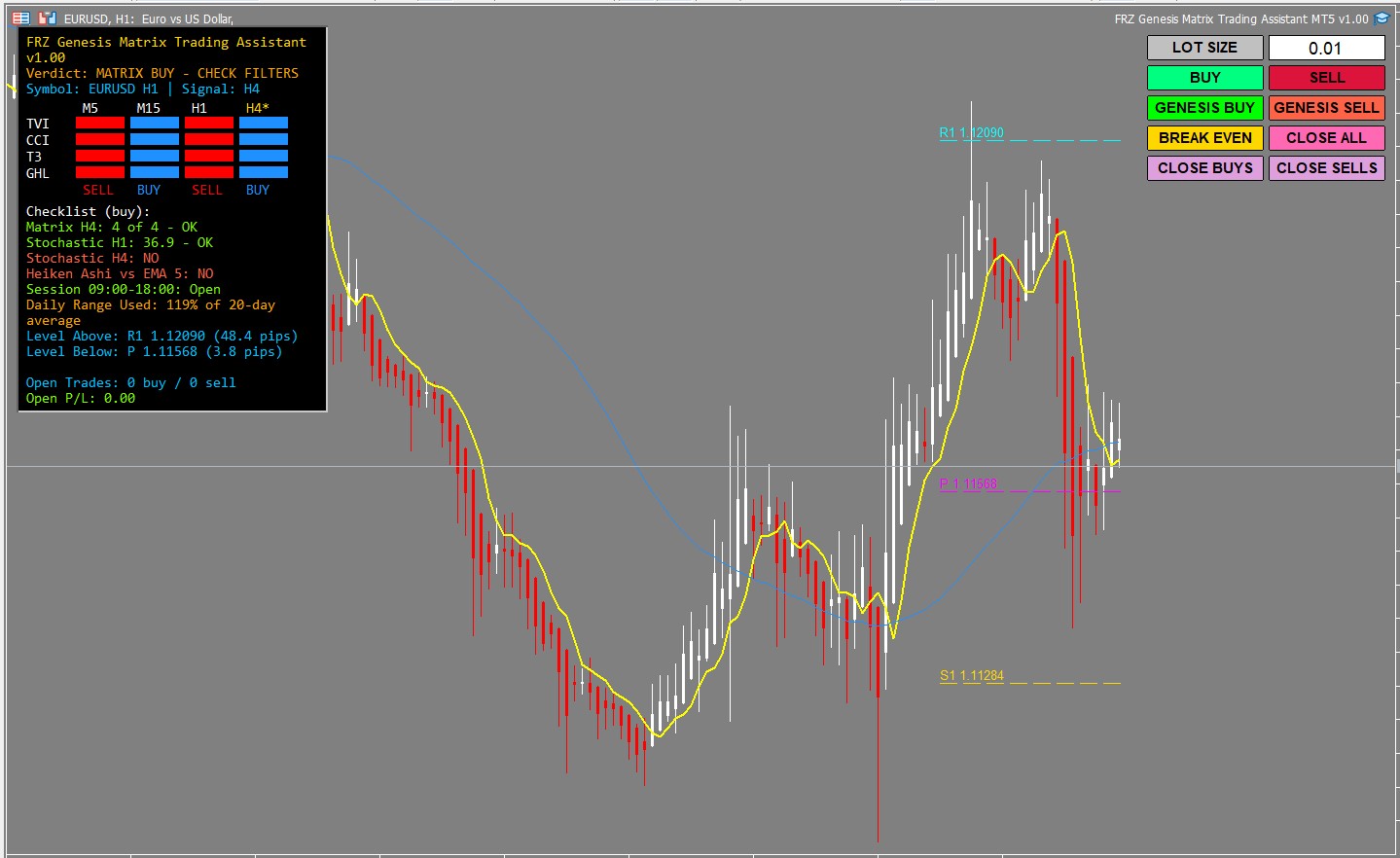
The panel at the top-left of the chart shows the matrix, the verdict and a checklist. Long lines wrap onto the next line. All values are read from closed candles, so they do not change while a candle is still forming.
| HUD Item | Meaning |
|---|---|
| FRZ Genesis Matrix Trading Assistant v… | Product name and the version you are running. |
| Verdict | BUY SETUP (green) / SELL SETUP (red) – every check below passed on the last closed candle. A trade at the open of the next candle follows the system. MATRIX BUY – CHECK FILTERS / MATRIX SELL – CHECK FILTERS (orange) – the signal-timeframe matrix is 4 of 4, but at least one filter in the checklist says NO. Not an entry yet. WATCH (BUY 3 OF 4) / WATCH (SELL 3 OF 4) (yellow) – 3 of the 4 matrix rows agree. Get ready, but do not enter. NO TRADE (gray) – the matrix is split 2 against 2. LOADING M15 HISTORY (orange) – MetaTrader is still downloading the signal timeframe’s history. It clears by itself, usually within seconds. |
| Symbol … | Signal … | The chart symbol and timeframe, and the timeframe the verdict reads its matrix from, e.g. Symbol: EURUSD M5 | Signal: M15. |
| Matrix grid (TVI, CCI, T3, GHL) | One column per timeframe (settings 1-4, default M5, M15, H1, H4) and one row per Genesis indicator, each on that timeframe’s last closed candle. Blue = up, red = down, gray = no data yet. – TVI (Tick Volume Indicator – buying vs selling pressure from tick volume): blue when it is rising. – CCI (Commodity Channel Index, 20 candles): blue when above the CCI Threshold (setting 10, default 0). – T3 (a smooth, low-lag moving average): blue when it is rising. – GHL (Gann HiLo): turns blue when a candle closes above the average high of the previous 10 candles and red when it closes below the average low; otherwise it keeps its colour. The line under the grid shows each column’s total: BUY (4 of 4 blue), SELL (4 of 4 red), or the number of blue rows, e.g. 3/4. ... = still loading. The signal timeframe’s column header is gold with a *. |
| Checklist (buy) / Checklist (sell) | Shown when the signal matrix leans one way (3 or 4 rows the same). Each row shows OK (green) or NO (red): – Matrix M15: 4 of 4 – OK – all four rows agree on the signal timeframe. – Stochastic M5: 36.9 – OK – the chart’s Stochastic (11, 3, 3) is moving the trade’s way, its main line is on the right side of its signal line, and it is not already above 80 (buy) or below 20 (sell). The number is its current value. – Stochastic M15: OK – the Stochastic of the next timeframe up is moving the trade’s way. – Heiken Ashi vs EMA 5: OK – the last Heiken Ashi candle has the trade’s colour (white for a buy, red for a sell) and opened above (buy) or below (sell) the yellow EMA 5. When the matrix is split, this row reads Checklist: waiting for the M15 matrix to lean one way. |
| Session | Open (green) / Closed (red) for your session window, e.g. Session 09:00-18:00: Open. Setups outside the window are not shown as BUY/SELL SETUP. Off when setting 19 is false; invalid time - filter off when setting 20 or 21 cannot be read. |
| Daily Range Used | How much of the average daily range (the average high-to-low distance of the last 20 days) today has already used. Orange from 90% (setting 23). This is a warning only: little room may be left for a new trade today. Example: the average daily range is 80 pips and today’s high-low is 72 pips -> 72 / 80 = 90%, shown in orange. |
| Level Above / Level Below | The nearest daily pivot levels above and below the current price, with the distance in pips, e.g. Level Above: R1 1.12091 (48.5 pips). These are the usual take-profit targets and places where price may bounce. |
| Open Trades / Open P/L | This EA’s open trades on this chart (buys / sells) and their floating profit or loss including swap (on MT4 also commission). |
| Last | The result of your last button click, e.g. Last: Genesis Buy 0.01 lots opened, SL at swing, TP at R1 or Last: Break even set on 1 trade(s). |
Chart Drawings
| Drawing | Meaning |
|---|---|
| Heiken Ashi candles | Smoothed candles that replace the normal ones while the EA is attached: white = bullish, red = bearish. Heiken Ashi prices are averages, so they differ slightly from the real prices – your trades always use the real Bid/Ask. Turn them off with setting 24. |
| Yellow line | EMA 5 of the typical price ((high + low + close) / 3), shifted 2 candles to the right, as in the original Genesis template. |
| Blue line | 50-period simple moving average of the close – shows the bigger trend. |
| Dashed horizontal lines | Today’s daily pivots from yesterday’s high, low and close: P (magenta), R1-R3 (aqua, resistance above), S1-S3 (gold/orange, support below). “Yesterday” follows your broker’s server day. |
| Green up / red down arrows | The first candle of each past BUY or SELL SETUP within the drawn candles (setting 25). An arrow appears only after its candle has closed and never moves afterwards; the matching entry is the open of the next candle. |
Trade Buttons
The buttons sit in the top-right corner. They manage only the trades this EA opened on this chart (same symbol and Magic Number).
| Button | What it does |
|---|---|
| LOT SIZE box | Type the lot size for the next trade and press Enter. The value is rounded to your broker’s lot step and kept between its minimum and maximum lot. An empty or 0 value uses the Default Lot Size (setting 30). |
| BUY / SELL | Opens a market trade with the lot size, without stop loss or take profit. |
| GENESIS BUY / GENESIS SELL | Opens a market trade and then sets the Genesis stop loss and take profit: – Stop loss: beyond the last confirmed swing low (buy) or swing high (sell) within the last 100 candles, plus the current spread. A swing low is a candle whose low is lower than the two candles on each side. – Take profit: the next pivot level above (buy) or below (sell) the price, if setting 31 is true. Example: Genesis Buy on EURUSD at 1.08520. Last swing low 1.08410, spread 0.6 pips -> stop loss 1.08404. Next pivot above is R1 at 1.08690 -> take profit 1.08690 (17 pips). If no swing is found, no trade opens and the panel shows Last: Genesis Buy not opened: no swing low found. If the price is beyond R3/S3 there is no level left, so the trade opens without a take profit (no pivot level left for a TP). |
| BREAK EVEN | Moves the stop loss of every open trade to its entry price + 1 pip (buy) or – 1 pip (sell). Trades not yet far enough in profit for your broker’s minimum stop distance are skipped and counted in the Last row. A stop loss is never moved backwards. |
| CLOSE ALL / CLOSE BUYS / CLOSE SELLS | Closes all, only the buy, or only the sell trades of this EA on this chart at market price. |
Input Settings
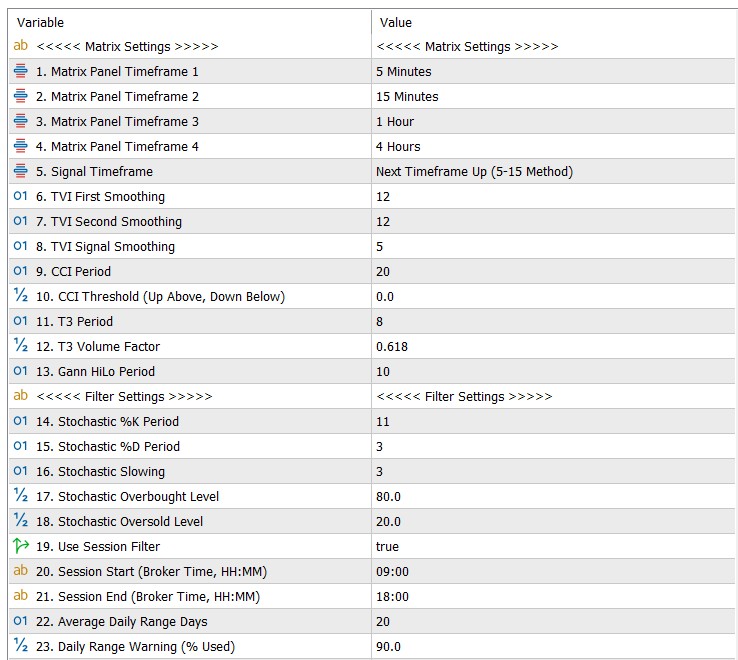
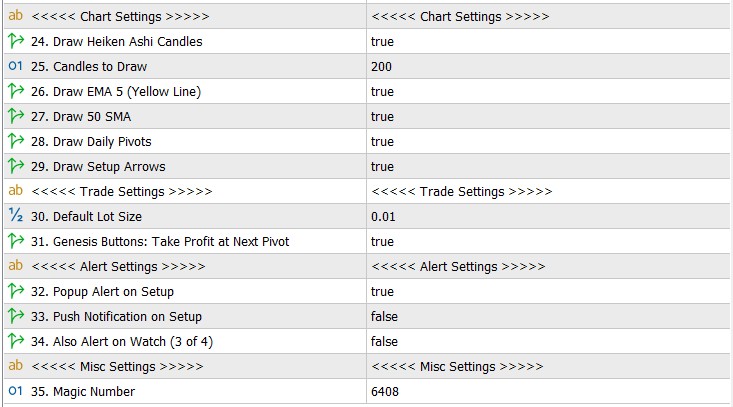
The defaults follow the original Genesis template. Most traders only change the session times (settings 20-21) and the lot size.
| No. | Setting | Explanation |
|---|---|---|
| Matrix Settings | ||
| 1-4 | Matrix Panel Timeframe 1 / 2 / 3 / 4 | The four timeframe columns of the matrix grid. Defaults M5, M15, H1, H4. They are for viewing only; the verdict uses the Signal Timeframe (setting 5). “current” uses the chart’s timeframe. Example: for the M1 Genesis variant use M1, M5, M15, H1. |
| 5 | Signal Timeframe | Which matrix the verdict, alerts and arrows use. Next Timeframe Up (5-15 Method) (default): the next higher timeframe – M1 -> M5, M5 -> M15, M15 -> M30, M30 -> H1, H1 -> H4, H4 -> D1, D1 -> W1. Chart Timeframe: the chart’s own timeframe (the original single-chart template). The Stochastic of the next timeframe up is checked in both cases. Example: M5 chart, default -> signal from the M15 matrix; with Chart Timeframe -> signal from the M5 matrix (more, but noisier, setups). |
| 6 | TVI First Smoothing | First smoothing period of the TVI, in candles. Default 12. Keep the Genesis default unless you know why you change it: higher = slower, steadier TVI row. |
| 7 | TVI Second Smoothing | Second smoothing period of the TVI. Default 12. |
| 8 | TVI Signal Smoothing | Final smoothing period of the TVI. Default 5. The TVI row turns blue when this smoothed value rises. |
| 9 | CCI Period | Number of candles for the CCI. Default 20. |
| 10 | CCI Threshold (Up Above, Down Below) | The CCI row is blue when the CCI is above this value and red otherwise. Default 0. A higher value makes the row turn blue later. Example: threshold 60 -> a CCI of 45 shows red, 75 shows blue. |
| 11 | T3 Period | Period of the T3 moving average, in candles. Default 8. Higher = slower, smoother T3 row. |
| 12 | T3 Volume Factor | T3 smoothing factor between 0 and 1. Default 0.618. Higher = smoother but slower. |
| 13 | Gann HiLo Period | Number of candles for the average high and low of the Gann HiLo row. Default 10. |
| Filter Settings | ||
| 14-16 | Stochastic %K Period / %D Period / Slowing | Settings of both Stochastics (chart timeframe and next timeframe up). Defaults 11, 3, 3, as in the original template (Low/High prices, simple averaging). |
| 17 | Stochastic Overbought Level | A buy setup is not shown while the chart Stochastic is at or above this level – the move may have no room left. Default 80. |
| 18 | Stochastic Oversold Level | A sell setup is not shown while the chart Stochastic is at or below this level. Default 20. |
| 19 | Use Session Filter | true (default) = BUY/SELL SETUP verdicts, arrows and alerts only inside the session window (settings 20-21). false = at any time. The buttons always work. |
| 20 | Session Start (Broker Time, HH:MM) | Start of the session window in your broker’s server time (the time in Market Watch), 24-hour HH:MM. Default 09:00 = the Frankfurt open on a GMT+2 / GMT+3 broker.Example: broker on GMT+0 -> Frankfurt opens at 07:00 (winter) -> enter 07:00. Wrong: 7am or 07.00 – an unreadable time switches the session filter off and the panel shows Session: invalid time - filter off. |
| 21 | Session End (Broker Time, HH:MM) | End of the session window, same format. Default 18:00 = about 3 hours after the New York open on a GMT+2 / GMT+3 broker. A window that crosses midnight works too (e.g. 22:00 to 06:00). Start and End must differ. |
| 22 | Average Daily Range Days | Number of past days averaged for the Daily Range Used row. Default 20. |
| 23 | Daily Range Warning (% Used) | The Daily Range Used row turns orange from this %. Default 90. Warning only – it does not block setups. |
| Chart Settings | ||
| 24 | Draw Heiken Ashi Candles | true (default) = hide the normal candles and draw Heiken Ashi candles. false = keep the normal candles. The Heiken Ashi check in the checklist works either way. |
| 25 | Candles to Draw | How many recent candles get Heiken Ashi candles, the lines and setup arrows. Default 200. Higher values show more history but make the chart heavier. |
| 26-29 | Draw EMA 5 / Draw 50 SMA / Draw Daily Pivots / Draw Setup Arrows | Show or hide each drawing (all true by default). Hiding a drawing does not change the verdict or the buttons. |
| Trade Settings | ||
| 30 | Default Lot Size | The lot size shown in the LOT SIZE box when the EA is attached. Default 0.01. You can change the box at any time. |
| 31 | Genesis Buttons: Take Profit at Next Pivot | true (default) = GENESIS BUY / SELL set the take profit at the next pivot level. false = they set only the swing stop loss, and you close the trade yourself. |
| Alert Settings | ||
| 32 | Popup Alert on Setup | true (default) = a MetaTrader alert window when a new BUY or SELL SETUP appears, once, when its candle closes, e.g. FRZ Genesis Matrix Trading Assistant: EURUSD M5 - BUY SETUP. |
| 33 | Push Notification on Setup | true = the same message to the MetaTrader app on your phone. Default false. Set up your MetaQuotes ID first in Tools > Options > Notifications. |
| 34 | Also Alert on Watch (3 of 4) | true = also alert once per signal-timeframe candle when 3 of the 4 matrix rows agree, e.g. WATCH: M15 matrix buy 3 of 4. Default false. |
| Misc Settings | ||
| 35 | Magic Number | An ID number the EA writes on its trades so the buttons manage only their own. Default 6408. If you attach the EA to two charts of the same pair, give each a different number (e.g. 6408 and 6409) so their Close buttons do not close each other’s trades. |
Set Files
FRZ Genesis Matrix Trading Assistant does not use .set files. The defaults already follow the original Genesis template, and the values that depend on you (session times in your broker’s time zone, lot size) are different for every account, so a fixed .set file would not reflect the correct values for your account. Use the Input Settings table above as your starting configuration instead.
Troubleshooting
| Issue | What to check |
|---|---|
| The verdict stays on LOADING … HISTORY or grid cells stay gray | MetaTrader has not downloaded that timeframe’s history yet. Open a chart of that timeframe once (e.g. M15), wait a few seconds, then go back. Offline or weekend charts may need the next connection. |
| No arrows on the chart | Normal when no full setup happened within the drawn candles (setting 25) – all checks must pass, including the session window. Arrows appear only after the candle closes. Check that Draw Setup Arrows (setting 29) is true. |
| The matrix is 4 of 4 but the verdict says CHECK FILTERS | One of the checklist rows says NO (red) – for example the Stochastic is already above 80, or the Heiken Ashi candle is the wrong colour or on the wrong side of the yellow line. Wait for every row to show OK. |
The buttons do nothing / Last: Buy failed, error 4109 (MT4) or a retcode (MT5) |
AutoTrading / Algo Trading is off, or live trading is not allowed on the EA’s Common tab. Other numbers come from your broker, most often not enough margin, the market is closed, or trading is disabled for the symbol. |
Last: Genesis Buy not opened: no swing low found |
No confirmed swing low below the price within the last 100 candles – for example in a strong one-way move. Use BUY and set the stop loss yourself, or wait for a pullback to form a swing. |
..., stops not set (error ...) |
The trade opened, but the broker rejected the stop loss / take profit, usually because a level is too close to the price for the broker’s minimum stop distance. Set them manually in the trade’s Modify window. |
| Normal candles still visible, or no Heiken Ashi candles | Check Draw Heiken Ashi Candles (setting 24). If you changed the chart colours after attaching, remove the EA and attach it again. |
Panel shows Session: Closed at the London open |
The session times are in your broker’s server time, not your local time. Compare the Market Watch time with the Frankfurt/London open and adjust settings 20-21. |
| Nothing is drawn in the Strategy Tester | Drawings and the panel only appear with Visual mode ticked. Alerts are not sent in the Strategy Tester. |
| Settings look wrong after updating the EA | MetaTrader can keep old input values when a new version is attached. Remove the EA from the chart, attach it again and click Reset on the Inputs tab before changing any setting. |
Get Support
Online AI chat: https://t.me/FRZSupportBot
Discord Forum: https://www.frzsoftware.com/discord
Useful Links
Recommended VPS: https://www.frzsoftware.com/getvps
Join VIP Club: https://www.frzsoftware.com/vipclub
Social Links: https://www.frzsoftware.com/socials
Disclaimer
Our software is provided “as is”, without any warranty or condition of any kind, express, implied or statutory. You are advised to do necessary testing on demo accounts before using the software on a live account. Trading carries a high level of risk to your capital and you should only trade with money you can afford to lose. Past performance of any trading system is not necessarily indicative of future results.