
FRZ Zone Recovery Hedging – User Manual
- Related Product: FRZ Zone Recovery Hedging
- Browse Similar Tools: Grid & Hedging Tools
- Before You Start
- WebRequest Setup
- Installation
- Demo Version
- Quick Specifications
- On-Chart HUD Panel
- Input Settings
- Set Files
- Troubleshooting
- Get Support
- Useful Links
Video Guide
(This video is from an earlier version — always consider the written text below as the updated guide. A new video is planned.)
Before You Start
- Enable Allow Automated Trading / Algo Trading in your MetaTrader platform.
- For MetaTrader 5, your trading account must be a Hedging account (Netting accounts are not supported because Zone Recovery requires simultaneous opposing positions).
- Full versions require a valid license key. Demo versions do not require a license.
- Attach the EA to only one chart per symbol you wish to trade.
- Allow WebRequest access to
https://frzserver.comfor license verification, cloud-based signals, and live update notices. - Make sure you understand the mechanics of zone recovery hedging before trading live funds. Always test thoroughly on demo or backtesting first.
WebRequest Setup
- Open MetaTrader and navigate to Tools > Options > Expert Advisors (or press
Ctrl + O). - Check the box Allow WebRequest for listed URL.
- Click Add new URL and paste:
https://frzserver.com - Click OK to save the changes.
Installation
MT4 Installation
- Download the MT4 version of the EA (
.ex4). - Open MetaTrader 4, click File > Open Data Folder, and navigate to MQL4 > Experts.
- Copy the
.ex4file into theExpertsfolder. - Restart MT4 or right-click in the Navigator window (
Ctrl + N) and select Refresh. - Drag the EA onto your desired chart, configure your settings, and ensure AutoTrading is turned ON.
MT5 Installation
- Download the MT5 version of the EA (
.ex5). - Open MetaTrader 5, click File > Open Data Folder, and navigate to MQL5 > Experts.
- Copy the
.ex5file into theExpertsfolder. - Restart MT5 or right-click in the Navigator window (
Ctrl + N) and select Refresh. - Drag the EA onto your chart, verify your settings, and ensure Algo Trading is enabled.
Demo Version
A free DEMO build is available for evaluation and testing. The DEMO version has the following specific limits:
- Starting Volume Fixed at 0.10 Lots: Lot size cannot be adjusted in the DEMO edition (both on live demo accounts and in the Strategy Tester). If adjusted in backtesting, an on-screen warning is shown.
- Demo Accounts Only: Works on demo accounts only and will automatically terminate if attached to a real live trading account.
- Max 2 Recovery Cycles per Run (Live Demo): Live demo testing stops after completing 2 full recovery cycles.
- Max 4 Recovery Cycles per Run (Backtester): Strategy Tester backtests stop after completing 4 full recovery cycles.
- Cloud-Based Signals Disabled: Cloud-based initial entry signals and remote server checks are not available in the DEMO version.
- No License Check Required: The demo version does not require a license key.
Quick Specifications
| Specification | Details |
|---|---|
| Product Name | FRZ Zone Recovery Hedging EA |
| Platform Supported | MetaTrader 4 (MT4) & MetaTrader 5 (MT5) |
| Timeframes Supported | Any timeframe (Calculates ATR from the current chart timeframe; M5, M15, or H1 recommended) |
| Trading Pair(s) | Any Forex pair, Gold/XAUUSD, Indices, or Cryptos (Forex major 28 pairs for Cloud-Based entry) |
| Suitable Market Sessions | Any session (Active trending sessions such as London & New York Open recommended for initial entries) |
| Recommended Min. Deposit | $1,000 minimum recommended for standard accounts (or $10 on a Cent account) to provide adequate margin buffer during hedging sequences. |
| Minimum Leverage | 100:1 or higher recommended (higher leverage ensures sufficient free margin during multi-trade recovery cycles). |
| VPS Requirement | This software needs to run 24/7. A Windows VPS is recommended unless you can keep your own PC running continuously 24/7 – For a VPS, we can recommend this VPS provider. You can purchase the cheapest VPS Windows package with this provider (4GB RAM is usually enough as a minimum). More instructions on buying and setting up VPS are given on our VPS page. |
| Recommended Broker | EA works on any broker that offers MetaTrader. However, we can recommend ICMarkets and if it is not available for your country, then we can recommend ICTrading. |
On-Chart HUD Panel
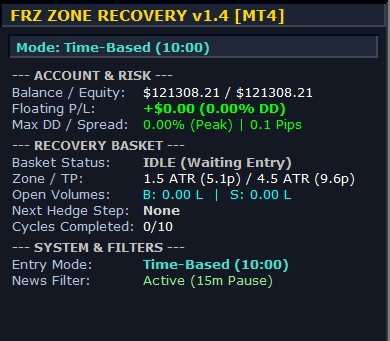
The EA features a live on-chart HUD dashboard displaying real-time session metrics, basket states, and next-step recovery orders:
| HUD Item | Meaning |
|---|---|
| Header / Mode Banner | Displays the active EA version, platform (MT4/MT5), and currently active Initial Entry Mode (e.g. Time-Based, Manual, Indicator, Price-Based, or Cloud-Based). In Manual mode, interactive BUY and SELL buttons are shown here. |
| Balance / Equity | Current live account balance and real-time account equity. |
| Floating P/L | Live open floating profit/loss across all active basket trades and the current open Drawdown percentage. |
| Max DD / Spread | The peak maximum floating drawdown percentage experienced during the trading session/backtest, alongside the current live broker spread in pips. |
| Basket Status | Current recovery cycle status: IDLE (Waiting Entry) when no basket is active, or ACTIVE (Level N) showing the current recovery step number. |
| Zone / TP | The active Recovery Zone distance and Take Profit target distance (shown in ATR multipliers and converted pips in ATR mode, or fixed pips in Fixed mode). |
| Open Volumes | Total open Buy volume (B: X.XX L) versus total open Sell volume (S: X.XX L) currently in the market. |
| Next Hedge Step | The exact direction and calculated lot size for the next recovery hedge order waiting at the zone boundary (e.g. Next SELL @ 0.14 L). |
| Cycles Completed | Number of successful recovery cycles closed in profit versus the configured No of Initial Trades limit. |
| Entry Mode | The configured entry method and its trigger condition (e.g. Time 10:00, Price level, Indicator name, or Cloud signal). |
| News Filter / Status | Live status of the High Impact News Filter (e.g. Active (15m Pause) or PAUSED (High Impact News)) or Demo Status. |
Input Settings
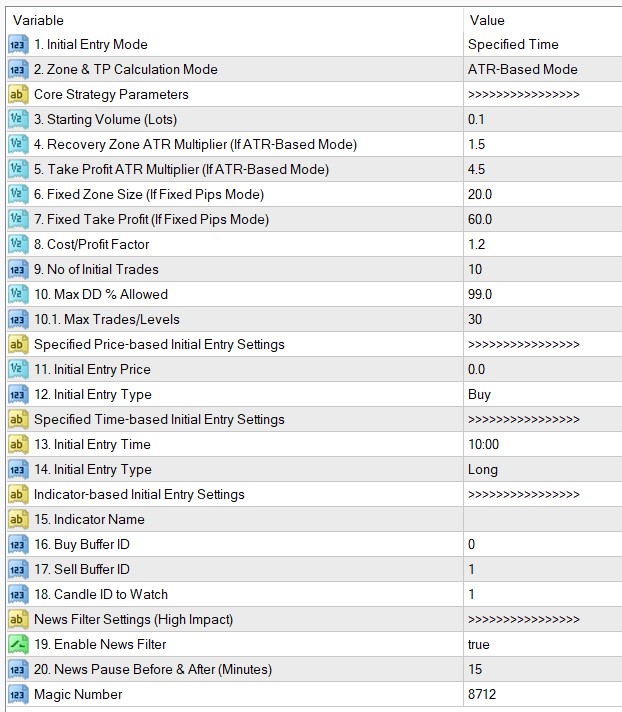
Below is a complete description of all configurable parameters in the EA:
| No. | Setting | Default | Explanation |
|---|---|---|---|
| 1 | 1. Initial Entry Mode | Specified Time | Selects how the first trade of each recovery round is initiated:
|
| 2 | 2. Zone & TP Calculation Mode | ATR-Based Mode | Determines how the Recovery Zone and Take Profit distances are calculated:
|
| >>>>>>>>>>>>>>>> Core Strategy Parameters | |||
| 3 | 3. Starting Volume (Lots) | 0.1 | The initial lot size for trade #1 of each recovery sequence. (Locked at 0.1 in DEMO edition). |
| 4 | 4. Recovery Zone ATR Multiplier (If ATR-Based Mode) | 1.5 | Multiplier applied to current 14 ATR to set the recovery zone width in ATR mode (e.g. 1.5 × ATR). |
| 5 | 5. Take Profit ATR Multiplier (If ATR-Based Mode) | 4.5 | Multiplier applied to current 14 ATR to set the target take profit in ATR mode (3x of Recovery Zone). |
| 6 | 6. Fixed Zone Size (If Fixed Pips Mode) | 20.0 | Recovery zone height in pips when running in Fixed Pips Mode. |
| 7 | 7. Fixed Take Profit (If Fixed Pips Mode) | 60.0 | Take profit distance in pips when running in Fixed Pips Mode. |
| 8 | 8. Cost/Profit Factor | 1.2 | Multiplier applied to the mathematical recovery lot formula to ensure that spread, commissions, and swap are fully covered and the basket closes with a net profit. |
| 9 | 9. No of Initial Trades | 10 | Maximum number of automated initial entry cycles/rounds the EA will execute before stopping. |
| 10 | 10. Max DD % Allowed | 99.0 | Account-wide circuit breaker. If total open floating drawdown reaches this percentage of account balance, all open and pending orders are instantly liquidated. |
| 10.1 | 10.1. Max Trades/Levels | 30 | Maximum number of hedging levels/orders allowed within a single recovery cycle to prevent over-exposure. |
| >>>>>>>>>>>>>>>> Specified Price-based Initial Entry Settings | |||
| 11 | 11. Initial Entry Price | 0.0 | The price level at which the initial trade should trigger when using Specified Price mode. |
| 12 | 12. Initial Entry Type | Buy | The direction (Buy or Sell) for the price-based initial entry. |
| >>>>>>>>>>>>>>>> Specified Time-based Initial Entry Settings | |||
| 13 | 13. Initial Entry Time | 10:00 | Daily broker server time (HH:MM) at which the initial trade will be executed (e.g. London or NY open). |
| 14 | 14. Initial Entry Type | Long | The direction (Long/Buy or Short/Sell) for the time-based initial entry. |
| >>>>>>>>>>>>>>>> Indicator-based Initial Entry Settings | |||
| 15 | 15. Indicator Name | (Empty) | The exact filename of your custom indicator in MetaTrader (without the .ex4/.ex5 extension). If located inside a subfolder, include the path (e.g. Market/MyIndicator). |
| 16 | 16. Buy Buffer ID | 0 | The numeric index of the indicator buffer that produces Buy/Up signals. |
| 17 | 17. Sell Buffer ID | 1 | The numeric index of the indicator buffer that produces Sell/Down signals. |
| 18 | 18. Candle ID to Watch | 1 | The bar index to check for indicator signals: 0 for currently forming bar, 1 for immediately closed bar (recommended to avoid repainting). |
| >>>>>>>>>>>>>>>> News Filter Settings (High Impact News) | |||
| 19 | 19. Enable News Filter | true | When enabled, pauses initial trade entries before and after high-impact economic news releases. (Recovery cycles already in progress continue managing hedges safely to completion). |
| 20 | 20. News Pause Before & After (Minutes) | 15 | Minutes to block initial entries prior to and following a high-impact news event. |
| >>>>>>>>>>>>>>>> System Settings | |||
| — | Magic Number | 8712 | Unique identifier for the EA’s orders. If running multiple charts, use a unique Magic Number on each chart. |
Set Files
FRZ Zone Recovery Hedging EA does not use .set files. Most core settings (such as dynamic ATR-based recovery zone boundaries, take-profit multipliers, and adaptive mathematical lot sizing) automatically adapt to current market volatility and chart timeframe. Use the Input Settings table above as your starting configuration, or customize the entry mode and risk parameters to suit your personal trading plan.
Troubleshooting
| Issue | What to Check |
|---|---|
| “Hedging account required – Netting account detected” error on MT5 | Your MT5 account is configured for Netting. Zone Recovery Hedging requires opening simultaneous opposite positions on the same pair. Open a Hedging MT5 account with your broker. |
| “WebRequest not allowed” or license verification error | Go to Tools > Options > Expert Advisors, check Allow WebRequest for listed URL, and add https://frzserver.com. |
| EA is attached but not opening initial trades | 1. Ensure AutoTrading / Algo Trading is enabled (green icon in toolbar). 2. Check the Experts tab in the Terminal/Toolbox window for error codes. 3. If using Time-Based entry, verify your broker server time (displayed in Market Watch) vs the configured Initial Entry Time.4. If using News Filter, check if a high-impact news pause is currently active. 5. Verify that No of Initial Trades has not reached its limit. |
| Indicator-based entry does not open trades | Verify that the indicator filename in Setting 15 matches exactly, and verify buffer IDs in Setting 16 & 17 match the indicator’s data window / colors tab. |
| EA stopped after 2 or 4 cycles | You are using the free DEMO edition (which is limited to 2 recovery cycles on live demo and 4 cycles in backtesting). Upgrade to the Full Version for unlimited cycles. |
Get Support
Online AI chat: https://t.me/FRZSupportBot
Discord Forum: https://www.frzsoftware.com/discord
Useful Links
Recommended VPS: https://www.frzsoftware.com/getvps
Join VIP Club: https://www.frzsoftware.com/vipclub
Social Links: https://www.frzsoftware.com/socials
Disclaimer
Our software is provided “as is”, without any warranty or condition of any kind, express, implied or statutory. You are advised to do necessary testing on demo accounts before using the software on a live account. Trading carries a high level of risk to your capital and you should only trade with money you can afford to lose. Past performance of any trading system is not necessarily indicative of future results.