
FRZ Trading Made Simple EA – User Manual
- Related Product: FRZ Trading Made Simple EA
- Browse Similar Tools: Forex Trading Robots
- Before You Start
- Installation
- Quick Specifications
- HUD / On-Chart Panel
- Input Settings
- Set Files
- Troubleshooting
- Support Links
Before You Start
- Enable AutoTrading (MT4) or Algo Trading (MT5) in your trading platform.
- The EA is free. It needs no license and no WebRequest (internet URL) setup.
- The EA trades the symbol and timeframe of the chart it is attached to. It works on any pair and any timeframe.
- One chart trades one pair. To trade more pairs, open one chart per pair and attach the EA to each.
- The EA sizes its lots and closes its trades by itself. The only settings are an optional Drawdown Stop Loss and the Magic Number.
- The EA can hold buy and sell trades at the same time. For MT5 you need a hedging account. On a netting account the EA opens no trades (see Troubleshooting).
- Trades have no individual stop loss. If you want to cap the loss, set the Drawdown Stop Loss (setting 1).
- Before trading live, run the EA in the Strategy Tester and on a demo account.
Installation
MT4 Installation
- Download the MT4 version of the EA and unzip it.
- In MT4, click File > Open Data Folder and copy the
.ex4file into MQL4/Experts. - Restart MT4, or right-click Expert Advisors in the Navigator panel and select Refresh.
- Open a chart of the pair and timeframe you want to trade and drag the EA onto it. On the Common tab, tick Allow live trading.
- Click the AutoTrading button on the toolbar so it turns green.
MT5 Installation
- Download the MT5 version of the EA and unzip it.
- In MT5, click File > Open Data Folder and copy the
.ex5file into MQL5/Experts. - Restart MT5, or right-click Expert Advisors in the Navigator panel and select Refresh.
- Open a chart of the pair and timeframe you want to trade on a hedging account and drag the EA onto it. On the Common tab, tick Allow Algo Trading.
- Click the Algo Trading button on the toolbar so it turns green.
Quick Specifications
| Product name | FRZ Trading Made Simple EA |
| Platform supported | MT4 & MT5 (MT5: hedging account required) |
| Timeframes supported | Any |
| Trading pair(s) | Any symbol, one per chart |
| Suitable market sessions | All sessions – the EA has no time filter |
| Recommended min. deposit | $1,000. The lot size is automatic and on most accounts it is the broker minimum of 0.01, but up to 25 buy and 25 sell trades can be open at the same time. You can use cent accounts as well. |
| Minimum leverage | The higher, the better – use the highest leverage available. However, 1:100 can be recommended as the bare minimum, because the EA can hold up to 50 trades on one chart. Consider increasing your deposit if your leverage is only at the bare minimum. |
| VPS requirement | This software needs to run 24/7. A Windows VPS is recommended unless you can keep your own PC running continuously 24/7 – For a VPS, we can recommend this VPS provider. You can purchase the cheapest VPS Windows package with this provider (4GB RAM is usually enough as a minimum). More instructions on buying and setting up VPS are given on our VPS page. |
| Recommended broker | EA works on any broker that offers MetaTrader. However, we can recommend ICMarkets and if it is not available for your country, then we can recommend ICTrading. |
HUD / On-Chart Panel
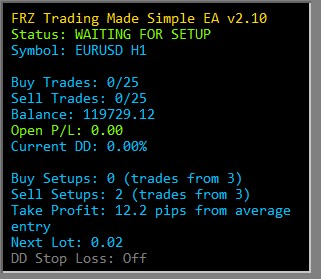
The panel at the top-left of the chart shows what the EA is doing on this chart. Long lines wrap onto the next line. The EA manages its buy side (all its buy trades on this chart) and its sell side (all its sell trades) separately.
| HUD Item | Meaning |
|---|---|
| FRZ Trading Made Simple EA v… | Product name and the version you are running. |
| Status | WAITING FOR SETUP (green) – no trades are open and the EA is waiting for its next trade; normal. IN TRADE (green) – buy and/or sell trades are open on this chart. DD STOP LOSS HIT (red) – the Drawdown Stop Loss closed this chart’s trades within the last hour. The EA keeps trading normally afterwards. HEDGING ACCOUNT NEEDED (red, MT5 only) – the account is a netting account and the EA will not open trades. Use a hedging account. |
| Symbol | The chart symbol and timeframe the EA trades, e.g. EURUSD H1. |
| Buy Trades / Sell Trades | Number of this EA’s open buy and sell trades on this chart, out of the maximum of 25 per side. Example: Buy Trades: 3/25. At 25 the EA opens no more trades on that side until it closes. |
| Balance | Account balance. |
| Open P/L | Floating profit/loss of this chart’s open trades (buys and sells together), including swap (on MT4 also commission). Green when 0 or above, red when negative. |
| Current DD | This chart’s floating loss as a % of the balance. Example: a loss of $50 on a $10,000 balance shows 0.50%. This is the number the Drawdown Stop Loss (setting 1) is compared with. |
| Buy Setups / Sell Setups | How many trade setups in the same direction the EA has seen in a row. A buy setup resets the sell count to 0, and a sell setup resets the buy count. The first trade on a side opens at the 3rd setup in a row (trades from 3), and every further setup in the same direction adds one more trade at the new price – at most one per candle and 25 per side.Example: Sell Setups: 2 (trades from 3) – one more sell setup opens the first sell trade.When the EA is attached or MetaTrader restarts, it re-reads the recent chart history to restore these counts, so they do not start from 0. |
| Take Profit | The current profit target in pips. It adapts to the market’s recent volatility, so it changes from candle to candle and is different on each pair and timeframe. Each side closes all its trades together once price has moved more than this distance beyond that side’s average entry price. Example: three 0.01-lot buys at 1.08500, 1.08300 and 1.08100 have an average entry of 1.08300. With Take Profit: 12.2 pips from average entry, all three buys close once the Bid price rises above 1.08300 + 0.00122 = 1.08422. |
| Next Lot | The lot size the next trade will use. The EA calculates it from your balance and the current market volatility and rounds it to your broker’s lot step. It is never below the broker’s minimum lot, so on most accounts it is 0.01. Example: the screenshot above shows Next Lot: 0.02 on a balance of $119,729 on EURUSD H1. |
| DD Stop Loss | The Drawdown Stop Loss setting, e.g. 10.0%, or Off (gray) when it is 0. |
| Last | The last action on this chart, e.g. Last: Buy 1 opened, Last: Sell 4 opened, Last: Buys closed: Take Profit or Last: Sells closed: Drawdown Stop Loss. Not shown until the first action after the EA is attached. |
Input Settings
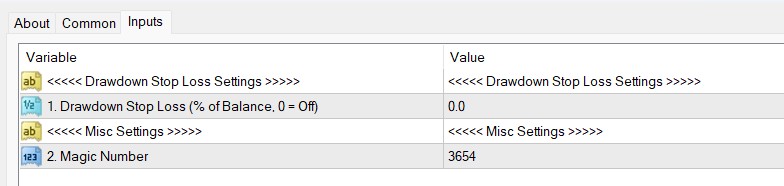
The EA is plug-and-play: entries, lot size and take profit are automatic. There are only two settings.
| No. | Setting | Explanation |
|---|---|---|
| Drawdown Stop Loss Settings | ||
| 1 | Drawdown Stop Loss (% of Balance, 0 = Off) | Closes all of this EA’s trades on this chart – buys and sells – when their combined floating loss (including swap; on MT4 also commission) reaches this % of the account balance. Default 0.0 = off: trades then have no stop loss at all and stay open until their side reaches its take profit. It applies per chart, not to the whole account. After it triggers, the HUD shows DD STOP LOSS HIT for one hour, and the EA continues to trade normally. Example: balance $2,000, setting 20 -> all trades on this chart are closed when they are $400 down together (20% of $2,000). Lower = smaller losses, but trades are closed more often before they can recover. Higher = more room, bigger possible loss. |
| Misc Settings | ||
| 2 | Magic Number | An ID number the EA writes on its trades so it only manages its own. Default 3654. Each chart manages only its own symbol, so charts of different pairs can share the same number. If you attach the EA to two charts of the same pair (e.g. EURUSD H1 and EURUSD H4), give each chart a different number, e.g. 3654 and 3655 – otherwise both charts manage the same trades. Also change it if another EA on the same account and pair uses 3654. |
Set Files
FRZ Trading Made Simple EA does not use .set files. Most settings (lot sizing, take-profit distances, drawdown thresholds, etc.) are dynamic and adapt to your account balance and current market conditions, so a fixed .set file would not reflect the correct values for your account. Use the Input Settings table above as your starting configuration instead.
Troubleshooting
| Issue | What to check |
|---|---|
| EA is attached but opens no trades | 1. AutoTrading / Algo Trading is on (green button) and live trading is allowed on the EA’s Common tab. 2. Waiting is normal: the first trade on a side needs 3 setups in a row in the same direction. Watch the Buy Setups / Sell Setups rows on the HUD. On higher timeframes this can take days. 3. MT5: the status is not HEDGING ACCOUNT NEEDED (see below). 4. The side is not full: Buy Trades: 25/25 or Sell Trades: 25/25 means no more trades on that side until it closes. |
| MT5: HUD shows HEDGING ACCOUNT NEEDED | The account is a netting account, which cannot hold buys and sells on the same symbol at the same time. The Experts tab shows [FRZ Trading Made Simple EA] This EA needs a hedging account (buys and sells are held at the same time); no trades will be opened on this netting account. Open a hedging account with your broker (in MT5: File > Open an Account, or ask your broker) and attach the EA there. |
| Buy and sell trades are open at the same time | Normal. The EA manages its buy side and sell side separately, and each side closes at its own take profit. |
| No stop loss on my trades | Normal – the EA adds trades at new prices instead of using a stop loss. Use the Drawdown Stop Loss (setting 1) to cap the loss. |
| The EA keeps adding trades while the market moves against them | Normal – every further setup in the same direction adds a trade at the new price, which moves that side’s average entry and its take profit closer to the market. A side never has more than 25 trades. Use a sufficient deposit (see Quick Specifications) and, if you want, the Drawdown Stop Loss. |
| Lot size is bigger than expected on a small account | The lot is never below your broker’s minimum lot (usually 0.01). The Experts tab then shows e.g. [FRZ Trading Made Simple EA] Calculated lot 0.00 is below the broker minimum; using 0.01 lot. once – this is information, not an error. Use a cent account or increase the deposit. |
| Two EURUSD charts close each other’s trades | Both charts use the same Magic Number on the same pair. Give each chart a different Magic Number (setting 2). |
| Settings look wrong after updating the EA | MetaTrader can keep old input values when a new version is attached. Remove the EA from the chart, attach it again and click Reset on the Inputs tab before changing any setting. |
Experts/Journal tab shows [OrderSend] Failed |
The broker rejected the trade. The error number (MT4) or retcode= number (MT5) at the end of the line explains why – most often not enough margin, the market is closed, or trading is disabled for the symbol. |
Get Support
Online AI chat: https://t.me/FRZSupportBot
Discord Forum: https://www.frzsoftware.com/discord
Useful Links
Recommended VPS: https://www.frzsoftware.com/getvps
Join VIP Club: https://www.frzsoftware.com/vipclub
Social Links: https://www.frzsoftware.com/socials
Disclaimer
Our software is provided “as is”, without any warranty or condition of any kind, express, implied or statutory. You are advised to do necessary testing on demo accounts before using the software on a live account. Trading carries a high level of risk to your capital and you should only trade with money you can afford to lose. Past performance of any trading system is not necessarily indicative of future results.