
FRZ Prop Trading Master – User Manual
- Related Product: FRZ Prop Trading Master
- Browse Similar Tools: Prop Firm Trading Tools
- Before You Start
- WebRequest Setup
- Installation
- Demo Version
- Quick Specifications
- On-Chart HUD Panel
- Input Settings
- Set Files
- Troubleshooting
- Get Support
- Useful Links
Video Guide
(These videos are from an older version of the EA – always consider the written text below as the updated guide for installation, settings, and hedging. New videos are planned.)
Before You Start
- Enable Algo Trading / AutoTrading in your trading platform.
- Attach the EA to one chart only – it trades every pair in your Trading Symbols list from that single chart.
- For MT5, use a hedging account (netting accounts are not supported) – the EA opens multiple same-symbol positions per pair (DCA baskets, hedge mirrors) that a netting account would merge together incorrectly.
- Full versions require a valid license. The demo version does not require a license and only runs in the Strategy Tester.
- WebRequest access to https://frzserver.com is required for the full version (license check, live server analytics engine, and news filter).
- If you plan to use the Hedging Module, you need two separate trading accounts (ideally different brokers) and two chart instances of this EA – one set to Account Role = Prop Account, the other to Account Role = Hedge Account.
- If you enable Drawdown Recovery, attach the EA to one of the 7 true USD major pairs (EURUSD, GBPUSD, USDJPY, USDCHF, AUDUSD, USDCAD, NZDUSD) for best results – not required, just where the recovery ladder trades best.
- Single Shot Mode: if you use this mode, make sure you increase the take profit to at least 1.5x-2x of the stop loss.
WebRequest Setup
1. Open Tools > Options > Expert Advisors.
2. Enable Allow WebRequest for listed URL.
3. Add this URL: https://frzserver.com
4. Click OK and restart the EA if needed.
Installation
MT4 Installation
1. Download the MT4 version of the EA.
2. Copy the .ex4 file into your MT4 MQL4/Experts folder.
3. Restart MT4 or right-click the Navigator panel and select Refresh.
4. Attach the EA to any chart set to the M15 timeframe.
5. Set Account Role to Prop Account (or Hedge Account, on your dedicated hedge-side terminal).
6. Enable AutoTrading.
MT5 Installation
1. Download the MT5 version of the EA.
2. Copy the .ex5 file into your MT5 MQL5/Experts folder.
3. Restart MT5 or right-click the Navigator panel and select Refresh.
4. Attach the EA to any chart – it auto-switches that chart to M15 on live/demo.
5. Set Account Role to Prop Account (or Hedge Account, on your dedicated hedge-side terminal).
6. Enable Algo Trading.
Demo Version
The demo version is backtest-only (Strategy Tester) – it will not initialize if attached to a live or demo chart. No license check is required.
The Prop Loss Protection module (Daily Loss, Max Loss, Profit Target) has no server dependency at all, so it is fully functional in the demo – you can backtest your actual prop firm’s rules exactly as they would behave live.
The demo is provided only to show general entry behavior and trade frequency, as backtesting may not produce the exact same entry accuracy as live trading, since some functions aren’t available in the backtester:
- Live server analytics unavailable in backtester – only a local validation model is used instead.
- News filter unavailable in backtester.
- Hedging cannot be meaningfully backtested – it depends on a live second terminal writing a shared file, so it stays inactive in the Strategy Tester (the on-chart panel still shows every other feature so you know what the full version includes).
The demo version also has a limit of 15 initial trade entries per backtest (DCA add-ons do not count toward this limit), after which you may restart the test on a different pair or setting as necessary.
Quick Specifications
| Product name | FRZ Prop Trading Master |
| Platform supported | MT4 / MT5 |
| Timeframes supported | M15 |
| Trading pair(s) | Multiple major FX pairs at once, all from one chart. Works on the 28 major FX crosses (USD, EUR, GBP, JPY, CHF, AUD, CAD, NZD). Default list ships with 15 pairs, fully editable in Trading Symbols. |
| Suitable market sessions | All sessions by default (01:00-23:00 server time) – adjustable via EA Start/End Time. |
| Recommended min. deposit | Set Account Size to match your prop firm’s challenge size (e.g. $100,000). If running this on a personal/live account instead of a prop challenge, $500 minimum for Single Shot Mode, $1,000 minimum for Smart DCA Mode – cent accounts can be used as well. |
| Minimum leverage | The higher, the better – use the highest leverage available. However, 10:1 for Single Shot Mode and 50:1 for Smart DCA Mode can be recommended as bare minimums. Consider increasing your deposit if your leverage is only at the bare minimum. |
| VPS requirement | This software needs to run 24/7. A Windows VPS is recommended unless you can keep your own PC running continuously 24/7 – For a VPS, we can recommend this VPS provider. You can purchase the cheapest VPS Windows package with this provider (4GB RAM is usually enough as a minimum). More instructions on buying and setting up VPS are given on our VPS page. |
| Recommended broker | EA works on any broker that offers MetaTrader. However, we can recommend ICMarkets and if it is not available for your country, then we can recommend ICTrading. |
On-Chart HUD Panel
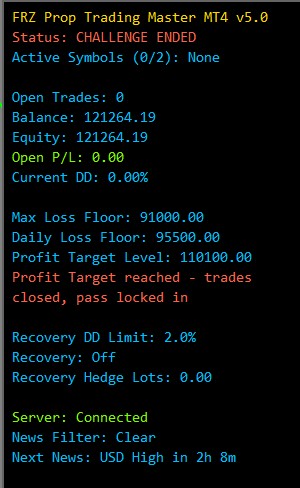
| HUD Item | Meaning |
|---|---|
| Title row | Product name and version identifier. |
| Status | Current state: MONITORING (flat, watching for setups), ACTIVE (at least one basket open), RECOVERY MODE (drawdown recovery engaged), DAILY LOSS HALT (today’s Daily Loss Limit hit – resumes automatically at the next Daily Reset Time), CHALLENGE ENDED (Max Loss or Profit Target hit – permanent halt for the life of the account), HEDGE-ONLY (NO TRADES) (Use only Hedging Module is enabled), WRONG SYMBOL / WRONG TIMEFRAME (backtest running on an unsupported symbol/timeframe). |
| Active Symbols (X/Y) | How many pairs currently have an open basket, out of your Max Concurrent Trading Symbols limit, followed by the symbol list. |
| Open Trades | Total open orders across every traded pair. |
| Balance | Current account balance. |
| Equity | Current account equity (balance plus floating P/L). |
| Open P/L | Total floating profit/loss across every open order. |
| Current DD | Current floating drawdown, as a % of balance. |
| Max Loss Floor | The account balance/equity level that triggers a permanent Max Loss halt, per your Max Loss settings. |
| Daily Loss Floor | Today’s daily-loss trigger level. Only shown if Max Daily Loss Limit is enabled (non-zero). |
| Profit Target Level | The equity level that locks in a pass and halts trading permanently. Only shown if Profit Target is enabled (non-zero). |
| Status message (red text) | Appears only when Loss Protection has halted trading – explains which limit was hit (e.g. “Profit Target reached – trades closed, pass locked in”). When the halt is permanent (CHALLENGE ENDED) on a live/demo chart, this line also reminds you to click the RESET GUARD button below – not shown while backtesting (see below). |
| RESET GUARD button | Appears below the panel on a live/demo chart. One click (with a confirmation prompt) clears this account’s Loss Protection guard state – the same action as the Reset Guard State input, without needing the Inputs dialog. Only use this to start a fresh challenge/test; never to work around a real Max Loss or Profit Target breach on a live account, since that defeats the entire purpose of the protection. Not shown while backtesting in the Strategy Tester – a permanent halt there just means that backtest run is over, not something to click past; re-run the test instead. |
| Recovery DD Limit | Your configured DD Recovery Threshold %. |
| Recovery | Off (Enable Drawdown Recovery disabled), Ready (enabled, not currently triggered), or Active (recovery engine currently running). |
| Recovery Hedge Lots | Current lot size held by the drawdown-recovery ladder’s own internal hedge, if active. Not related to the Hedging Module below. |
| Prop Hedge: Broadcasting (Stage X) | Only shown when Enable Hedging Module is on, on a Prop Account role instance – confirms this account is broadcasting its trades to the shared hedge file. |
| Server | Connection status to frzserver.com (live/demo only – not shown while backtesting). |
| News Filter | Clear, or Paused (n) if n of your traded pairs are currently paused for high-impact news (live/demo only). |
| Next News | The soonest upcoming high-impact news event across your traded pairs (live/demo only). |
In the demo version, the Server, News Filter, and Next News rows are shown in gray as “Inactive in Demo” rather than removed – so you can see every feature the full version includes even while backtesting.
Input Settings
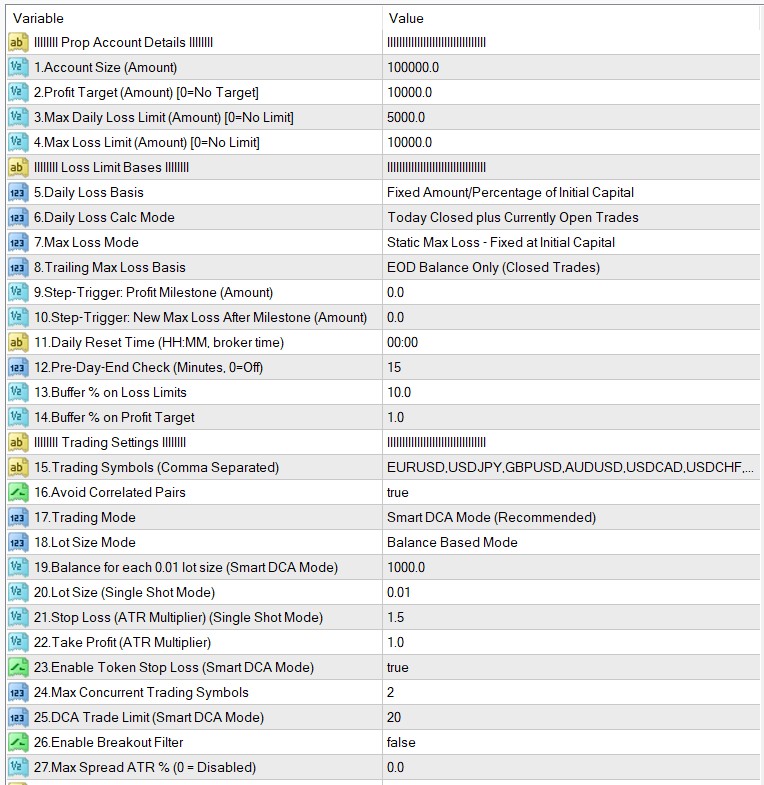
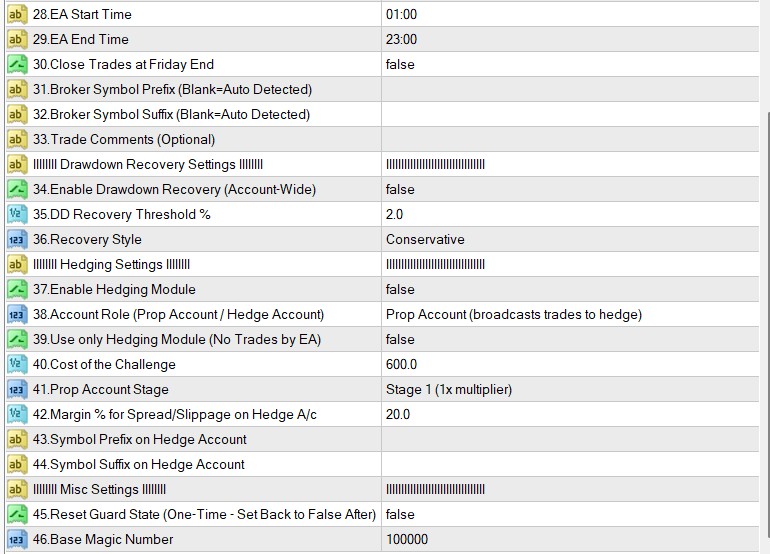
| No. | Setting | Explanation |
|---|---|---|
| Prop Account Details | ||
| 1 | Account Size (Amount) | Your prop firm’s challenge/funded account size, e.g. 100000 for a $100,000 account. Used as the reference point for every loss/profit calculation below. |
| 2 | Profit Target (Amount) [0=No Target] | The $ profit above Account Size that passes the challenge. The instant equity reaches Account Size + this amount (plus the small safety margin in setting 14), every trade closes and trading halts permanently – the pass is locked in. Set to 0 to disable (no profit target check at all, e.g. on a funded/live account). |
| 3 | Max Daily Loss Limit (Amount) [0=No Limit] | Your prop firm’s daily loss limit in dollars. Set to 0 to disable entirely (some firms, e.g. FundedNext Stellar Instant, have no daily loss rule). |
| 4 | Max Loss Limit (Amount) [0=No Limit] | Your prop firm’s overall max loss limit in dollars. This is always a fixed dollar figure set once – it is never recalculated as a live percentage of a moving balance, matching how firms like FTMO define it (“10% of the Initial Capital”, not of the current balance). |
| Loss Limit Bases | ||
| 5 | Daily Loss Basis | What the Daily Loss Limit is measured against – both options re-snapshot every day at your Daily Reset Time, so a daily breach always releases the next day (only Max Loss is ever permanent). “Fixed Amount/Percentage of Initial Capital” – uses your plain account balance at the start of each day (used by FTMO, FundedNext Standard/Stellar). “Higher of Prior-Day Balance & Equity” – uses whichever of yesterday’s closing balance or equity was higher (used by The5%ers, Funding Pips, E8, Alpha Capital Group). |
| 6 | Daily Loss Calc Mode | Whether today’s already-closed trades count toward the daily figure. “Today Closed plus Currently Open Trades” is the number virtually every firm uses (a closed profit earlier today directly offsets a floating loss right now). “Currently Open Trades Only” ignores closed trades completely and judges purely on floating P/L – matches a firm that explicitly disregards closed trades. |
| 7 | Max Loss Mode | Static Max Loss – the reference never changes, it’s always Account Size (FTMO 2-Step, FundedNext Standard/Stellar, MyFundedFX, E8 Pro v2, Funding Pips 1/2-Step, most Alpha Capital Group plans). Trailing Max Loss – the reference is a high-water mark that ratchets up once per day and can never move back down (FTMO 1-Step, E8 One/Zero, Funding Pips Zero, Alpha One). Stepped Max Loss – the reference stays Account Size, but the loss Amount itself permanently drops once, the first time a profit milestone (settings 9-10) is crossed (Instant Funding’s “Smart Drawdown”). |
| 8 | Trailing Max Loss Basis | Only read when Max Loss Mode = Trailing. “EOD Balance Only (Closed Trades)” – the daily high-water-mark snapshot ignores any floating P/L still open at reset time (FTMO 1-Step, E8 One/Zero). “Higher of EOD Balance & Equity” – a floating profit sitting open right at reset time can raise the high-water mark even before it’s realized (FundedNext Stellar Instant). |
| 9 | Step-Trigger: Profit Milestone (Amount) | Only read when Max Loss Mode = Stepped. The $ profit above Account Size that fires the one-time Max Loss reduction below – e.g. Instant Funding’s GO Account fires at +$5,000 (+5%) profit. |
| 10 | Step-Trigger: New Max Loss After Milestone (Amount) | Only read when Max Loss Mode = Stepped. The new, usually smaller, Max Loss Limit that permanently replaces setting 4 once the milestone above is crossed – e.g. Instant Funding drops from $10,000 (10%) to $5,000 (5%). This cannot un-fire, even if balance later falls back below the milestone. |
| 11 | Daily Reset Time (HH:MM, broker time) | The broker server time your trading day rolls over and the Daily Loss reference resets. Your platform only knows server time, not your prop firm’s own rule timezone, so convert manually – e.g. if FTMO resets at 00:00 CET and your broker’s server clock runs GMT+3, enter “02:00” here, not “00:00”. |
| 12 | Pre-Day-End Check (Minutes, 0=Off) | How many minutes before the Daily Reset Time the EA starts asking “if this open trade is still here at rollover, will it alone breach tomorrow’s fresh daily limit?” – and force-closes early if so, rather than letting the account wake up already in breach. Only relevant when Daily Loss Calc Mode = Today Closed plus Currently Open Trades. Default is 15 minutes to automatically protect FTMO and similar prop challenges from overnight rollover breaches. Set to 0 to disable. |
| 13 | Buffer % on Loss Limits | Makes the EA react a bit before your real Daily Loss / Max Loss limit, as a safety margin for the forced close’s own slippage/spread cost. E.g. with a $10,000 Max Loss and a 10% buffer, the EA actually closes at $9,000 of loss, not $10,000. Recommended 5-10%. |
| 14 | Buffer % on Profit Target | Grows the required Profit Target amount slightly so the account’s settled balance – after the forced close’s own cost – still clears your prop firm’s real target, instead of landing just under it. E.g. with a $10,000 target and a 1% margin, the EA waits for $10,100 of profit before locking in the pass. Default 1.0. |
| Trading Settings | ||
| 15 | Trading Symbols (Comma Separated) | The list of pairs the EA trades, all from this one chart. Default: EURUSD, USDJPY, GBPUSD, AUDUSD, USDCAD, USDCHF, NZDUSD, EURJPY, EURGBP, GBPJPY, EURAUD, EURCHF, EURCAD, AUDJPY, GBPCHF, GBPCAD, GBPAUD, AUDCAD, AUDNZD, EURNZD. |
| 16 | Avoid Correlated Pairs | When enabled (default: True), dynamically calculates mathematical Pearson correlation across open pairs and blocks opening new trades that compound directional risk in strongly correlated pairs (e.g. going Long on EURUSD and Long on GBPUSD simultaneously, or Long on EURUSD and Short on USDCHF). Allows hedging or counter-directional trades. Set to False to trade all signal pairs independently. |
| 17 | Trading Mode | Smart DCA Mode (Recommended) averages into a basket with a shared weighted-average take profit, and no hard per-order stop loss (other than the optional Token Stop Loss, setting 23). Single Shot Mode places one order per signal with its own ATR-based stop loss and take profit. |
| 18 | Lot Size Mode | Balance Based Mode sizes each entry as a % of account balance (via setting 19). Fixed Lot Mode always uses the fixed lot size in setting 20. |
| 19 | Balance for each 0.01 lot size (Smart DCA Mode) | Only used in Balance Based Mode. Every this-much balance adds another 0.01 lots to the entry size. |
| 20 | Lot Size (Single Shot Mode) | Only used in Fixed Lot Mode – the fixed lot size for every entry. |
| 21 | Stop Loss (ATR Multiplier) (Single Shot Mode) | Only applies in Single Shot Mode. Stop loss distance as a multiple of ATR(50) at entry – e.g. 1.5 means 1.5x the ATR value in price distance. Important: if you use Single Shot Mode, make sure you increase the take profit to at least 1.5x-2x of the stop loss. |
| 22 | Take Profit (ATR Multiplier) | Take profit distance as a multiple of ATR(50) at entry, used by both trading modes. |
| 23 | Enable Token Stop Loss (Smart DCA Mode) | Some prop firms require every trade to carry a broker-visible stop loss as a formality. Enabling this adds one to every DCA-mode order, sized well beyond what your Max Loss Limit would already have closed the account on – it should never realistically be hit. If your prop firm allows trading without a stop loss, you can leave this off. |
| 24 | Max Concurrent Trading Symbols | Caps how many different pairs can have an open basket at the same time. Existing baskets can still DCA-add freely past this limit – it only blocks opening a basket on a new pair. If you trade only a handful of pairs, consider using a longer Trading Symbols list to increase your overall trade frequency. |
| 25 | DCA Trade Limit (Smart DCA Mode) | Maximum number of open orders allowed in a single pair’s DCA basket. |
| 26 | Enable Breakout Filter | When on, blocks new entries while price sits outside a 200 EMA +/- 9x ATR(100) envelope on that pair (i.e. an already-overextended move). Reduces trade frequency somewhat in exchange for avoiding chasing extended moves. |
| 27 | Max Spread ATR % (0 = Disabled) | Optional spread filter for new baskets (not DCA adds) – if the current spread exceeds this % of ATR(14), the EA skips opening a new basket on that pair. Default 0 disables it. Live/demo only – always disabled while backtesting. |
| 28 | EA Start Time | Session start (broker server time, HH:MM) – the EA only opens new baskets within the Start-End window. |
| 29 | EA End Time | Session end (broker server time, HH:MM). If End is earlier than Start, the session wraps overnight. |
| 30 | Close Trades at Friday End | If your prop firm does not allow keeping positions open over the weekend, enable this – the EA flattens every trade it owns in the last ~3 hours of Friday, broker server time. If your prop firm allows weekend holding, leave this off. |
| 31 | Broker Symbol Prefix (Blank=Auto Detected) | Only needed if your broker adds a prefix to symbol names (e.g. “m.” in “m.EURUSD”). Leave blank for auto-detection. |
| 32 | Broker Symbol Suffix (Blank=Auto Detected) | Only needed if your broker adds a suffix to symbol names (e.g. “.cc” in “EURUSD.cc”). Leave blank for auto-detection. |
| 33 | Trade Comments (Optional) | Custom text for your trade comments. Leave blank to use the EA’s own default comments. |
| Drawdown Recovery Settings | ||
| Only enable Drawdown Recovery if your prop firm allows internal hedging (holding both a buy and a sell on the same pair at once) and allows trading with no fixed take profit/stop loss on every trade – the recovery ladder itself can do both. There is no guarantee this module recovers every drawdown; a long-running trend against the ladder can still push you toward your loss limits faster. | ||
| 34 | Enable Drawdown Recovery (Account-Wide) | Turns the account-wide drawdown recovery engine on or off. |
| 35 | DD Recovery Threshold % | The account-wide open drawdown % that triggers the recovery engine. Since the ladder itself needs drawdown room to operate, keep this well below your Daily/Max Loss buffers – e.g. 2% if your daily limit is 5%. |
| 36 | Recovery Style | Conservative, Normal, or Aggressive – controls the recovery ladder’s grid spacing, max trade count, and lot-scaling factor. Conservative recovers more slowly with less risk; Aggressive recovers faster with more risk. |
| Hedging Settings | ||
| The Hedging Module lets you recover the cost of a prop firm challenge by mirroring your prop account’s trades, reversed, onto a separate real/hedge account at a different broker – you do not need your prop firm’s consent for this, since the prop firm has no way to see the hedge account. Requires two separate EA instances (Account Role, setting 38) on two different accounts, ideally on the same PC/VPS. The hedge account’s lot size is calculated automatically from settings 40-42 – it cannot be set manually. | ||
| 37 | Enable Hedging Module | Turns the hedging module on or off. |
| 38 | Account Role (Prop Account / Hedge Account) | Prop Account – this instance trades normally and broadcasts its own trades to the shared hedge file. Hedge Account – this instance does nothing else at all; it only reads that file and mirrors reversed, stage-scaled trades. Set this correctly on both terminals before enabling AutoTrading. |
| 39 | Use only Hedging Module (No Trades by EA) | When enabled on a Prop Account role instance, this EA never opens its own trades – it only broadcasts/protects. Use this if you want to trade the prop account manually or with another EA while still using this EA’s hedging and loss-protection modules. |
| 40 | Cost of the Challenge | How much you paid for the prop firm challenge/reset. Used, along with settings 41-42, to size the hedge account’s lots so a full loss on the prop account is offset by the hedge account’s gain. |
| 41 | Prop Account Stage | Stage 1, Stage 2, or Funded Account – which stage of your prop firm’s evaluation you’re currently on. Funded accounts use a larger hedge multiplier, since losing a funded account is more costly than losing an evaluation stage. |
| 42 | Margin % for Spread/Slippage on Hedge A/c | An extra margin added to the hedge account’s lot sizing to compensate for price/spread/commission/slippage/swap differences between the two brokers. Default 20%. |
| 43 | Symbol Prefix on Hedge Account | Same idea as setting 31, but for the hedge account’s own broker/symbol naming. |
| 44 | Symbol Suffix on Hedge Account | Same idea as setting 32, but for the hedge account’s own broker/symbol naming. |
| Misc Settings | ||
| 45 | Reset Guard State (One-Time – Set Back to False After) | One-shot switch that clears this account’s Loss Protection guard state – including a permanent CHALLENGE ENDED halt – without deleting Global Variables by hand. Set to true and reattach the EA to clear it, then set it back to false afterward (MQL inputs can’t be changed by the EA itself, so this step is manual). The on-chart RESET GUARD button (see the On-Chart HUD Panel section above) does the same thing with one click and a confirmation prompt, and is the easier option for most users. |
| 46 | Base Magic Number | The EA derives its own unique magic numbers (per traded pair, plus recovery/hedge magics) from this base value. Change it only if you need to run more than one instance on the same account with different Trading Symbols lists – each instance needs its own Base Magic Number. |
Set Files
FRZ Prop Trading Master does not use .set files. Most settings (lot sizing, ATR-based distances, drawdown thresholds, prop-firm loss/profit references, etc.) are dynamic and adapt to your account balance, current market conditions, and your prop firm’s own rules, so a fixed .set file would not reflect the correct values for your account. Use the Input Settings table above as your starting configuration instead – start with the Loss Limit and Loss Limit Bases settings matching your specific prop firm’s published rules.
Single Shot Mode: if you use this mode, make sure you increase the take profit to at least 1.5x-2x of the stop loss.
Troubleshooting
| Issue | What to check |
|---|---|
| HUD shows “WRONG TIMEFRAME” | Backtest the EA on the M15 timeframe. Live/demo charts auto-switch to M15 on attach, so this only appears in the Strategy Tester. |
| HUD shows “WRONG SYMBOL” | Backtest on one of the 28 major FX crosses (not metals, indices, crypto, or exotics). Live trading is not symbol-restricted – it trades your Trading Symbols list regardless of the chart’s own symbol. |
| HUD shows “DAILY LOSS HALT” | Expected behavior – today’s Max Daily Loss Limit has been reached. Trading resumes automatically at the next Daily Reset Time. |
| HUD shows “CHALLENGE ENDED” | Expected behavior – either Max Loss or Profit Target has been reached. This halt is permanent for the life of this challenge/account and survives an EA/terminal restart by design, so an unplanned restart can never silently resume trading on a genuinely failed/passed challenge. On a live/demo chart, start fresh by clicking the on-chart RESET GUARD button below the panel (confirms before acting), or by setting the Reset Guard State input to true, reattaching the EA, then setting it back to false. While backtesting, neither the button nor that option is shown – the halt only applies for the rest of that single test run; just re-run the backtest. |
| HUD shows “CHALLENGE ENDED” immediately on a fresh chart load, even though no challenge has actually run yet | The guard state is tied to your account login number in this terminal, not to “this session” – if this EA (or an earlier test with it) ever hit Max Loss or Profit Target on this account before, the halt persists across reloads by design. Click RESET GUARD (or use the Reset Guard State input) to clear it and start fresh. |
| “FRZ License” popup on attach | Confirm the account is licensed at frzsoftware.com/license, and that https://frzserver.com is added to your allowed WebRequest URLs (Tools > Options > Expert Advisors). |
| No trades opening | Confirm AutoTrading/Algo Trading is enabled, the chart is on M15, the current time is within your EA Start/End session window, Max Concurrent Trading Symbols hasn’t already been reached, and Loss Protection hasn’t halted trading (check the HUD’s Status row). |
| Demo backtest stopped opening new baskets partway through | Expected behavior – the demo version caps at 15 initial trade entries per test. See the Demo Version section above. |
| Hedge account not mirroring trades | Confirm both terminals are on the same PC/VPS, Account Role is set correctly on each (Prop Account vs Hedge Account), Enable Hedging Module is on for both, and the shared file has read/write permission in your MetaTrader Common Files folder. |
| EA won’t start on a second chart | Only one live instance is allowed per Base Magic Number. Either remove the EA from the other chart first, or give the new instance its own Base Magic Number. |
Get Support
Online AI chat: https://t.me/FRZSupportBot
Discord Forum: https://www.frzsoftware.com/discord
Useful Links
Recommended VPS: https://www.frzsoftware.com/getvps
Join VIP Club: https://www.frzsoftware.com/vipclub
Social Links: https://www.frzsoftware.com/socials
Disclaimer
Our software is provided “as is”, without any warranty or condition of any kind, express, implied or statutory. You are advised to do necessary testing on demo accounts before using the software on a live account. Trading carries a high level of risk to your capital and you should only trade with money you can afford to lose. Past performance of any trading system is not necessarily indicative of future results.