
FRZ Prop Trading Master – User Manual
- Related Product: FRZ Prop Trading Master
- Browse Similar Tools: Prop Firm Trading Tools
FRZ Prop Trading Master can be used to pass prop firm challenges as well as for trading after getting funded. We recommend you use it on at least 20 forex pairs on your broker’s platform to increase trading. If you use it on a few pairs, you may not get the required no of trades to reach the target. However, the EA does not take simultaneous trades on related pairs. For instance, if a trade is taken on EURUSD, the EA would not take another trade on any pair that has EUR or USD.
Note on DEMO: DEMO works on the strategy only for trading. But still you can test the hedging function with the live charts. Make sure you have loaded the EA on both platforms and enable hedging under settings on both platforms. One platform should be set as the hedging account.
Installation and Usage Video (This video for an older version. Always refer to written content for the latest instructions)
Installation Steps
1. Go to MT4 => Options=>Expert Advisers and allow automated trading, DLL imports, and Web Requests and add the following URL to allowed URLs.
- https://frzserver.com
2. Place the EA file in the Experts folder of your MT4.
3. Refresh/restart MT4.
4. Open any currency chart and load the EA (latest version works on the 5min charts).
5. If your pair name has any prefix/suffix, add the pair name without such prefix/suffix under relevant setting.
6. Now add more currency pairs in the same way.
EA Specs
| Product name | FRZ Prop Trading Master |
| Platform Supported | MT4/MT5 |
| Time frames supported | M5 charts |
| Trading pairs | Any pair with USD, GBP, JPY, CAD, EUR, AUD, and NZD |
Settings
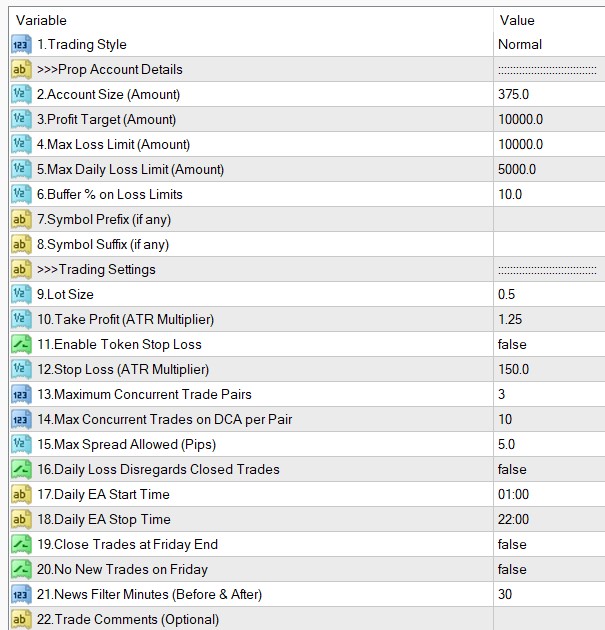
Setting Explanations
1.Trading Style: Here you can select either normal or aggressive mode. Aggressive mode uses less strict entry rules and therefore it will provide higher trading frequency with more trades. If you feel trading is too slow you may try this out. Also, you can use it if you are using the hedging function.
2. Account Size: This is the account size of your prop account such as $25,000, $50000, $100,000, etc.
3. Profit Target: This is the target profit amount you need to make. E.g. if your account size is 10000 & profit target is 10%, then add 1000 here.
4. Maximum Loss Limit: This is the maximum loss you can have in the account. For instance, if you have a 10000 account and your max loss is 1000, then your equity or balance can never go below 9000 at any time.
NB: Some prop firms might have a per-pair daily drawdown limit in addition to the overall account level drawdown limit. E.g. Overall daily drawdown is 5% but on a single pair, the daily drawdown limit is 2.5%. Our EA does not track drawdown on a pair level but only on an account level. In this case, a recommended approach would be using the lower drawdown limit (e.g. per-pair drawdown limit) as the account drawdown limit. In that case, we can further recommend you reduce the lot size also to a lower level (e.g. half of the normally recommended size).
5. Maximum Daily Loss Limit: You need to add your daily loss limit here. This EA by default follows the maximum daily loss concept followed by FTMO. The maximum daily loss is not a simple equity drawdown.
Maximum daily loss = result of closed positions of this day + result of open positions.
Example: Assume your maximum daily loss is 5,000. Your first two trades for the day closed with a 4,000 profit. Now your third trade goes into a drawdown of -6,000. In this case, the maximum daily loss rule is still not violated as your loss for the day is still -2,000.
NB: There is one caveat here, if your trade in the above case continues to the next day, then your result of the positions of the day becomes zero as it is a new day and your maximum daily loss becomes -6,000 and then your daily loss limit becomes automatically violated. Therefore the EA will check the result of the ongoing trades (without considering closed trades for the day) at 23:45 to see if the current trades continued to the next day, the maximum daily loss could be violated. If this is the case, the EA will close the trades at this check time.
NB: If your prop firm does not consider the results of the closed positions of the day, then you can set setting “Daily Loss Disregards Closed Trades” as true
6. Buffer % on Loss Limits: You can use a buffer on the daily loss and max loss here. For instance, if your max loss is 1000 (on a 10000 account) and you use 10 here as a buffer, then the EA will consider the max loss as 900. It is recommended that you add at least 5-10% of the actual limit as a buffer to be on the safe side.
7. Symbol Name Prefix: If our prop firm’s currency pair names include a prefix, you need to add it here. If your prop firm’s pair names have no such prefix, you can simply keep this setting blank.
- Example prefixes: deEURUSD, dmEURUSD, m.EURUSD => In these cases de, dm, m. should be added under the setting.
8. Symbol Name Suffix: If our prop firm’s currency pair names include a suffix, you need to add it here. If your prop firm’s pair names have no such suffix, you can simply keep this setting blank.
- Example suffixes: EURUSD.cc, EURUSDcash, EURUSDm => In these cases .cc, cash, m should be added under the setting.
If your pair name has both prefixes and suffixes, you need to add them under both settings.
9. Lot size: We recommend you start with 0.5 lot per each $100,000 balance as a conservative approach. For instance, if your account is $50,000, then start with 0.25 lots. You may increase the lot size gradually if you see you will not reach the target within the given period. This is the conservative approach. However, you can always have a bigger lot size if you want to speed up things. Please note higher lot sizes can increase the risk of reaching the loss limits.
NB: In case you use hedging module to cover the costs of the challenge in case you lose, then you can increase the lot size to make it quicker as you have no risk of losing the challenge cost.
10. Take Profit (ATR Multiplier): You can set the TP as 14-period ATR distance (Not in pips). Example: If the current ATR is 15 pips, and you add 1 here, then it means the TP is 15 pips. Thus, the ATR is dynamic and it changes every time you enter a trade.
11.Enable Token Stop Loss: This EA does not use any practical stop loss. Stop loss is simply used as a formality as some prop firms make it mandatory. The stop loss we use is usually large which we don’t expect to hit before the daily loss limit. You can enable token stop loss here.
Note: If your prop firm allows trading without stop loss, you can keep this as false.
12. Stop Loss (ATR Multiplier): Here you can set the previously described token stop loss. You can set the SL as 14-period ATR distance (Not in pips). You can change this setting but EA may increase it further.
13. Maximum Concurrent Trade Pairs: This is the no of concurrent pairs that you could have trades on. For instance, if you set this as 2, then you would get concurrent trades on only two pairs. Please note this is not a trade limit but a pair limit. You may have more than 2 trades if one pair gets into additional positions.
14. Max Concurrent Trades on DCA per Pair: This is the maximum no of trades that a particular pair can have at any given time. For instance, if you put 5 here, any single pair would not have more than 5 trades at any time.
15. Max Spread Allowed (Pips): If the spread is more than the amount set here, the EA would not take new trades (not applicable for DCA additional positions).
16. Daily Loss Disregards Closed Trades: If your prop firm does not consider the results of the closed positions of the day for the maximum daily loss calculation, then you should set this as true. Under this method, the maximum daily loss is equal to the result of open positions. In other words, the daily loss is simply your equity drawdown.
Example: Assume your maximum daily loss is 5,000. Your first two trades for the day closed with a 4,000 profit. Now your third trade goes into a drawdown of -6,000. In this case, you have simply violated the daily loss limit as now the EA does not consider the closed trades’ profit for the daily loss calculation.
17-18.Daily EA Start/Stop Time: You can customize the EA running time here if necessary.
19. Close Trades at Friday End: Enabling this, you can automatically close any existing trades on Friday night at 23:45. This is useful if your prop firm does not allow keeping trades over the weekends. If your prop firm allows keeping trades over the weekend, then you should set this as false.
20. No New Trades on Friday: If this is true, EA will not take new trades on Friday. However, any existing trades may continue until Friday. If your prop firm does not allow to keep trades over the weekend we recommend not trading on Fridays. If your prop firm allows keeping trades over the weekend, then you should set this as false.
21.News Filter Minutes (Before & After): EA has a built-in news filter. Here you can set the time period for the news filter in minutes. For instance, if you set this as 30, then the EA will not take new trades 30 mins before and after a major news release.
22. Trade Comments: Here you can add a custom comment to your trades.
Drawdown Recover Module
The EA comes with a drawdown recovery module that can be automatically activated when a certain threshold of drawdown occurs. However, you should only activate this module if your prop firm:
- Allows internal hedging (i.e. having both buy and sell trades for the same pair at the same time)
- Allows trading with no take profit or stop loss
Otherwise, you should not use this module as it could breach your prop firm rules.
NB: There is no guarantee that this module can recover drawdowns all the time. If the price changes again on a long term trend, then you may even reach the daily drawdown limits faster.
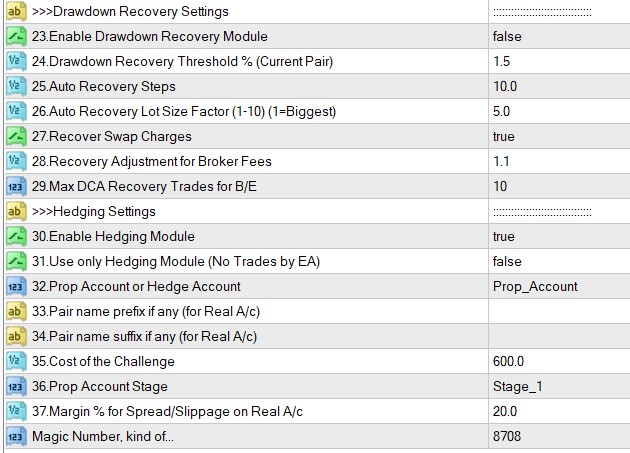
23.Enable Drawdown Recovery Module: Here you can enable or disable the module.
24.Drawdown Recovery Threshold % (Current Pair):
This is the drawdown level that activates the recovery module (use it without “%” sign). Please note this considers only the current symbol drawdown (to which the EA is attached) not the account drawdown. This is calculated as follows: Current loss from the current pair/Account balance x 100%.
In other words, EA works for the symbol/pair it is attached. Thus, symbol drawdown could be lower than the account drawdown.
Although you can use this with any drawdown, we recommend to have this value to be as less as possible. For instance if your daily drawdown limit is 5%, then use 1% or so as the recovery threshold. This is because the drawdown recovery module will also use DCA trading and will need some drawdown space to operate.
25.Auto Recovery Steps
EA tries to recover the loss piecemeal. For instance, if you have a drawdown of USD 1000, EA will try to recover the total loss part by part and close the original trades and the hedge trade once the hedge loss is fully recovered. You can adjust the no of parts with this setting. For instance if you use 10 here, EA would try to recover the drawdown in 10 parts.
NB: EA may adjust the no of steps depending on the market conditions and trading costs involved despite your settings here.
26.Auto Recovery Lot Size Factor (1-10) (1=Biggest)
This is an optional setting for auto recovery mode. You can have 1 to 10 here. This setting will affect the lot sizes of the recovery trades (1 = higher lot size while 10=lower lot size).
27.Recover Swap Charges
If you enable this, EA will consider the swap charges also to amount to be recovered. Please note swap charges will accumulate on a daily basis depending on your broker and it could become a significant amount if the trades continue over many days.
28.Recovery Adjustment for Broker Fees.
Here you can adjust the recovery amount for any potential broker fees other than swaps. Usually trading commissions, slippage, spreads, etc. can impact the total amount recovered and then the total amount recovered can be less than the actual drawdown amount. This setting can be used to minimize this difference. For instance, if you want to increase the amount to be recovered by 1%, then you need to set this as 1.01. If you want to increase it by 5%, then set this as 1.05.
29.Recovery DCA Max for B/E
If the no of recovery trades goes over this number, then the EA will try to close the those recovery trades at breakeven without waiting for the recovery step amount in order to minimize the risk. Please note this does NOT limit the no of recovery trades.
Hedging Module
With this module, you can hedge your prop firm trades against a real account from a different broker with a view to recover the cost of the prop firm challenge. You do not need any consent from your prop firm for this as there is no way that your prop firm knows that you are hedging.
NB: Please note you can not manually set the lot size on the hedging account. Lot size of the hedging account is determined by the EA on a preoperatory algorithm considering your input parameters such as account size, cost of the challenge and the stage of the challenge.
Video Introduction:
Important Matters:
- Before setting up the hedging module on the real/hedge account, please make sure you have set the setting exactly as in the prop account (this is different from what the video suggests but this is the latest instruction).
- For the hedging account, you need only one chart open with our EA (any pair), the EA will capture and copy all the trades from the master account.
- Both the Master account and the copy (slave) Meta Trader platforms should be installed on the same PC or VPS.
- Make sure you have no on-going trades on the slave/copy account as they will be closed by the EA.
- Partial closure of trades is not currently supported.
- The EA saves a shared csv file named, TradeCopy in the MetaTrader common folder. If you do not get trades copies, first please make sure that file and containing folders are read & write enabled under their properties. (File location: C:\Users\[user name]\AppData\Roaming\MetaQuotes\Terminal\Common\Files\TradeCopy.csv)
Deposit required on hedging account (Refer to above video for details)
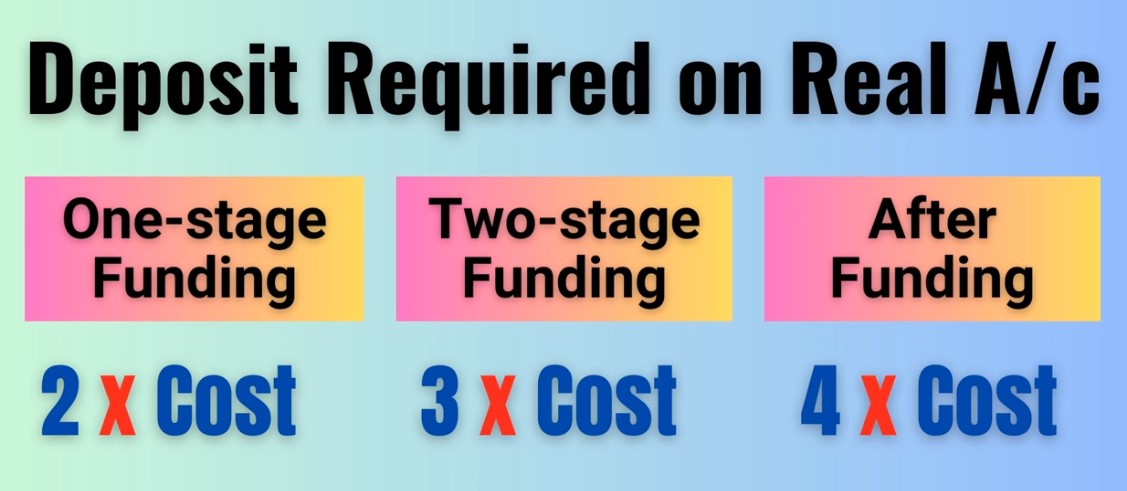
30.Enable Hedging Module: Here you can enable or disable the hedging module.
31.Use only Hedging Module (No Trades by EA): Here you can disable the trades by our EA and only use the hedging module. In this case, you may have to trade manually or use some other EA to trade your prop account.
32.Prop Account or Hedge Account: Here you select the hedge account if the account being used is the hedge/real account
33-34.Pair name prefix/suffix if any (for Real/hedge account): This is similar to previous settings on prefix/suffix. But this applies to the hedging account.
Pair Name Prefix: If your hedge account currency pair names include a prefix, you need to add it here. If there is no such prefix, you can simply keep this setting blank.
- Example prefixes: deEURUSD, dmEURUSD, m.EURUSD => In these cases de, dm, m. should be added.
Pair Name Suffix: If your hedge account currency pair names include a suffix, you need to add it here. If there is no such suffix, you can simply keep this setting blank.
- Example suffixes: EURUSD.cc, EURUSDcash, EURUSDm => In these cases .cc, cash, m should be added.
35.Cost of the Challenge: Here you need to add the cost of your prop firm account. This will be considered in deciding the lot sizes on the hedging account.
36.Prop Account Stage: Here you need to select your prop trading stage from stage 1, stage 2 and funded account. This will also be considered in deciding the lot sizes on the hedging account.
37.Margin % for Spread/Slippage on Real A/c: This is a margin you add to hedge account lot sizing to compensate for the differences in prices, spreads, commissions, slippages and swaps. This will also be considered in deciding the lot sizes on the hedging account.
Magic Number: This is a unique number identifying the EA. This number could be visible to the broker/prop firm. Therefore, it is recommended that you change this number to any other random number. Whatever the number you use, you need to make sure you use the same magic number on all the charts you open, otherwise EA will not function properly.