
FRZ Prop Buster – User Manual
- Related Product: FRZ Prop Buster
- Browse Similar Tools: Prop Firm Trading Tools
- Before You Start
- WebRequest Setup
- Installation
- DEMO Version
- Quick Specifications
- On-Chart Panel
- Input Settings
- Recommended Trading Pairs & Asset Considerations
- Set Files
- Troubleshooting
- Get Support
- Useful Links
Video Guide
(This video is from an earlier release — please refer to the written guide below for the updated multi-symbol v2.0 workflow and new settings.)
Before You Start
- Enable Algo Trading / AutoTrading in your MetaTrader platform toolbar before attaching the EA.
- For MT5, use a hedging account. Netting accounts are not supported.
- Attach the EA to one chart only (e.g. EURUSD M5). Its internal multi-symbol engine automatically scans and executes trades for all symbols specified in the PairList setting from that single chart.
- Full versions require a valid license registered at frzserver.com. The DEMO version does not require a license.
- Add
https://frzserver.comto your platform WebRequest URL whitelist for licensing and economic news updates. - Always test your chosen configuration in the MetaTrader Strategy Tester before deploying to a live evaluation.
WebRequest Setup
- In MetaTrader, open Tools > Options > Expert Advisors.
- Check the box Allow WebRequest for listed URL.
- Add the following URL:
https://frzserver.com - Click OK and restart or re-attach the EA.
Installation
MT4 Installation
- Download the MT4 package (
FRZ Prop Buster MT4 v2.0.ziporFRZ Prop Buster MT4 DEMO v2.0.zip). - Extract the
.ex4file from the zip archive. - In MT4, go to File > Open Data Folder, then navigate into
MQL4/Experts. - Copy the
.ex4file into theMQL4/Expertsfolder. - Restart MT4 or right-click the Navigator window and select Refresh.
- Open any M5 chart (e.g. EURUSD M5) and drag the EA onto the chart.
- In the Common tab, check Allow live trading and Allow DLL imports, then click OK.
MT5 Installation
- Download the MT5 package (
FRZ Prop Buster MT5 v2.0.ziporFRZ Prop Buster MT5 DEMO v2.0.zip). - Extract the
.ex5file from the zip archive. - In MT5, go to File > Open Data Folder, then navigate into
MQL5/Experts. - Copy the
.ex5file into theMQL5/Expertsfolder. - Restart MT5 or right-click the Navigator window and select Refresh.
- Open any M5 chart (e.g. EURUSD M5) and drag the EA onto the chart.
- In the Common tab, check Allow Algo Trading, then click OK.
DEMO Version
The DEMO build is intended strictly for Strategy Tester backtesting:
- Backtest-Only: The demo EA runs fully in the MT4 and MT5 Strategy Tester. If attached to a live or demo forward chart, it displays a notification and terminates execution to prevent unintended trading.
- No License Key Required: Server licensing validation is bypassed in the demo build.
- Full Feature Simulation: All core trading rules, multi-symbol scanning, ATR-based take profit, smart DCA recovery, and prop firm loss protection logic function in the tester exactly as in the Full version.
Quick Specifications
| Specification | Details |
|---|---|
| Product Name | FRZ Prop Buster |
| Platform Supported | MetaTrader 4 / MetaTrader 5 |
| Timeframes Supported | M5 (Execution Timeframe fixed to M5) |
| Trading Pair(s) | Default: EURUSD, GBPUSD, USDJPY, AUDUSD, USDCAD. Supports all FX pairs, Gold (XAUUSD), and Indices (US30). |
| Suitable Market Sessions | All Sessions (London, New York, Asian) |
| Recommended Min. Deposit | $5,000 (Designed for standard Prop Firm challenge tiers from $5,000 to $200,000+). Cent accounts supported on retail brokers ($50 deposit = 5,000 cents). |
| Minimum Leverage | 30:1 recommended for multi-pair scanning with conservative DCA. Higher leverage provides greater margin buffer. |
| VPS Requirement | This software needs to run 24/7. A Windows VPS is recommended unless you can keep your own PC running continuously 24/7 – For a VPS, we can recommend this VPS provider. You can purchase the cheapest VPS Windows package with this provider (4GB RAM is usually enough as a minimum). More instructions on buying and setting up VPS are given on our VPS page. |
| Recommended Broker | EA works on any broker that offers MetaTrader. However, we can recommend ICMarkets and if it is not available for your country, then we can recommend ICTrading. |
On-Chart Panel
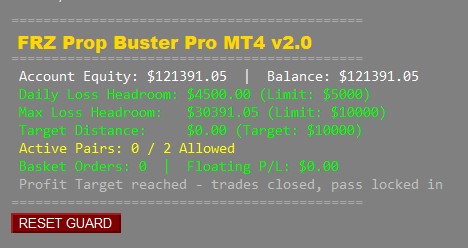
The on-chart dashboard delivers real-time visibility into your challenge metrics, risk exposure, and trading status:
| Panel Item | Description |
|---|---|
| Account Equity | Balance | Displays your current live balance and floating account equity. |
| Daily Loss Headroom (Limit) | Shows the remaining dollar amount you can lose today before breaching your Daily Loss Limit (including safety buffer). |
| Max Loss Headroom (Limit) | Shows the remaining equity dollar cushion before the overall static or trailing Max Loss Limit is reached. |
| Target Distance (Target) | Displays the remaining profit in dollars required to achieve your Profit Target milestone. |
| Active Pairs / Allowed | Indicates the number of currency pairs currently holding active open trades versus the maximum allowed by Max_Concurrent_Pairs. |
| Basket Orders | Floating P/L | Shows the total count of open positions across all active pair baskets and their aggregated floating profit or loss. |
| Status Notice / State | Displays live operational messages (e.g. active trading, news filter pause, or “Profit Target reached – trades closed, pass locked in”). |
| RESET GUARD Button | An interactive on-chart button that allows manual clearing/resetting of the prop loss protection halt state directly from the chart if needed. |
Input Settings
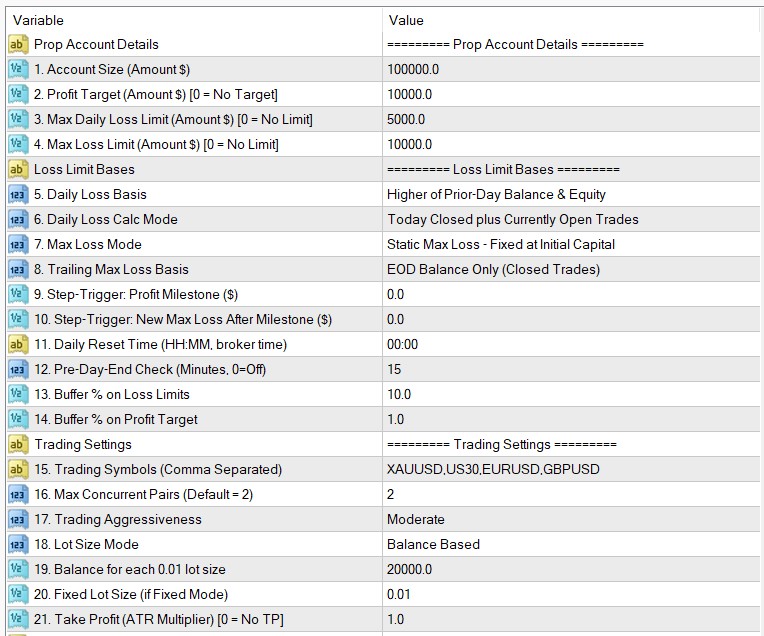
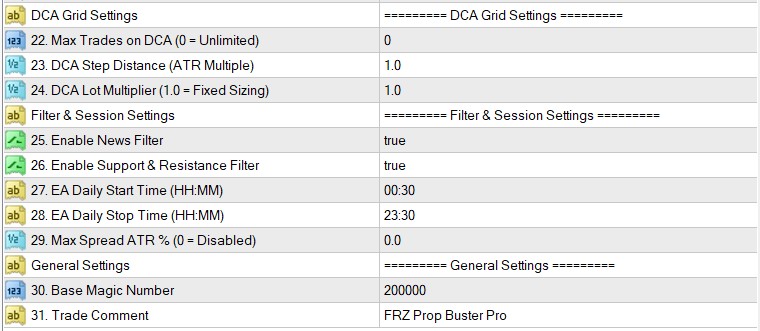
| No. | Setting | Default | Explanation |
|---|---|---|---|
| Prop Account Details | |||
| 1 | Account Size (Amount $) | 100000.0 | Your prop firm account challenge size (e.g. 10000, 25000, 50000, 100000). Used as the calculation base for lot sizing and targets. |
| 2 | Profit Target (Amount $) | 10000.0 | Target profit required to pass the challenge (e.g. 10000 for 10% on a 100k account). Set to 0 for no profit target limit. |
| 3 | Max Daily Loss Limit (Amount $) | 5000.0 | Maximum allowable daily loss in dollars (e.g. 5000 for 5% daily drawdown). Set to 0 to disable daily loss tracking. |
| 4 | Max Loss Limit (Amount $) | 10000.0 | Maximum allowable overall loss in dollars (e.g. 10000 for 10% max drawdown). Set to 0 to disable max loss tracking. |
| Loss Limit Bases | |||
| 5 | Daily Loss Basis | Prior Day Higher | Basis used to calculate the starting daily benchmark. Options: Prior Day Balance or Higher of Prior Day Balance & Equity (FTMO style). |
| 6 | Daily Loss Calc Mode | Closed + Open | Determines whether daily loss considers closed trades only or closed trades plus currently open floating loss. |
| 7 | Max Loss Mode | Static | Mode for overall maximum loss: Static (fixed from starting balance) or Trailing (trails high-water mark). |
| 8 | Trailing Max Loss Basis | End of Day Balance | Specifies how trailing max loss updates: based on End-of-Day closed balance or Real-Time balance/equity. |
| 9 | Step-Trigger: Profit Milestone ($) | 0.0 | Profit threshold milestone that triggers an adjustment to the max loss limit (0 = disabled). |
| 10 | Step-Trigger: New Max Loss ($) | 0.0 | The new max loss floor applied once the Profit Milestone is reached. |
| 11 | Daily Reset Time (HH:MM) | 00:00 | Broker server time at which the daily loss calculation resets for a new trading day. |
| 12 | Pre-Day-End Check (Minutes) | 15 | Minutes before Daily Reset Time to inspect open trades. If an open drawdown would breach the reset day’s limit, the EA closes positions early to safeguard the account (0 = off). |
| 13 | Buffer % on Loss Limits | 10.0 | Safety buffer percentage applied to daily and max loss limits (e.g. 10% buffer on a $5,000 limit triggers protection at $4,500 drawdown to prevent slippage breach). |
| 14 | Buffer % on Profit Target | 1.0 | Safety buffer percentage applied to the profit target to ensure target hit after spread and commission deductions. |
| Trading Settings | |||
| 15 | Trading Symbols (Comma Separated) | EURUSD,GBPUSD,USDJPY,AUDUSD,USDCAD | Comma-separated list of symbols scanned and traded from the single chart. Ensure ticker names match your broker’s exact Market Watch symbols. |
| 16 | Max Concurrent Pairs | 2 | Maximum number of different currency pairs that can hold open positions simultaneously. Limits overall market exposure. |
| 17 | Trading Aggressiveness | Moderate | Execution aggressiveness mode: Fast (1), Moderate (2), or Conservative (3). Controls signal sensitivity. |
| 18 | Lot Size Mode | Balance Based | Method used for position sizing: Balance Based (auto-calculated per balance increment) or Fixed Lot Size. |
| 19 | Balance for each 0.01 lot size | 20000.0 | Account balance required for each 0.01 lot when Balance Based mode is active (e.g. 0.05 lots on $100,000 with 20000 balance step). |
| 20 | Fixed Lot Size | 0.01 | Fixed trade volume used when Lot Size Mode is set to Fixed. |
| 21 | Take Profit (ATR Multiplier) | 1.0 | Virtual take profit distance expressed as a multiplier of the 14-period ATR on M5 (e.g. 1.0 = 1x ATR). Set to 0 for no fixed TP. |
| DCA Grid Settings | |||
| 22 | Max Trades on DCA | 0 | Maximum number of DCA recovery orders per basket (0 = Unlimited). Setting a cap limits drawdown exposure on strong trend days. |
| 23 | DCA Step Distance (ATR Multiple) | 1.0 | Distance between subsequent DCA grid orders expressed as an ATR multiplier. Adapts grid spacing dynamically to market volatility. |
| 24 | DCA Lot Multiplier | 1.0 | Volume multiplier applied to subsequent DCA orders (1.0 = linear fixed sizing; values > 1.0 increase order size). |
| Filter & Session Settings | |||
| 25 | Enable News Filter | true | When true, suppresses new trade entries before and after high-impact economic news releases. |
| 26 | Enable Support & Resistance Filter | true | When true, evaluates key price zones and prevents buying directly into confirmed resistance or selling directly into confirmed support. |
| 27 | EA Daily Start Time (HH:MM) | 00:30 | Daily server time after which initial trade entries are permitted. |
| 28 | EA Daily Stop Time (HH:MM) | 23:30 | Daily server time after which new initial entries pause (ongoing DCA baskets continue management). |
| 29 | Max Spread ATR % | 0.0 | Maximum spread expressed as a percentage of current ATR (0 = disabled). Protects against spread expansion during session rollovers. |
| General Settings | |||
| 30 | Base Magic Number | 200000 | Base identification number for trades. Each symbol in the PairList is allocated an offset magic number. |
| 31 | Trade Comment | FRZ Prop Buster Pro | Order comment attached to all trades opened by the EA. |
Recommended Trading Pairs & Asset Considerations
Why the 5 Default Major FX Pairs are Recommended for Prop Challenges
Default: EURUSD,GBPUSD,USDJPY,AUDUSD,USDCAD
For prop firm challenges (FTMO, FundedNext, E8, etc.) where strict 4%–5% daily drawdown limits apply, these 5 major forex pairs offer the optimal operational environment:
- Natural Intraday Mean Reversion: Major FX pairs frequently oscillate back and forth on the M5 timeframe. When an impulse pullback occurs, price typically retraces within 15–35 pips, allowing the smart DCA grid to close out in profit within 1 to 3 steps.
- Tight Spreads & Low Slippage: Institutional spreads on these 5 majors range from 0.0 to 0.4 pips across prop brokers, ensuring virtual ATR targets are not eroded by transaction friction.
- Manageable Daily Range (ATR): Average daily ranges on major forex pairs are 60–90 pips. This prevents sudden, uncontrollable basket drawdown accumulation.
- Multi-Session Diversification: Combined with
Max_Concurrent_Pairs = 2, the EA smoothly rotates capital across the London, New York, and Asian sessions without over-leveraging margin. - Automatic Breakeven Exit: In the rare event a DCA sequence reaches more than 10 trades, the EA automatically adjusts its basket target to breakeven, ensuring a safe exit as soon as price bounces.
Trading High-Beta Assets: Gold (XAUUSD) & Indices (US30, NAS100)
Traders often wish to trade Gold (XAUUSD / GOLD) and US Equity Indices (US30 / DJ30 / NAS100) due to their rapid price movements. While FRZ Prop Buster Pro includes point normalization for these instruments, they present substantial runaway-trend risks in prop firm environments:
- Unidirectional Velocity: Gold can move $30 to $60+ in a single directional wave without a minor pullback, while indices like US30 routinely run 600 to 1,000+ points on economic data or US market opens.
- Rapid Basket Accumulation: If an entry occurs against a strong impulse, an unrestricted DCA grid (
Max_DCA_Trades = 0) can rapidly trigger 8 to 15 recovery orders in a matter of minutes. - Risk of Daily Loss Breach: Because contract sizes for Gold and Indices have high dollar values per point, floating drawdown from an extended basket can quickly reach $3,000 to $4,500 on a $100k account, risking an immediate breach of the prop firm’s daily loss limit (typically 5%).
Mandatory Safe Configuration Rules for Gold & Indices
If you choose to add Gold or Indices to your PairList (or trade them exclusively), you must apply the following risk adjustments:
- Set
Max_Concurrent_Pairs = 1: Never trade Gold and an index (or Gold and a Forex pair) at the same time. All account margin and drawdown headroom must be dedicated exclusively to managing that single asset. - Cap the DCA Grid (
Max_DCA_Trades = 5to7): Do not leaveMax_DCA_Tradesat 0 (unlimited). Capping maximum allowable recovery trades prevents runaway trade accumulation during news rallies or trend days. - Widen the DCA Step Distance (
DCA_Step_ATR_Multiple = 1.5to2.0): Increase the step multiplier from 1.0 to 1.5 or 2.0. This spaces recovery orders $4.00–$6.00 apart on Gold (rather than $2.50), allowing the basket to withstand wider swings. - Reduce Base Lot Sizing (
Balance_For_Lot = 30000to50000): Because dollar point values are significantly higher on Gold and Indices, increaseBalance_For_Lotto keep starting lot sizes minimal (e.g. 0.02–0.03 lots on a $100k account). - Keep News & S/R Filters Active (
true): High-impact US news (CPI, NFP, FOMC) is the primary driver of catastrophic trends on Gold and Indices. The EA’s built-in S/R filter restricts buying directly below major resistance or selling directly above major support.
Set Files
FRZ Prop Buster does not use .set files. Most settings (lot sizing, ATR-based distances, drawdown thresholds, etc.) are dynamic and adapt to your account balance and current market conditions, so a fixed .set file would not reflect the correct values for your account. Use the Input Settings table above as your starting configuration instead.
Troubleshooting
| Issue | What to Check |
|---|---|
| EA displays “Instance lock active” and removes itself | Another chart or platform instance is already running FRZ Prop Buster Pro with the same Magic Number. Use one chart only. |
| EA does not take trades | 1. Verify Algo Trading is enabled. 2. Confirm the current time is between EA_Start_Time and EA_End_Time.3. Check if high-impact news is nearby (News Filter). 4. Check that symbols in PairList match your broker’s exact Market Watch ticker names. |
| Panel shows “Server: Not received” in red | Ensure https://frzserver.com is added to Tools > Options > Expert Advisors > Allow WebRequest. |
| Trades closed unexpectedly near day end | Pre_Day_End_Check_Minutes is active (default 15 minutes before reset). The EA automatically closed floating drawdown trades to prevent breaching the next day’s daily loss limit. |
| Orders fail with “Trade disabled” or context busy | Ensure your broker account is a Hedging account in MT5 and that your account has sufficient margin. |
Get Support
Online AI chat: https://t.me/FRZSupportBot
Discord Forum: https://www.frzsoftware.com/discord
Useful Links
Recommended VPS: https://www.frzsoftware.com/getvps
Join VIP Club: https://www.frzsoftware.com/vipclub
Social Links: https://www.frzsoftware.com/socials
Disclaimer
Our software is provided “as is”, without any warranty or condition of any kind, express, implied or statutory. You are advised to do necessary testing on demo accounts before using the software on a live account. Trading carries a high level of risk to your capital and you should only trade with money you can afford to lose. Past performance of any trading system is not necessarily indicative of future results.