
FRZ Prop Account Guard – User Manual
- Related Product: FRZ Prop Account Guard
- Browse Similar Tools: Prop Firm Trading Tools
Table of Contents
- Video Guide
- Before You Start
- Installation
- Quick Specifications
- On-Chart HUD Card & Controls
- Input Settings
- Set Files
- Troubleshooting
- Get Support
- Useful Links
Video Guide
(This video is from an earlier version – always refer to the written user manual for current parameters and features.)
Before You Start
- Free Product: FRZ Prop Account Guard is a 100% free utility. No license key or server activation is required.
- Single-Chart Attachment: Attach the EA to ONLY ONE chart on your MetaTrader terminal (any symbol, any timeframe). The EA automatically monitors all open trades across the entire account. Attaching it to multiple charts will cause duplicate management and is unnecessary.
- Terminal Permissions: Ensure AutoTrading (MT4) or Algo Trading (MT5) is enabled. Additionally, tick “Allow DLL imports” under Tools > Options > Expert Advisors. This permission is required so the EA can automatically turn off the terminal’s AutoTrading button when an account limit is breached.
- Server Clock Reference: All daily reset times and Friday close times are based on your broker’s Server Time (the time shown at the top of Market Watch), not your PC’s local clock.
Installation
MetaTrader 4 (MT4)
- Open MetaTrader 4 and navigate to File > Open Data Folder.
- Open the MQL4 > Experts folder.
- Copy
FRZ Prop Account Guard MT4 v3.10.ex4into this folder. - Restart MT4 or right-click Expert Advisors in the Navigator window and click Refresh.
- Drag the EA onto any single chart of your choice. In the Common tab, tick “Allow live trading” and “Allow DLL imports”.
MetaTrader 5 (MT5)
- Open MetaTrader 5 and navigate to File > Open Data Folder.
- Open the MQL5 > Experts folder.
- Copy
FRZ Prop Account Guard MT5 v3.10.ex5into this folder. - Restart MT5 or right-click Expert Advisors in the Navigator window and click Refresh.
- Drag the EA onto any single chart of your choice. In the Common tab, tick “Allow Algo Trading” and “Allow DLL imports”.
Quick Specifications
| Property | Specification |
|---|---|
| Supported Platforms | MetaTrader 4 (MT4) and MetaTrader 5 (MT5) |
| Product Type | Account Protection & Risk Guard Utility |
| Licensing | 100% Free / No License Required |
| Monitoring Scope | Entire Account (all open positions & resting pending orders) |
| Supported Markets | Forex, Crypto, Commodities, Indices, Synthetic Indices |
| Chart Attachment | Attach to 1 chart only (any timeframe) |
On-Chart HUD Card & Controls
Once attached to a chart, the EA displays a real-time dark card HUD with live account statistics and protection thresholds:
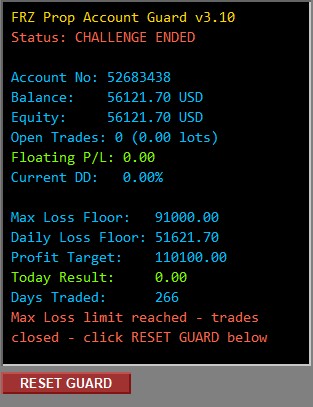
| Metric | Description |
|---|---|
| Status | Shows MONITORING (no trades), ACTIVE (trades open), DAILY LOSS HALT (daily loss floor tripped), or CHALLENGE ENDED (max loss or profit target reached). |
| Account No / Currency | Displays your current broker account login number, base currency, balance, and floating equity. |
| Open Trades & Lots | Total number of active market positions and cumulative lot size across all charts. |
| Floating P/L & Current DD | Real-time open floating profit/loss in currency and current floating drawdown percentage against account balance. |
| Max Loss Floor | The absolute account equity floor. If equity drops to this level, all positions and pending orders are force-closed. |
| Daily Loss Floor | The equity floor for today’s trading session. If breached, the EA closes all trades and halts trading for the remainder of the day. |
| Profit Target | The target equity level that locks in a challenge pass when achieved. |
| Today Result | Combined profit/loss for the current day (closed trades today + currently floating open profit/loss). |
| Days Traded | The count of days elapsed since the very first trade was opened in account history. |
Interactive RESET GUARD Button: Placed directly below the HUD card. When clicked, a confirmation dialogue appears asking if you wish to clear persisted guard state. Confirming clears any permanent halt flag and resets internal baselines for a new evaluation.
Input Settings
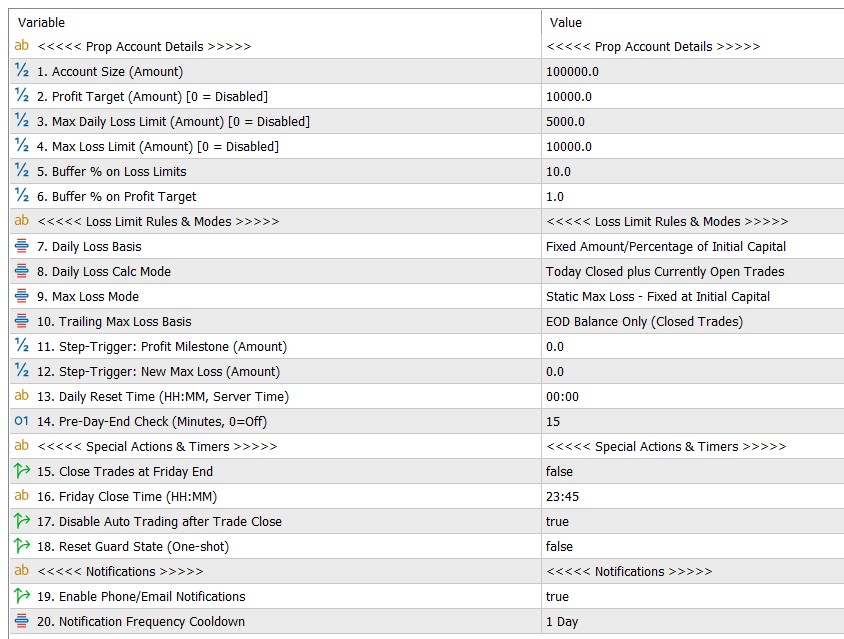
1. Prop Account Details
| # | Setting Name | Default | Description & Worked Example |
|---|---|---|---|
| 1 | 1. Account Size (Amount) | 100000.0 | Account Size ($ Amount): The initial nominal capital of your prop account. Example: For a $50,000 challenge, enter 50000. |
| 2 | 2. Profit Target (Amount) [0 = Disabled] | 10000.0 | Profit Target ($ Amount): Total profit required to pass the evaluation. Enter 0 to disable target management.Example: On a $100,000 account with a 10% target, enter 10000. When equity reaches $110,000, all trades close. |
| 3 | 3. Max Daily Loss Limit (Amount) [0 = Disabled] | 5000.0 | Max Daily Loss Limit ($ Amount): The maximum loss permitted in a single trading day before breach. Enter 0 to disable.Example: On a $100,000 account with a 5% daily limit, enter 5000. |
| 4 | 4. Max Loss Limit (Amount) [0 = Disabled] | 10000.0 | Max Overall Loss Limit ($ Amount): The maximum total drawdown permitted on the account before breach. Enter 0 to disable.Example: On a $100,000 account with a 10% maximum drawdown, enter 10000. |
| 5 | 5. Buffer % on Loss Limits | 10.0 | Buffer % on Loss Limits (%): Safety cushion applied to daily and max loss limits to absorb slippage during forced market closes. Example: If Daily Loss Limit is $5,000 and Buffer is 10%, the effective loss limit is $5,000 x (1 – 0.10) = $4,500. The EA triggers at -$4,500 rather than -$5,000, leaving a $500 safety buffer. |
| 6 | 6. Buffer % on Profit Target | 1.0 | Buffer % on Profit Target (%): Safety margin applied to the profit target so that post-close slippage and spreads do not settle the final balance below the target line. Example: If Profit Target is $10,000 and Target Buffer is 1%, the target level triggers at $10,000 x 1.01 = $10,100 profit above starting capital. |
2. Loss Limit Rules & Modes
| # | Setting Name | Default | Description & Worked Example |
|---|---|---|---|
| 7 | 7. Daily Loss Basis | Fixed Amount/Percentage of Initial Capital | Daily Loss Basis: Chooses the baseline reference used for the daily loss calculation. • Fixed Amount/Percentage of Initial Capital: Measures from starting balance (used by FTMO and FundedNext Standard).• Higher of Start-of-Day Balance or Equity: Measures from the higher of start-of-day balance or equity (used by The5%ers, Funding Pips, and Alpha Capital). |
| 8 | 8. Daily Loss Calc Mode | Today Closed plus Currently Open Trades | Daily Loss Calculation Mode: • Today Closed plus Currently Open Trades: Combined P/L of trades closed today plus currently open floating trades (standard FTMO model).• Currently Open Floating Trades Only: Only considers currently open floating loss, ignoring closed trades today. |
| 9 | 9. Max Loss Mode | Static Max Loss – Fixed at Initial Capital | Max Loss Calculation Mode: • Static Max Loss – Fixed at Initial Capital: Floor is fixed at (Initial Capital – Max Loss Amount). Floor never moves.• Trailing Max Loss (Ratchets Upward): Trailing max loss ratchets upward at daily rollover based on end-of-day high-water mark, never moving downward.• Step-Trigger (Swaps Loss Limit at Profit Target): Shifts to a tighter loss limit once a specified profit milestone is reached. |
| 10 | 10. Trailing Max Loss Basis | EOD Balance Only (Closed Trades) | Trailing Max Loss Basis (for Trailing Mode): • EOD Balance Only (Closed Trades): Ratchets based on closed balance at day rollover.• Higher of EOD Balance or Equity: Ratchets based on the higher of balance and equity at day rollover. |
| 11 | 11. Step-Trigger: Profit Milestone (Amount) | 0.0 | Step-Trigger Profit Milestone ($ Amount): For Step-Trigger mode, the profit level above initial capital that permanently swaps the max loss amount. Example: Set to 5000. When realized balance crosses $105,000, the step fires. |
| 12 | 12. Step-Trigger: New Max Loss (Amount) | 0.0 | Step-Trigger New Max Loss ($ Amount): The new max loss limit applied after the milestone fires. Example: Set to 3000. Once the milestone is hit, the maximum loss limit becomes $3,000 instead of $10,000. |
| 13 | 13. Daily Reset Time (HH:MM, Server Time) | 00:00 | Daily Reset Time (HH:MM, Server Time): The broker server time when your prop firm resets the daily loss counter. Default is midnight 00:00. |
| 14 | 14. Pre-Day-End Check (Minutes, 0=Off) | 15 | Pre-Day-End Check (Minutes, 0=Off): Checks open floating trades minutes before the day boundary. If floating loss would immediately breach tomorrow’s fresh daily budget after today’s realized profit drops out, trades are closed safely before rollover. Enter 0 to disable. |
3. Special Actions & Timers
| # | Setting Name | Default | Description & Worked Example |
|---|---|---|---|
| 15 | 15. Close Trades at Friday End | false | Close Trades at Friday End (true/false): Automatically force-closes all open positions and cancels resting orders at Friday close to prevent holding trades over the weekend. |
| 16 | 16. Friday Close Time (HH:MM) | 23:45 | Friday Close Time (HH:MM): Broker server time on Friday to trigger the weekend trade closure. Example: 23:45 closes all trades 15 minutes before Friday market close. |
| 17 | 17. Disable Auto Trading after Trade Close | true | Disable Auto Trading after Trade Close (true/false): When enabled, uses Windows API commands to automatically toggle off the terminal’s global AutoTrading button upon breach, preventing other trading EAs on your terminal from opening new trades. Note: Requires “Allow DLL imports” enabled. |
| 18 | 18. Reset Guard State (One-shot) | false | Reset Guard State (One-shot): Input switch to clear all persisted Global Variables and restart monitoring from scratch. If set to true, it clears state on load. Remember to set back to false afterward. |
4. Notifications
| # | Setting Name | Default | Description & Worked Example |
|---|---|---|---|
| 19 | 19. Enable Phone/Email Notifications | true | Enable Phone/Email Notifications (true/false): Sends instant push notifications to your MetaTrader mobile app and emails to your configured email address whenever trades are closed due to a breach or target hit. |
| 20 | 20. Notification Frequency Cooldown | 1 Day | Notification Frequency Cooldown: Minimum interval between repeated alert messages to prevent alert flooding. Default 1 Day (PERIOD_D1). |
Set Files
FRZ Prop Account Guard does not require external .set files. Prop firm evaluation rules differ across firms (e.g. FTMO, Funding Pips, The5%ers, FundedNext, E8). Simply enter your firm’s specific account size, daily limit, and max loss numbers directly into the EA input settings.
Troubleshooting
| Symptom | Cause | Solution |
|---|---|---|
| AutoTrading button did not turn off when trades closed | DLL imports are disabled in terminal settings | Go to Tools > Options > Expert Advisors and check “Allow DLL imports”. Check the same setting in the EA’s Common tab. |
| HUD displays “CHALLENGE ENDED” or “DAILY LOSS HALT” | A previous loss limit or profit target threshold was tripped | Click the on-chart RESET GUARD button and click “Yes” on the confirmation prompt to clear the persisted state. |
| Daily loss reset occurs at the wrong time | Mismatch between prop firm timezone and broker server clock | Verify your broker server time in Market Watch and adjust Daily_Reset_Time to match your prop firm’s rollover time in server time. |
| No mobile push notification received | MetaTrader mobile notifications not configured | In MT4/MT5, go to Tools > Options > Notifications, enable push notifications, and enter your MetaQuotes ID from your mobile app. |
Get Support
Online AI chat: https://t.me/FRZSupportBot
Discord Forum: https://www.frzsoftware.com/discord
Useful Links
Recommended VPS: https://www.frzsoftware.com/getvps
Join VIP Club: https://www.frzsoftware.com/vipclub
Social Links: https://www.frzsoftware.com/socials
Disclaimer
Our software is provided “as is”, without any warranty or condition of any kind, express, implied or statutory. You are advised to do necessary testing on demo accounts before using the software on a live account. Trading carries a high level of risk to your capital and you should only trade with money you can afford to lose. Past performance of any trading system is not necessarily indicative of future results.