
FRZ Gold Scalper – User Manual
- Related Product: FRZ Gold Scalper
- Browse Similar Tools: Gold Trading Tools
Contents
- Before You Start
- WebRequest Setup
- Installation
- Demo Version
- Video Guide
- Quick Specifications
- On-Chart HUD Panel
- Input Settings
- Set Files
- Troubleshooting
- Get Support
- Useful Links
Before You Start
- Enable Algo Trading / AutoTrading in your trading platform.
- For MT5, use a hedging account. MT5 netting accounts are not supported.
- Use the Strategy Tester first, especially before changing recovery settings.
- Attach the EA to one chart only unless instructed otherwise.
- Single Shot Mode: If you are using this mode, make sure you increase the take profit to at least 1.5x or 2x of the stop loss.
- Full versions require a valid license.
- Full versions require WebRequest access to
https://frzserver.com.
WebRequest Setup for Full Versions
- Open Tools > Options > Expert Advisors.
- Enable Allow WebRequest for listed URL.
- Add this URL:
https://frzserver.com. - Click OK and restart the EA if needed.
Installation
MT4 Installation
- Download the MT4 version of the EA.
- Copy the .ex4 file into your MT4 MQL4/Experts folder.
- Restart MT4 or right-click the Navigator panel and select Refresh.
- Attach the EA to the Gold (XAUUSD) chart on the M5 timeframe.
- Enable AutoTrading.
MT5 Installation
- Download the MT5 version of the EA.
- Copy the .ex5 file into your MT5 MQL5/Experts folder.
- Restart MT5 or right-click the Navigator panel and select Refresh.
- Attach the EA to the Gold (XAUUSD) chart on the M5 timeframe, on an MT5 hedging account.
- Enable Algo Trading.
Demo Version
DEMO versions are backtest-only and are intended for testing the EA in the MT4 or MT5 Strategy Tester. Specifically:
- Backtest-only – if attached to a live chart, it will show a notice and will not trade.
- No license check required.
- Server-based analytics/protection checks are disabled.
- The premium news filter is disabled.
- Limited to 30 trades per backtest run.
- Keeps the same visible input structure as the full version, so you can review the settings before upgrading.
Video Guide
(This is from an older version – always consider the written text here as the updated guide. We will replace this video with an updated walkthrough soon):
Quick Specifications
| Product name | FRZ Gold Scalper |
| Platform supported | MT4 or MT5 |
| Timeframes supported | 5 Minute Charts |
| Trading pair(s) | XAUUSD |
| Suitable market sessions | Works on any session |
| Recommended min. deposit | $500 Minimum for Single Shot Mode, $1500 Minimum for Smart DCA Mode (considering at least 1:500 leverage; if the leverage is lower, the deposit has to increase proportionately). |
| VPS requirement | This software needs to run 24/7. A Windows VPS is recommended unless you can keep your own PC running continuously 24/7 – For a VPS, we can recommend this VPS provider. You can purchase the cheapest VPS Windows package with this provider (4GB RAM is usually enough as a minimum). More instructions on buying and setting up VPS are given on our VPS page. |
| Recommended broker | EA works on any broker that offers MetaTrader. However, we can recommend ICMarkets and if it is not available for your country, then we can recommend ICTrading. |
On-Chart HUD Panel
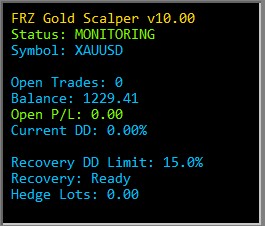
| HUD Item | Meaning |
|---|---|
| Status | Current EA state, e.g. Monitoring (watching the market/waiting for conditions) or actively trading/recovering. |
| Symbol | The trading pair the EA is running on (XAUUSD). |
| Open Trades | Number of trades currently open on this pair. |
| Balance | Current account balance. |
| Open P/L | Current floating profit or loss on open trades. |
| Current DD | Current drawdown percentage on this pair. |
| Recovery DD Limit | The DD Recovery Threshold % configured in Settings – the drawdown level that will trigger the recovery module. |
| Recovery | Shows whether the recovery module is Ready (on standby) or actively managing recovery trades. |
| Hedge Lots | Lot size currently used for hedging/recovery trades, if any are open. |
Input Settings
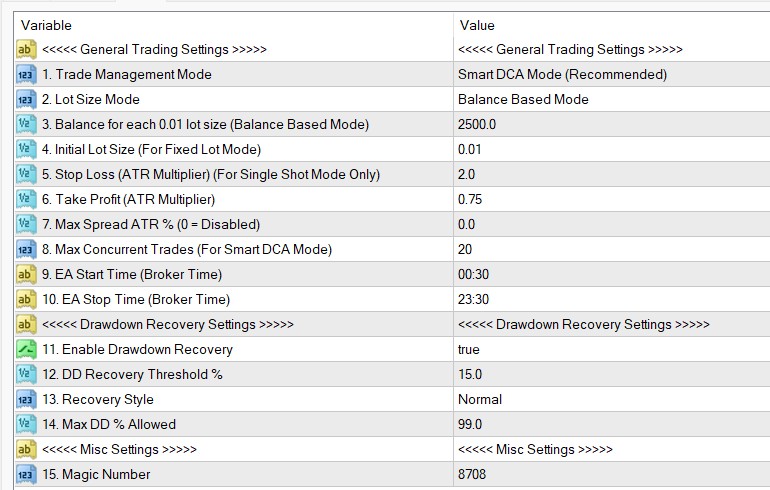
Settings Explanations
| No. | Setting | Explanation |
|---|---|---|
| 1 | Trade Management Mode | Choose between Smart DCA Mode (Recommended), which allows the EA to average multiple entries per pair using the DCA settings below, or Single Shot Mode, which places one trade at a time with a fixed stop loss. |
| 2 | Lot Size Mode | Choose Balance Based Mode, where lot size is calculated from your account balance, or Fixed Lot Mode, which uses the Initial Lot Size setting for every trade. |
| 3 | Balance for each 0.01 lot size (Balance Based Mode) | Only used when Lot Size Mode is Balance Based Mode. Sets how much account balance is required for each 0.01 lot step. Default is 2500, meaning 0.01 lot per $2500 of balance. |
| 4 | Initial Lot Size (For Fixed Lot Mode) | Only used when Lot Size Mode is Fixed Lot Mode. Sets the fixed lot size used for every trade. |
| 5 | Stop Loss (ATR Multiplier) (For Single Shot Mode Only) | Sets the stop loss as a multiple of the ATR. Only applies when Trade Management Mode is Single Shot Mode. Important: if you use Single Shot Mode, make sure you increase the take profit to at least 1.5x or 2x of the stop loss. |
| 6 | Take Profit (ATR Multiplier) | Sets the take profit target as a multiple of the ATR (not in pips). For instance, if ATR is 10 pips and you put 0.75 here, the take profit would be 7.5 pips. |
| 7 | Max Spread ATR % (0 = Disabled) | Limits new trades if the current spread exceeds this percentage of the ATR. Set to 0 to disable the spread filter. |
| 8 | Max Concurrent Trades (For Smart DCA Mode) | Caps the maximum number of DCA trades that can be open at the same time when using Smart DCA Mode. |
| 9 | EA Start Time (Broker Time) | The EA will not open new trades before this time. Time is based on your broker’s server time on MetaTrader. |
| 10 | EA Stop Time (Broker Time) | The EA will stop opening new trades after this time. Time is based on your broker’s server time on MetaTrader. |
| 11 | Enable Drawdown Recovery | Turns the drawdown recovery module on or off. |
| 12 | DD Recovery Threshold % | The drawdown percentage (on this pair) that activates the recovery module. |
| 13 | Recovery Style | Conservative, Normal, or Aggressive. Controls how actively the recovery module manages recovery trades once triggered. Normal is the recommended default. |
| 14 | Max DD % Allowed | Equity-based stop. The EA halts new trades once drawdown reaches this percentage. If you are using Drawdown Recovery, keep this at a high value (default) so the recovery module has room to work. |
| 15 | Magic Number | Unique identifier used on trades opened by this EA. You can change this if required (for example, running more than one instance), but it is not necessary otherwise. |
Set Files
FRZ Gold Scalper does not use .set files. Most settings (balance-based lot sizing, ATR-based take profit, drawdown recovery thresholds, etc.) are dynamic and adapt to your account balance and current market conditions, so a fixed .set file would not reflect the correct values for your account. Use the Input Settings table above as your starting configuration instead.
Troubleshooting
| Issue | What To Check |
|---|---|
| Demo EA does not run on a live chart | Demo versions are backtest-only. Use the Strategy Tester. |
| MT5 says the account type is not supported | Use an MT5 hedging account. Netting accounts are not supported. |
| EA shows a license or server error | Make sure https://frzserver.com is added to your allowed WebRequest URLs (Tools > Options > Expert Advisors), and that your account number is licensed. |
| No trades are opening | Check that AutoTrading/Algo Trading is enabled, review the EA Start/Stop Time settings, confirm the chart symbol is XAUUSD/Gold, and check the Max Spread ATR % setting. |
| Demo backtest stops opening new trades | Demo builds are limited to 30 trades per backtest run. |
| Stop loss/take profit distance looks wrong in Single Shot Mode | In Single Shot Mode, make sure the take profit is set to at least 1.5x-2x the stop loss. |
Get Support
Online AI chat: https://t.me/FRZSupportBot
Discord Forum: https://www.frzsoftware.com/discord
Useful Links
Recommended VPS: https://www.frzsoftware.com/getvps
Join VIP Club: https://www.frzsoftware.com/vipclub
Social Links: https://www.frzsoftware.com/socials
Disclaimer
Our software is provided “as is”, without any warranty or condition of any kind, express, implied or statutory. You are advised to do necessary testing on demo accounts before using the software on a live account. Trading carries a high level of risk to your capital and you should only trade with money you can afford to lose. Past performance of any trading system is not necessarily indicative of future results.