
FRZ Account Recovery EA – User Manual
- Related Product: FRZ Account Recovery EA
- Browse Similar Tools: Account Recovery & Protection
Contents
- Before You Start
- WebRequest Setup
- Installation
- Demo Version
- Backtesting Steps
- Video Guide
- Quick Specifications
- On-Chart HUD Panel
- Input Settings
- Set Files
- Recommended Starting Setup
- Troubleshooting
- Get Support
- Useful Links
Before You Start
- Enable Algo Trading / AutoTrading in your trading platform.
- Use an MT5 hedging account. MT5 netting/exchange accounts are not supported.
- This EA monitors existing exposure and opens recovery trades when your selected drawdown condition is reached – it can increase exposure and margin usage. Use the Strategy Tester first, especially before changing recovery settings.
- Attach the EA to one chart only unless instructed otherwise.
- Full versions require a valid license.
- Full versions require WebRequest access to
https://frzserver.com.
WebRequest Setup for Full Versions
- Open Tools > Options > Expert Advisors.
- Enable Allow WebRequest for listed URL.
- Add this URL:
https://frzserver.com. - Click OK and restart the EA if needed.
Installation
MT4 Installation
- Download the MT4 version of the EA.
- Copy the .ex4 file into your MT4 MQL4/Experts folder.
- Restart MT4 or right-click the Navigator panel and select Refresh.
- Attach the EA to a chart.
- Enable AutoTrading.
MT5 Installation
- Download the MT5 version of the EA.
- Copy the .ex5 file into your MT5 MQL5/Experts folder.
- Restart MT5 or right-click the Navigator panel and select Refresh.
- Attach the EA to a chart on an MT5 hedging account.
- Enable Algo Trading.
Demo Version
DEMO versions are backtest-only and are intended for testing the EA in the MT4 or MT5 Strategy Tester. Specifically:
- Backtest-only – if attached to a live chart, it will show a notice and will not trade.
- No license check required.
- The news filter is disabled (always treated as clear/off).
- No hard trade-count limit – the demo build can run a full backtest, it simply cannot trade live.
- Keeps the same visible input structure as the full version, so you can review the settings before upgrading.
Backtesting Steps
Most users look for a recovery EA when they are already in drawdown. The most useful way to test FRZ Account Recovery EA is to recreate your current drawdown situation inside the Strategy Tester as closely as possible – the goal is not just to see whether the EA can place trades, but whether your current account situation has a realistic chance of being recovered under recent market conditions.
Before you test, note your current account situation:
- Account balance
- Approximate drawdown percentage
- Symbol or symbols involved
- Buy and sell lot sizes currently open
- Broker leverage and account currency
- The recovery target you want to test
Recent market data is generally more useful for this kind of test than old data – a practical approach is to test using the last 1-2 weeks of market movement.
Suggested process:
- Open the MT4 or MT5 Strategy Tester and select the demo version of the EA.
- Select the same or closest symbol related to your current drawdown.
- Select a recent testing period, such as the last 1-2 weeks.
- Set the deposit, leverage, and account currency close to your real account.
- Open the EA inputs and use the Recovery Simulator settings (22-26 in the table below) to recreate your current exposure as closely as possible.
- Run the test and watch the HUD panel, trade list, drawdown behavior, and margin status.
Backtest recovery is not a guarantee of live recovery – it is a practical estimate based on the selected data, broker conditions, spread, leverage, and account setup.
Video Guide
(This is from an older version – always consider the written content on this page as the updated guide):
Quick Specifications
| Product name | FRZ Account Recovery EA |
| Platform supported | MT4 or MT5 |
| Drawdown monitoring scope | Account, Symbol, or Magic Number (selectable) |
| Recovery timeframe used internally | Configurable – 15 Minutes by default |
| Suitable market sessions | Works on any session |
| Account requirements | MT5 must be a hedging account. There is no fixed minimum deposit – the EA works with your existing account balance and exposure. |
| VPS requirement | This software needs to run 24/7. A Windows VPS is recommended unless you can keep your own PC running continuously 24/7 – For a VPS, we can recommend this VPS provider. You can purchase the cheapest VPS Windows package with this provider (4GB RAM is usually enough as a minimum). More instructions on buying and setting up VPS are given on our VPS page. |
| Recommended broker | EA works on any broker that offers MetaTrader. However, we can recommend ICMarkets and if it is not available for your country, then we can recommend ICTrading. |
On-Chart HUD Panel
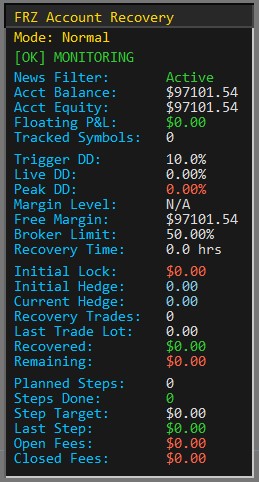
| HUD Item | Meaning |
|---|---|
| Mode | Shows the selected Recovery Style: Conservative, Normal, or Aggressive. |
| Status | Shows the current EA state, such as MONITORING, RECOVERING, or recovery complete. |
| News Filter | Shows whether the news filter is Active, Clear, or currently blocking new recovery entries. |
| Acct Balance | Current account balance. |
| Acct Equity | Current account equity, including floating profit or loss. |
| Floating P&L | Current open profit or loss. |
| Tracked Symbols | Number of symbols currently included in the EA’s recovery tracking. |
| Trigger DD | The Drawdown Threshold % selected in the settings. |
| Live DD | Current live drawdown based on the selected Drawdown Scope. |
| Peak DD | Highest drawdown recorded during the current recovery cycle. |
| Margin Level | Current account margin level percentage. |
| Free Margin | Current free margin available on the account. |
| Broker Limit | The broker’s margin stop-out or margin-call reference shown by the EA. |
| Recovery Time | How long the current recovery cycle has been running. |
| Initial Lock | The approximate locked loss amount when recovery was triggered. |
| Initial Hedge | The starting hedge size shown in lots. |
| Current Hedge | The current remaining hedge exposure shown in lots. |
| Recovery Trades | Number of recovery trades opened during the current cycle. |
| Last Trade Lot | Lot size of the most recently opened recovery trade. |
| Recovered | Amount recovered so far during the recovery cycle. |
| Remaining | Approximate amount still required to reach the selected recovery target. |
| Planned Steps | Estimated or configured recovery steps for the cycle. |
| Steps Done | Number of completed recovery steps. |
| Step Target | The current target amount for the next recovery step. |
| Last Step | Amount recovered by the most recent completed step. |
| Open Fees | Estimated fees, swaps, or costs on currently open recovery exposure. |
| Closed Fees | Fees or costs already realized from closed recovery activity. |
Input Settings
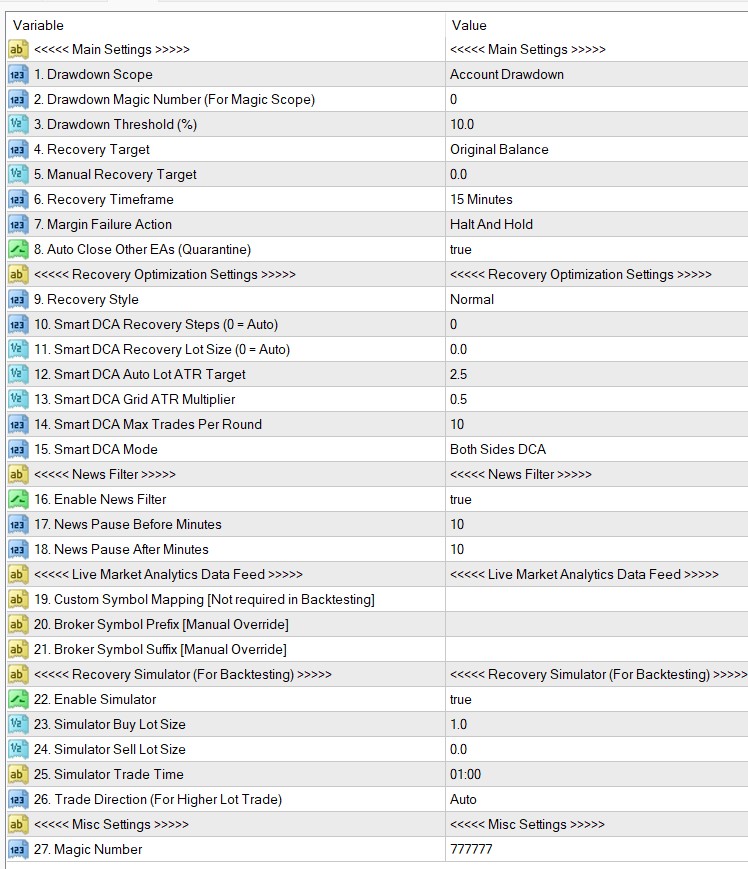
| No. | Setting | Explanation |
|---|---|---|
| Main Settings | ||
| 1 | Drawdown Scope | Controls what the EA monitors for the recovery trigger. Account Drawdown monitors the overall account. Symbol Drawdown monitors the chart symbol. Magic Number Drawdown monitors trades matching the selected magic number. |
| 2 | Drawdown Magic Number (For Magic Scope) | Used only when Drawdown Scope is set to Magic Number Drawdown. Enter the magic number of the trades you want the EA to monitor. |
| 3 | Drawdown Threshold (%) | The drawdown level that must be reached before recovery begins. Lower values start recovery earlier. Higher values wait for deeper drawdown. |
| 4 | Recovery Target | Controls the target the EA works toward during recovery. Original Balance aims toward the starting balance reference. Current Balance uses the current balance reference. Manual Balance uses the Manual Recovery Target value. |
| 5 | Manual Recovery Target | Used only when Recovery Target is set to Manual Balance. Enter the balance level you want the recovery cycle to target. |
| 6 | Recovery Timeframe | Timeframe used by the recovery engine for recovery management. M15 is a practical starting point for most testing. |
| 7 | Margin Failure Action | Controls what happens if there is not enough margin for a required recovery action. Halt And Hold pauses further recovery entries. Emergency Close All closes managed exposure if the margin rule is triggered. |
| 8 | Auto Close Other EAs (Quarantine) | When enabled, the EA attempts to isolate the recovery process by closing other EA charts after recovery starts. This helps prevent other systems from adding new exposure during recovery. |
| Recovery Optimization Settings | ||
| 9 | Recovery Style | Selects the overall behavior profile. Conservative is slower and more cautious. Normal is the recommended default. Aggressive is more active and should be tested carefully. |
| 10 | Smart DCA Recovery Steps (0 = Auto) | Controls the number of recovery steps. A value of 0 lets the EA scale this automatically. Manual values should be tested before live use. |
| 11 | Smart DCA Recovery Lot Size (0 = Auto) | Controls the starting recovery lot size. A value of 0 lets the EA calculate it automatically based on the recovery context. |
| 12 | Smart DCA Auto Lot ATR Target | Influences automatic lot sizing in relation to current market volatility. Higher values generally make auto sizing more conservative; lower values may make recovery more active. |
| 13 | Smart DCA Grid ATR Multiplier | Influences how sensitive the EA is to price movement before considering additional recovery trades. Lower values may produce more active recovery. Higher values may reduce trade frequency. |
| 14 | Smart DCA Max Trades Per Round | Limits the maximum number of Smart DCA recovery trades in one recovery round. |
| 15 | Smart DCA Mode | Controls whether the EA may manage recovery activity on one side or both sides. Both Sides DCA is the default setting. |
| News Filter | ||
| 16 | Enable News Filter | Enables or disables the news filter in full versions. Demo versions show this setting but always treat the news filter as clear. |
| 17 | News Pause Before Minutes | Number of minutes before selected high-impact news where new recovery entries are paused. |
| 18 | News Pause After Minutes | Number of minutes after selected high-impact news where new recovery entries are paused. |
| Live Market Analytics Data Feed | ||
| 19 | Custom Symbol Mapping | Optional advanced field for brokers with unusual symbol names. Not required in backtesting. |
| 20 | Broker Symbol Prefix | Optional manual override if your broker adds a prefix before symbol names. |
| 21 | Broker Symbol Suffix | Optional manual override if your broker adds a suffix after symbol names. |
| Recovery Simulator (For Backtesting) | ||
| 22 | Enable Simulator | Backtesting tool that allows the EA to create a test recovery scenario. Use this for Strategy Tester experiments (see Backtesting Steps above). |
| 23 | Simulator Buy Lot Size | Buy lot size used by the simulator in backtests. Default is 1.0. |
| 24 | Simulator Sell Lot Size | Sell lot size used by the simulator in backtests. Leave at 0.0 if you only want the simulator to create the default buy-side test exposure. |
| 25 | Simulator Trade Time | Time when the simulator attempts to create the test exposure during backtesting. |
| 26 | Trade Direction (For Higher Lot Trade) | Controls which side receives the higher simulator lot when both buy and sell simulator lots are used. Auto lets the simulator decide. |
| Misc Settings | ||
| 27 | Magic Number | The EA’s magic number for identifying its own recovery trades. |
Set Files
FRZ Account Recovery EA does not use .set files. Most settings (drawdown thresholds, recovery targets, Smart DCA lot/ATR sizing, etc.) are dynamic and adapt to your account balance, current exposure, and market conditions, so a fixed .set file would not reflect the correct values for your account. Use the Input Settings table above (or the Recommended Starting Setup below) as your starting configuration instead.
Recommended Starting Setup
| Setting | Recommended Starting Point |
|---|---|
| Recovery Style | Normal |
| Drawdown Scope | Account Drawdown for broad account recovery, or Symbol Drawdown for symbol-specific testing. |
| Drawdown Threshold | Start with the default, then adjust only after testing. |
| Recovery Timeframe | M15 |
| Enable News Filter | Enabled for full versions. |
| Auto Close Other EAs | Enabled if you want the recovery process isolated from other running EAs. |
| Simulator | Enabled for backtesting only. |
Troubleshooting
| Issue | What To Check |
|---|---|
| Demo EA does not run on a live chart | Demo versions are backtest-only. Use the Strategy Tester. |
| MT5 says the account type is not supported | Use an MT5 hedging account. Netting accounts are not supported. |
| Server or analytics notice appears | Check WebRequest setup and make sure https://frzserver.com is allowed. |
| No recovery trade opens immediately | Check drawdown threshold, drawdown scope, news filter status, margin status, and whether the current candle already had a recovery entry – only one recovery trade opens per candle. |
| News Filter shows a pause | The EA may pause new recovery entries around high-impact news according to the configured minutes before and after news. |
| Margin Level/Free Margin looks low | The EA may pause recovery entries if margin is not sufficient for the next recovery action – check the Margin Failure Action setting. |
Get Support
Online AI chat: https://t.me/FRZSupportBot
Discord Forum: https://www.frzsoftware.com/discord
Useful Links
Recommended VPS: https://www.frzsoftware.com/getvps
Join VIP Club: https://www.frzsoftware.com/vipclub
Social Links: https://www.frzsoftware.com/socials
Disclaimer
Our software is provided “as is”, without any warranty or condition of any kind, express, implied or statutory. You are advised to do necessary testing on demo accounts before using the software on a live account. Trading carries a high level of risk to your capital and you should only trade with money you can afford to lose. Past performance of any trading system is not necessarily indicative of future results.