
FRZ Meta Binance Trader – User Manual
- Related Product: FRZ Meta Binance Trader
- Browse Similar Tools: Crypto & Binance Tools
FRZ Meta Binance Trader was previously called FRZ MT4 Binance Trader. It now runs on both MT4 and MT5.
- Video Guide
- Before You Start
- Binance API Keys
- WebRequest Setup
- Installation
- Quick Specifications
- Free vs Pro Comparison
- Trading Panel
- Take Profit and Stop Loss Rules
- Results Box
- Binance Charts
- Input Settings
- Set Files
- Troubleshooting
- Get Support
Video Guide
(This is from an older version – always consider the written text below as the updated guide. A new video is planned.)
Before You Start
- Enable AutoTrading (MT4) or Algo Trading (MT5) on the platform toolbar – the button must be green. If it is off, the EA stops at once with the popup
AutoTrading is OFF. Click the AutoTrading button on the MT4 toolbar (it turns green), then attach the EA again.(MT5:Algo Trading is OFF...). - In the EA’s Common tab, tick Allow live trading (MT4) / Allow Algo Trading (MT5).
- MT4 only: also tick Allow DLL imports. The MT4 version uses two standard Windows functions to open and refresh the Binance offline charts. Nothing extra is installed. The MT5 version does not need this.
- The free version does not require a license. Pro version features (live trading) require a valid license.
- The Pro license is linked to the MetaTrader account number the EA runs on (your MT4/MT5 login), not to your Binance account. An MT4 account and an MT5 account have different numbers, so each needs its own license activation. Use a MetaTrader account that does not expire – some brokers delete demo accounts after a few weeks.
- All trades go directly to your Binance account through the Binance API. Nothing is traded on the MetaTrader account itself, so the MetaTrader account needs no balance.
- WebRequest access is required – see WebRequest Setup for the exact list.
- Attach the EA to one chart only (any normal chart, e.g. EURUSD). The EA opens the Binance charts by itself.
- The EA works with live Binance data, so it cannot be backtested in the Strategy Tester. Try everything on the Binance Testnet first – the Free version is made for exactly that.
- Upgrading from v2.2: remove the old EA and the old DLL file from
MQL4/Libraries(no longer needed), then enter your API keys again – the inputs changed and the keys do not carry over.
Binance API Keys
The EA needs an API key and a secret key (two long codes Binance generates for you) to place orders on your behalf. Charts work without keys, because prices are public data.
- Live keys (Pro only): create them in your Binance account under API Management.
- Testnet keys: create them in Binance Demo Trading, the same way. Testnet keys only work on the Testnet and live keys only work on the live account – they are separate pairs.
- Give the keys trading permission only (Spot and/or Futures as needed). Never enable withdrawals.
- Security: MetaTrader writes every EA input, including the API keys, in plain text to the Experts log and its log files. This is another reason to use keys that cannot withdraw funds.
- Testnet balances are separate from your real balance. If an order fails with
Account has insufficient balance for requested action., top up your Demo Trading balance on Binance or use a smaller quantity.
WebRequest Setup
- Open Tools > Options > Expert Advisors.
- Enable Allow WebRequest for listed URL.
- Add these URLs (one per line):
- Free and Pro (Testnet):
https://demo-api.binance.com,https://demo-fapi.binance.com,https://demo-dapi.binance.com - Pro only (Live trading):
https://api.binance.com,https://fapi.binance.com,https://dapi.binance.com - Pro only (license check):
https://frzserver.com
- Free and Pro (Testnet):
- Click OK and attach the EA again.
If an address is missing, the EA shows a popup titled FRZ Meta Binance Trader - Setup Required that names the exact address to add (once per address).
Installation
MT4 Installation
- Download the MT4 version (Free or Pro) of the EA.
- Copy the
.ex4file into yourMQL4/Expertsfolder (File > Open Data Folder). - Restart MT4, or right-click Expert Advisors in the Navigator and select Refresh.
- Attach the EA to any normal chart (e.g. EURUSD, any timeframe).
- In the Common tab tick Allow live trading and Allow DLL imports; in the Inputs tab enter your API keys.
- Enable AutoTrading. The Binance offline charts open by themselves after about two seconds.
MT5 Installation
- Download the MT5 version (Free or Pro) of the EA.
- Copy the
.ex5file into yourMQL5/Expertsfolder (File > Open Data Folder). - Restart MT5, or right-click Expert Advisors in the Navigator and select Refresh.
- Attach the EA to any normal chart (e.g. EURUSD, any timeframe).
- In the Common tab tick Allow Algo Trading; in the Inputs tab enter your API keys.
- Enable Algo Trading. The Binance charts open by themselves after about two seconds.
Quick Specifications
| Specification | Details |
|---|---|
| Product name | FRZ Meta Binance Trader (Free and Pro) |
| Platform supported | MT4 and MT5 |
| Timeframes supported | Binance charts: M1, M5, M15, M30, H1, H4, D1. The EA itself can be attached to any chart and timeframe. |
| Trading pair(s) | Any Binance Spot, USD-M Futures or COIN-M Futures pair (e.g. BTCUSDT, ETHUSDT, BTCUSD_PERP). |
| Suitable market sessions | All – crypto markets trade 24/7. |
| Recommended min. deposit | No MetaTrader deposit is needed – orders go to your Binance account. On Binance, any balance large enough for the pair’s minimum order size. You can use cent accounts as well for the MetaTrader account the EA runs on. |
| Minimum leverage | Not applicable to the MetaTrader account. For Binance Futures, set your leverage on Binance itself – the EA does not change it. |
| VPS requirement | This software needs to run 24/7. A Windows VPS is recommended unless you can keep your own PC running continuously 24/7 – For a VPS, we can recommend this VPS provider. You can purchase the cheapest VPS Windows package with this provider (4GB RAM is usually enough as a minimum). More instructions on buying and setting up VPS are given on our VPS page. |
| Recommended broker | EA works on any broker that offers MetaTrader. However, we can recommend ICMarkets and if it is not available for your country, then we can recommend ICTrading. |
Free vs Pro Comparison
| Feature | Free | Pro |
|---|---|---|
| Binance Testnet (Demo Trading) trading | Yes – all features | Yes |
| Live Binance trading (real funds) | No | Yes |
| Live / Testnet switch on the panel | No | Yes |
| Spot, USD-M and COIN-M Futures trading | Yes (Testnet) | Yes |
| Binance charts in MetaTrader | Yes (Testnet prices) | Yes (Live or Testnet prices) |
| Take Profit / Stop Loss, OCO, results box | Yes | Yes |
| License required | No | Yes |
In the Free version the Live-only inputs are marked [Pro Version Only] and are ignored. Clicking the account button shows Live trading is available in Pro. The Free version works on the Binance Testnet only.
Trading Panel
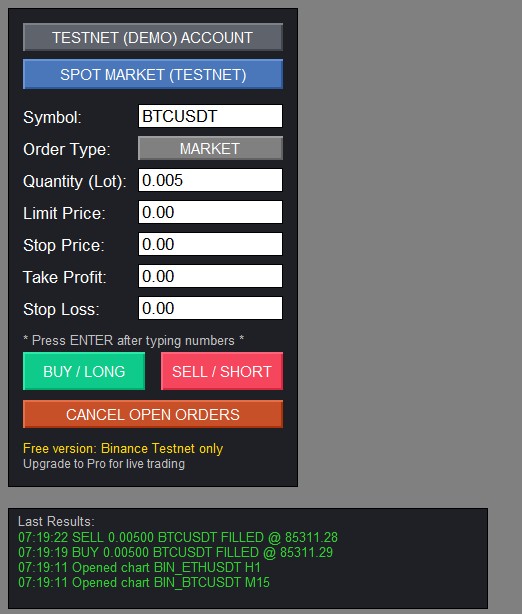
Type a value, then press ENTER – MetaTrader only keeps the new number after ENTER.
| Panel item | Meaning |
|---|---|
| Account button | TESTNET (DEMO) ACCOUNT (grey) or LIVE ACCOUNT – REAL FUNDS (red, Pro only). Click to switch. Switching to Live needs your Live keys and asks Switch to LIVE trading? Orders from this panel will use REAL funds on your Binance account. – No is the default. Switching back to Testnet is instant. A switch reloads the charts from the other servers and clears the order lines. |
| Market button | SPOT MARKET / USD-M FUTURES / COIN-M FUTURES, with (TESTNET) or (LIVE). Click to change the market the panel trades on. Trading uses the new market immediately; that market’s charts open once the button has stayed on it for 5 seconds. |
| Symbol | The Binance pair, e.g. BTCUSDT (Spot/USD-M) or BTCUSD_PERP (COIN-M). Lower case is accepted. |
| Order Type | Click to cycle: MARKET, LIMIT, STOP_MARKET, STOP_LIMIT, TP_MARKET, TP_LIMIT (see the table below). |
| Quantity (Lot) | Amount of the coin, e.g. 0.005 = 0.005 BTC (COIN-M: number of contracts). Default 0.005. It is rounded down to the pair’s quantity step. Example: ETHUSDT step 0.0001, you type 0.12345 -> 0.1234 is sent. Too small -> Not sent: quantity is below ...'s minimum step ... |
| Limit Price / Stop Price | Used only by the order types that need them (table below). Prices are rounded to the pair’s price step. |
| Take Profit / Stop Loss | Optional protective orders placed with the entry. 0 = not used. See Take Profit and Stop Loss Rules. |
| BUY / LONG, SELL / SHORT | Send the order. On Spot, SELL sells coins you hold. On Futures, SELL opens or adds to a short. |
| CANCEL OPEN ORDERS | Cancels all open orders on the panel’s Symbol in the current market, including Futures TP/SL orders – also orders you placed on the Binance website or app for that pair. |
| Free version lines | Free version: Binance Testnet only / Upgrade to Pro for live trading (Free only). |
| Order Type | Fields used | What it does |
|---|---|---|
| MARKET | Quantity | Buys/sells now at the current price. |
| LIMIT | Quantity, Limit Price | Waits until the price reaches your Limit Price. |
| STOP_MARKET | Quantity, Stop Price | When the price reaches the Stop Price, a market order is sent. |
| STOP_LIMIT | Quantity, Stop Price, Limit Price | When the price reaches the Stop Price, a limit order at the Limit Price is placed. |
| TP_MARKET | Quantity, Stop Price | Take-profit style trigger: market order when the Stop Price is reached. |
| TP_LIMIT | Quantity, Stop Price, Limit Price | Take-profit style trigger: limit order at the Limit Price when the Stop Price is reached. |
Take Profit and Stop Loss Rules
| Side | Take Profit must be | Stop Loss must be |
|---|---|---|
| BUY | above the entry price | below the entry price |
| SELL | below the entry price | above the entry price |
- The EA checks this before sending the entry (current price for MARKET orders; Limit or Stop Price for pending orders). If a value is on the wrong side, nothing is sent, e.g.
Not sent: for a SELL, Take Profit must be below the entry price (85570.00).
Example: BTCUSDT is at 85,570. BUY with TP 90,000 and SL 80,000 is correct. SELL with TP 80,000 and SL 90,000 is correct. - Spot: when both TP and SL are set they are sent as one OCO order (One-Cancels-the-Other – when one fills, Binance cancels the other). TP alone or SL alone is sent as a single order.
- Spot: TP/SL are placed only after the entry has filled. For a pending Spot entry you see
TP/SL NOT placed: Spot entry not filled yet. Place them after it fills. - Spot BUY: the TP/SL size is the filled amount minus any fee Binance took in that coin, so the sell order is never larger than what you hold.
- Futures: TP and SL are reduce-only orders (they can only close the position, never open a new one) placed on Binance’s Algo Order system.
- Futures stop entries (STOP_MARKET, STOP_LIMIT, TP_MARKET, TP_LIMIT): TP/SL are not placed with them –
TP/SL NOT placed: entry is a stop order. Place TP/SL after it triggers.
Results Box
The Last Results box in the bottom-left corner of the EA chart shows the last few results, newest first: green = success, orange = warning, red = failure (with Binance’s own reason). Full Binance replies are written to the Experts tab.
| Message | Meaning |
|---|---|
BUY 0.00500 BTCUSDT FILLED @ 85311.29 |
Entry filled at that average price. A blue line marks the entry on the Binance chart. |
... LIMIT ... NEW / ... placed, trigger ... |
Pending order accepted by Binance. |
TP ... + SL ... (OCO) placed, TP ... placed, SL ... placed |
Protective orders accepted. |
... FAILED: <Binance reason> |
Binance rejected the order; the reason is Binance’s own text. |
Not sent: ... |
The EA stopped the order before sending (missing keys, quantity too small, symbol not found, TP/SL on the wrong side). |
Cancelled ... |
Result of CANCEL OPEN ORDERS. |
Opened chart BIN_BTCUSDT M15 |
A Binance chart was opened automatically. |
No Testnet API keys: charts work, trading is off. Add them in the EA inputs. |
Keys for the current account are empty. |
Binance Charts
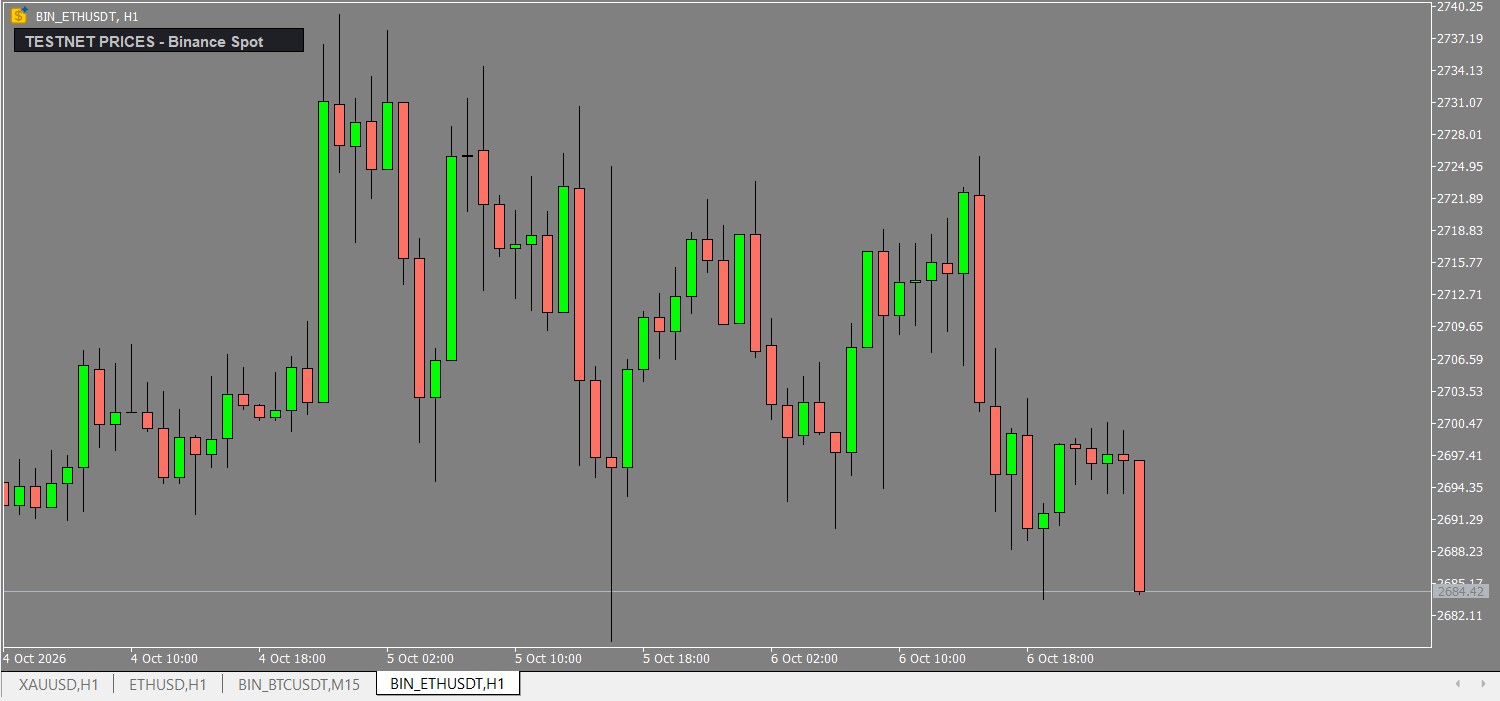
- Chart names:
BIN_<pair>= Spot,BIF_<pair>= USD-M Futures,BIC_<pair>= COIN-M Futures (MT5 only). - The EA loads 500 candles, then updates the latest candles every second. Charts get the FRZ colours, a readable zoom, chart shift and auto-scroll each time the EA starts.
- Each chart shows LIVE PRICES (red) or TESTNET PRICES (grey) and the market. Spot Testnet prices match live prices; Futures Testnet prices can differ slightly.
- Open orders are shown as dashed lines (green = buy, red = sell); a filled entry is a solid blue line that stays until that pair has no open orders left. Lines refresh every 3 seconds, on the chart of the order’s market only.
- When the EA is removed, the charts stop updating and show
FRZ Meta Binance Trader stopped - prices are not updating. Re-attach the EA.The banner disappears when the EA runs again.
MT4 charts (offline charts)
- MT4 limits offline chart names to 11 characters, so the pair name can have at most 7 letters (
BIN_+ 7). Longer pairs (e.g. DOGEUSDT, AVAXUSDT, LINKUSDT) get no chart – a popup lists them – but can still be traded from the panel. COIN-M has no charts on MT4 (names such as BTCUSD_PERP are too long). - If a chart does not open automatically (e.g. Allow DLL imports is off), the results box says
Open these charts via File > Open Offline: ...– open them once that way; MT4 remembers them.
MT5 charts (custom symbols)
- Charts are custom symbols in Market Watch under Custom > Binance. There is no name-length limit and COIN-M pairs get charts too.
- If a chart cannot be opened, the results box says
Open these charts from Market Watch (Custom > Binance): ... - If your broker already has a real symbol with the same name, no Binance chart is created for it (a CHART ERROR line is written to the Experts tab).
Input Settings
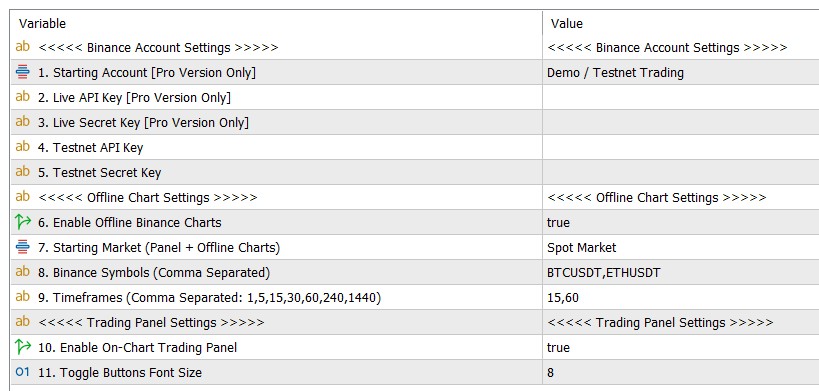
| No. | Setting | Explanation |
|---|---|---|
| Binance Account Settings | ||
| Pro Version Features | ||
| 1 | Starting Account | Which account the panel starts on: Demo / Testnet Trading or Live Trading. Default Demo / Testnet. In Pro you can also switch on the panel at any time. In Free this is marked [Pro Version Only] and is ignored (Free always uses the Testnet; choosing Live shows Starting Account 'Live' is Pro only. The Free version runs on the Binance Testnet.). |
| 2 | Live API Key | The API key from your real Binance account. Default empty. Pro only. Needed to trade with real funds. |
| 3 | Live Secret Key | The secret key that belongs to the Live API Key. Default empty. Pro only. |
| Free and Pro | ||
| 4 | Testnet API Key | The API key from Binance Demo Trading. Default empty. Without it, charts work but trading is off. |
| 5 | Testnet Secret Key | The secret key that belongs to the Testnet API Key. Default empty. |
| Offline Chart Settings | ||
| 6 | Enable Offline Binance Charts | true = the EA builds and opens Binance charts. Default true. false = no charts; trading from the panel still works. |
| 7 | Starting Market (Panel + Offline Charts) | Spot Market, USD-M Futures or COIN-M Futures. Default Spot Market. Sets the market the panel starts on and which charts open at start. Other markets’ charts open when you switch the market button. |
| 8 | Binance Symbols (Comma Separated) | The pairs to chart, separated by commas. Default BTCUSDT,ETHUSDT. Use Binance’s own names. Lower case and spaces are accepted.Correct: BTCUSDT,ETHUSDT,BNBUSDT. Wrong: BTC/USDT or BTCUSD on Spot – the chart stays empty and the Experts tab shows a CHART DATA ERROR line. |
| 9 | Timeframes (Comma Separated: 1,5,15,30,60,240,1440) | Chart timeframe in minutes for each pair: 1=M1, 5=M5, 15=M15, 30=M30, 60=H1, 240=H4, 1440=D1. Default 15,60. Timeframes pair up with the symbols in order; extra symbols use the last timeframe.Example: symbols BTCUSDT,ETHUSDT,BNBUSDT + timeframes 15,60 -> BTCUSDT M15, ETHUSDT H1, BNBUSDT H1. Other values (e.g. 120) are not supported and that chart is skipped. |
| Trading Panel Settings | ||
| 10 | Enable On-Chart Trading Panel | true = show the trading panel and results box. Default true. false = charts only (no trading from the panel); notices are shown as popups instead. |
| 11 | Toggle Buttons Font Size | Text size of the account, market and order-type buttons. Default 8. Increase if the text is hard to read on a high-resolution screen. |
Set Files
FRZ Meta Binance Trader does not use .set files. The settings are your own API keys and the pairs/timeframes you want to chart, so a fixed .set file would not reflect the correct values for your account. Use the Input Settings table above as your starting configuration instead.
Troubleshooting
| Issue | What to check |
|---|---|
| EA removes itself with “AutoTrading is OFF” / “Algo Trading is OFF” | The toolbar button is off. Turn it on (green) and attach the EA again. |
| Popup “FRZ Meta Binance Trader – Setup Required” (WebRequest Blocked) | The address shown is not in the WebRequest list. Add it (see WebRequest Setup) and attach the EA again. |
| Pro shows a license popup and stops | No active license for this MetaTrader account number, or https://frzserver.com is not in the WebRequest list. Remember MT4 and MT5 accounts need separate activations. Contact support with your account number. |
| Still using v2.2 and the license check fails | Existing licenses were moved to the new product name, so only the current version passes the license check. Download the latest version from your account dashboard at frzsoftware.com and enter your API keys again. |
No Testnet API keys... / Not sent: add your ... API Key and Secret Key in the EA inputs |
Keys for the current account are empty. Enter them in the Inputs tab (after an upgrade from v2.2 they must be entered again). |
FAILED: Account has insufficient balance for requested action. |
Not enough funds on Binance for that order. On the Testnet, top up your Demo Trading balance or lower the quantity. |
FAILED: The relationship of the prices for the orders is not correct. or Not sent: for a ... Take Profit must be ... |
TP/SL on the wrong side of the price – see Take Profit and Stop Loss Rules. |
Not sent: XXX not found on Binance ... |
The Symbol does not exist in the panel’s current market (e.g. a Spot pair while the panel is on COIN-M). Check the spelling and the market button. |
Not sent: quantity is below ...'s minimum step ... |
Increase the quantity; the message shows the smallest step allowed. |
| Futures TP/SL rejected with “Order type not supported … Algo Order API” | You are running the old v2.2. Update to the current version. |
| Binance chart does not open | MT4: check Allow DLL imports, or open it via File > Open Offline. MT5: open it from Market Watch > Custom > Binance. Pairs longer than 7 letters and COIN-M get no chart on MT4. |
| Chart frozen with a red “stopped” banner | The EA is not running. Attach it again; the chart resumes and the banner disappears. |
| Chart prices look slightly different from the Binance website | Check the label: TESTNET PRICES (Futures Testnet differs a little from live) or LIVE PRICES. Very small differences can also come from internet/API speed; the EA is not intended for very short-term (M1) high-frequency trading. |
| Orders rejected for “timestamp” / time out of sync | Handled automatically: the EA resyncs its clock with Binance and retries once. If it keeps happening, check your internet connection. |
Get Support
Online AI chat: https://t.me/FRZSupportBot
Discord Forum: https://www.frzsoftware.com/discord
Useful Links
Recommended VPS: https://www.frzsoftware.com/getvps
Join VIP Club: https://www.frzsoftware.com/vipclub
Social Links: https://www.frzsoftware.com/socials
Disclaimer
Our software is provided “as is”, without any warranty or condition of any kind, express, implied or statutory. You are advised to do necessary testing on demo accounts before using the software on a live account. Trading carries a high level of risk to your capital and you should only trade with money you can afford to lose. Past performance of any trading system is not necessarily indicative of future results.