
FRZ Account Watcher – User Manual
- Related Product: FRZ Account Watcher
- Browse Similar Tools: Free Trading Tools
- Before You Start
- Installation
- Quick Specifications
- HUD / On-Chart Panel
- Input Settings
- Set Files
- Troubleshooting
- Support Links
Before You Start
- FRZ Account Watcher is a fully free utility. No license key or server activation is required.
- Enable Algo Trading / AutoTrading in your MetaTrader platform toolbar.
- Configure terminal email settings under Tools > Options > Email to receive daily summary reports and drawdown/inactivity alerts.
- You can attach the Watcher to any chart timeframe. It runs on a background timer and monitors your account based on your selected Monitor Scope (Full Account, Current Symbol, or Specific Magic Number).
Installation
MT4 Installation
- Download the MT4 version of the utility (
FRZ Account Watcher MT4.ex4). - Open MetaTrader 4, click File > Open Data Folder, and navigate to MQL4 > Experts.
- Copy the
.ex4file into the Experts folder. - Restart MT4 or right-click Navigator and select Refresh.
- Drag and attach the EA to any chart, adjust settings if needed, and enable AutoTrading.
MT5 Installation
- Download the MT5 version of the utility (
FRZ Account Watcher MT5.ex5). - Open MetaTrader 5, click File > Open Data Folder, and navigate to MQL5 > Experts.
- Copy the
.ex5file into the Experts folder. - Restart MT5 or right-click Navigator and select Refresh.
- Drag and attach the EA to any chart, adjust settings if needed, and enable Algo Trading.
Quick Specifications
| Product Name | FRZ Account Watcher |
| Platform Supported | MetaTrader 4 & MetaTrader 5 |
| Timeframes Supported | Any Timeframe |
| Trading Pair(s) | Any Pair / All Symbols |
| Suitable Market Sessions | All Sessions |
| Recommended Min. Deposit | N/A (Account Monitoring & Protection Utility) |
| Minimum Leverage | N/A |
| VPS Requirement | This software needs to run 24/7. A Windows VPS is recommended unless you can keep your own PC running continuously 24/7 – For a VPS, we can recommend this VPS provider. You can purchase the cheapest VPS Windows package with this provider (4GB RAM is usually enough as a minimum). More instructions on buying and setting up VPS are given on our VPS page. |
| Recommended Broker | EA works on any broker that offers MetaTrader. However, we can recommend ICMarkets and if it is not available for your country, then we can recommend ICTrading. |
HUD / On-Chart Panel
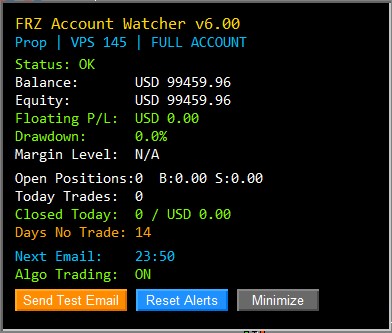
| HUD Item | Meaning |
|---|---|
| TITLE | Displays the software name and version number. |
| NAME | Displays Watcher Name, VPS Reference ID, and active Monitor Scope. |
| Status | Shows OK in green or WARNING in orange/red if drawdown threshold is breached or AutoTrading is disabled. |
| Balance | Current account balance. |
| Equity | Current live account equity. |
| Floating P/L | Current open floating profit/loss for tracked positions. |
| Drawdown | Current percentage equity drawdown relative to balance. |
| Margin Level | Current account margin level percentage. |
| Open Trades | Count of open trades and total Buy/Sell lot sizes. |
| Today Trades | Total number of trades opened today. |
| Closed Today | Count and net profit of trades closed today. |
| Days No Trade | Number of D1 trading days since the last closed trade. |
| Next Email | Scheduled server time for the daily summary email. |
| AutoTrading | Shows whether terminal AutoTrading / Algo Trading is ON or OFF. |
| Send Test Email | Button to immediately trigger a test email to verify terminal email settings. |
| Reset Alerts | Button to clear active alert states and drawdown warnings. |
| Minimize | Button to collapse the panel into a compact button. |
Input Settings
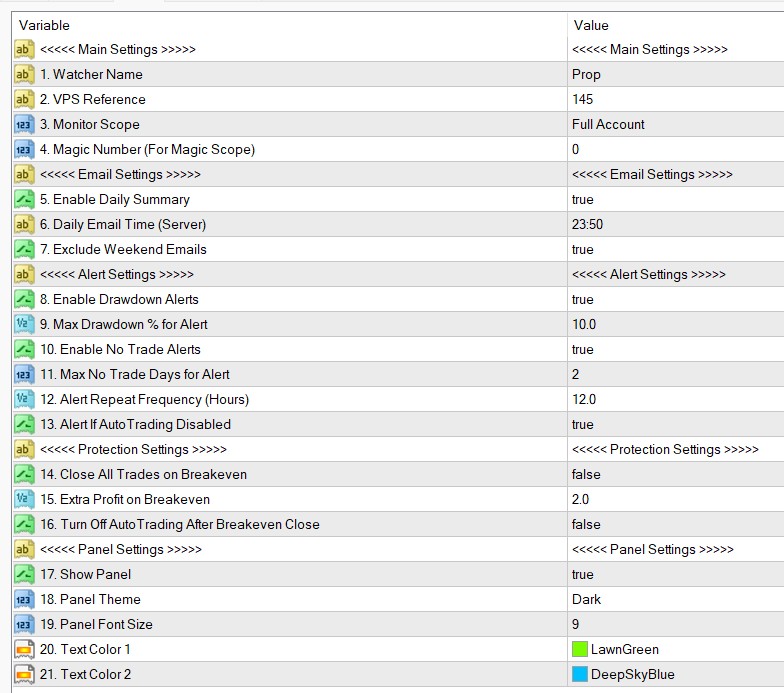
| No. | Setting | Explanation |
|---|---|---|
| General Trading Settings / Main Settings | ||
| 1 | Watcher Name |
Custom label identifier for this Watcher instance (e.g., “Prop” or “Live-1”). |
| 2 | VPS Reference |
Reference identifier for your VPS server to track multi-VPS setups. |
| 3 | Monitor Scope |
Scope of monitoring: Full Account (all trades), Current Symbol (only chart symbol), or Magic Number (only filtered magic number). |
| 4 | Magic Number |
Specific magic number to monitor when Monitor Scope is set to Magic Number. |
| Email Settings | ||
| 5 | Enable Daily Summary |
Enables sending an automated daily account summary email. |
| 6 | Daily Email Time |
Server time (HH:MM) to send the daily summary report (default: 23:50). |
| 7 | Exclude Weekend Emails |
Suppresses sending daily summary emails on Saturday and Sunday. |
| Alert Settings | ||
| 8 | Enable Drawdown Alerts |
Enables email alerts when equity drawdown breaches the specified limit. |
| 9 | Max Drawdown % for Alert |
Maximum drawdown percentage threshold to trigger an alert (default: 10.0%). |
| 10 | Enable No Trade Alerts |
Enables email alerts if no trades have closed for a set number of trading days. |
| 11 | Max No Trade Days for Alert |
Number of consecutive D1 trading days without closed trades to trigger an alert (default: 2 days). |
| 12 | Alert Repeat Frequency (Hours) |
Minimum hours to wait before repeating an alert of the same category (default: 12.0 hours). |
| 13 | Alert If AutoTrading Disabled |
Enables email alerts if terminal AutoTrading / Algo Trading is turned OFF. |
| Protection Settings | ||
| 14 | Close All Trades on Breakeven |
Automatically closes all tracked open trades when total open floating profit reaches the breakeven extra profit threshold. When enabled, displays an on-chart warning notice at the top-right corner and tints the chart background light red. |
| 15 | Extra Profit on Breakeven |
Dollar amount of extra profit to secure above breakeven before closing (default: $2.00). |
| 16 | Turn Off AutoTrading After Breakeven Close |
Automatically turns OFF the MetaTrader terminal’s AutoTrading / Algo Trading button via Windows API after executing a breakeven close. When enabled, displays an on-chart warning notice at the top-right corner and tints the chart background light red. |
| Panel Settings | ||
| 17 | Show Panel |
Displays the HUD panel on the chart. |
| 18 | Panel Theme |
Visual color theme for the panel: Dark, Light, or Compact. |
| 19 | Panel Font Size |
Font size for text displayed on the panel (default: 9). |
| 20 | Text Color 1 |
Primary accent text color (default: LawnGreen). |
| 21 | Text Color 2 |
Secondary accent text color (default: DeepSkyBlue). |
Set Files
This utility does not require special set files. You can customize the settings above directly in the Inputs dialog.
Troubleshooting
| Issue | What to check |
|---|---|
| Emails Not Arriving | Ensure email settings are configured under Tools > Options > Email in MetaTrader. Click the Send Test Email button on the chart panel to verify delivery. |
| AutoTrading Alert Firing | Check if the AutoTrading / Algo Trading button on the MetaTrader top toolbar is enabled. |
| No Trade Alerts on Monday | The utility counts actual D1 trading candles, so non-trading weekend days (Saturday/Sunday) are excluded for Forex/Gold pairs. |
| Repeated Alerts | Alert repeat frequency is governed by Alert Cooldown Hours (default: 12 hours) independently for each alert type. |
Get Support
Online AI chat: https://t.me/FRZSupportBot
Discord Forum: https://www.frzsoftware.com/discord
Useful Links
Recommended VPS: https://www.frzsoftware.com/getvps
Join VIP Club: https://www.frzsoftware.com/vipclub
Social Links: https://www.frzsoftware.com/socials
Disclaimer
Our software is provided “as is”, without any warranty or condition of any kind, express, implied or statutory. You are advised to do necessary testing on demo accounts before using the software on a live account. Trading carries a high level of risk to your capital and you should only trade with money you can afford to lose. Past performance of any trading system is not necessarily indicative of future results.