
FRZ Indicator Automater – User Manual
- Related Product: FRZ Indicator Automater
- Browse Similar Tools: Indicator Automation Tools
- Video Guide
- Before You Start
- WebRequest Setup
- Installation
- Demo Version
- Supported Indicator Types
- Indicator Inspector
- Backtesting with Your Indicator
- Quick Specifications
- HUD / On-Chart Panel
- Input Settings
- Set Files
- Recommended Starting Setup
- Troubleshooting
- Support Links
Video Guide
(These videos are from an older version – always consider the written text below as the updated guide. A new video is planned.)
Quick setup with DCA (older version): https://www.youtube.com/watch?v=tq6Jxxznf04
Before You Start
- Enable AutoTrading (MT4) / Algo Trading (MT5).
- MT5: use a hedging account. On a netting account the EA does not start (“FRZ Indicator Automater MT5 requires a hedging account (netting accounts are not supported).”).
- Full versions require a valid license and WebRequest access to https://frzserver.com (license check, news filter, FRZ Market Bias and update notices).
- The EA trades the symbol of the chart it is attached to. To trade several symbols, attach it to one chart per symbol and give each chart its own Magic Number (input 86).
- Copy your signal indicator into the MQL4\Indicators (MT4) or MQL5\Indicators (MT5) folder of the same platform.
- Test your setup in the Strategy Tester or on a demo account before trading real money.
WebRequest Setup
- Open Tools > Options > Expert Advisors.
- Enable “Allow WebRequest for listed URL”.
- Add this URL: https://frzserver.com
- Click OK and restart the EA if needed.
The DEMO version does not need this.
Installation
MT4 Installation
- Download the MT4 version of the EA.
- In MT4 click File > Open Data Folder and copy the .ex4 file into MQL4\Experts.
- Copy your signal indicator (.ex4) into MQL4\Indicators (a sub-folder is fine – see input 1).
- Restart MT4, or right-click Expert Advisors in the Navigator panel and select Refresh.
- Open a chart of the symbol and timeframe you want to trade and attach the EA.
- Enable AutoTrading.
MT5 Installation
- Download the MT5 version of the EA.
- In MT5 click File > Open Data Folder and copy the .ex5 file into MQL5\Experts.
- Copy your signal indicator (.ex5) into MQL5\Indicators (a sub-folder is fine – see input 1).
- Restart MT5, or right-click Expert Advisors in the Navigator panel and select Refresh.
- Open a chart of the symbol and timeframe you want to trade and attach the EA (hedging account).
- Enable Algo Trading.
When the EA starts, the HUD shows “Loading… please wait” for a few seconds while it checks the license, loads the news and loads your indicator.
Demo Version
The free DEMO version lets you check that the EA works with your indicator before you buy. Its limits:
- Works in the Strategy Tester and on demo accounts. On a real account it shows an alert and does not start.
- 30 trades: up to 30 new trades (signal or manual trades; DCA additions do not count). In the Strategy Tester the count is per test run; on a demo account it is per account and is not reset by restarting the EA. After the limit, no new trades open, open trades are still managed, and the HUD shows “DEMO limit reached (30 trades) – get the full version”.
- FRZ Server Services are not available: no news filter, no news lines, no FRZ Market Bias. Their inputs are still there (the heading reads “FRZ Server Services (Not Available in DEMO)”).
- No license and no WebRequest setup needed.
- All other inputs and features are the same as in the full version.
Supported Indicator Types
The EA trades any indicator that shows buy and sell signals, either in its buffers (the lines/arrows listed in the indicator’s Colors tab) or as objects it draws on the chart. You do not need the indicator’s source code. The quickest way to find the right type and inputs is the Indicator Inspector.
Buffer or objects?
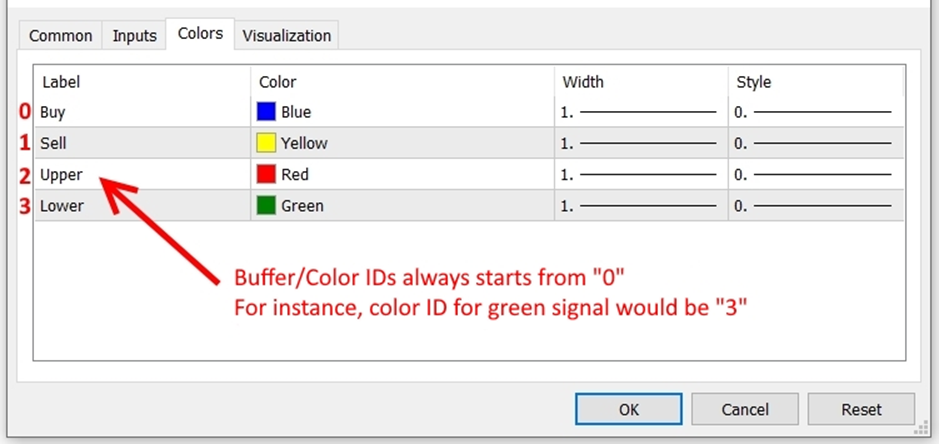
Buffers: open the indicator’s settings > Colors tab. If changing a colour there changes the arrows/lines on the chart, the signals are buffers. Buffer numbers start at 0 and follow the order of the list.
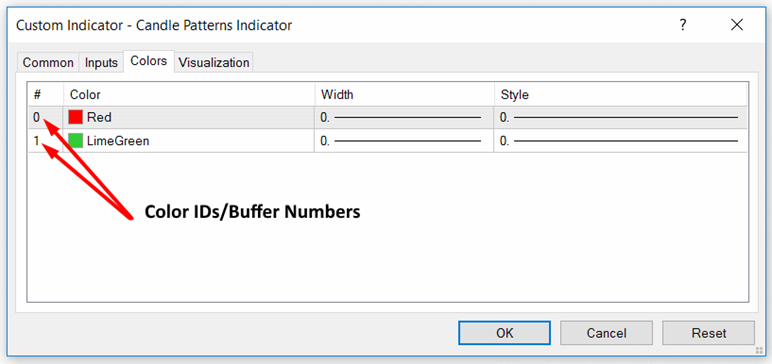
On MT5 the numbers are not shown, and some indicators have hidden colour or calculation buffers, so a line’s buffer number can differ from its position in the Colors tab. Use the Inspector to get the exact numbers.
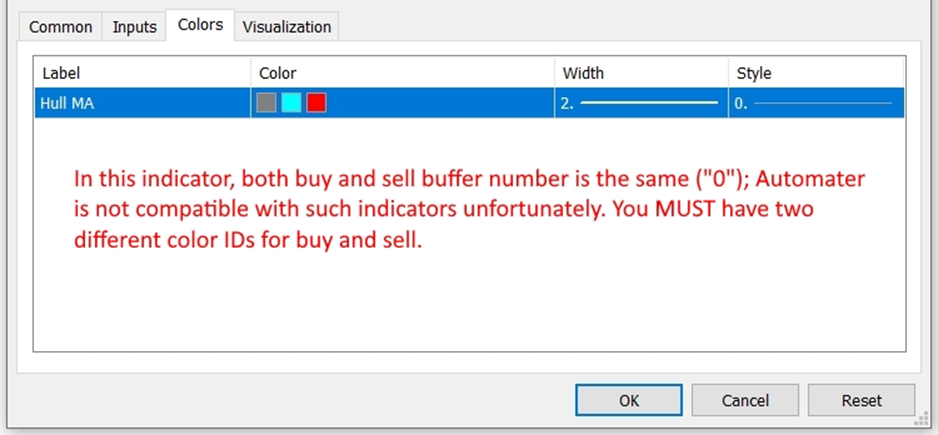
Some indicators draw one line in several colours. On MT4 the EA needs two different colour IDs for buy and sell (Type 2). On MT5, a single line with a colour buffer is supported as Type 5.
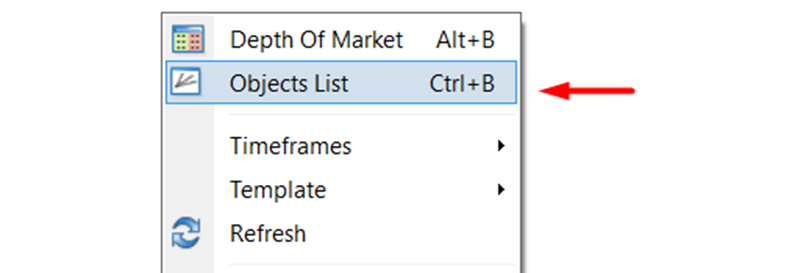
Objects: right-click the chart. If the menu has “Objects List”, the indicator draws objects; open the list to see their names, which you need for inputs 9-13.
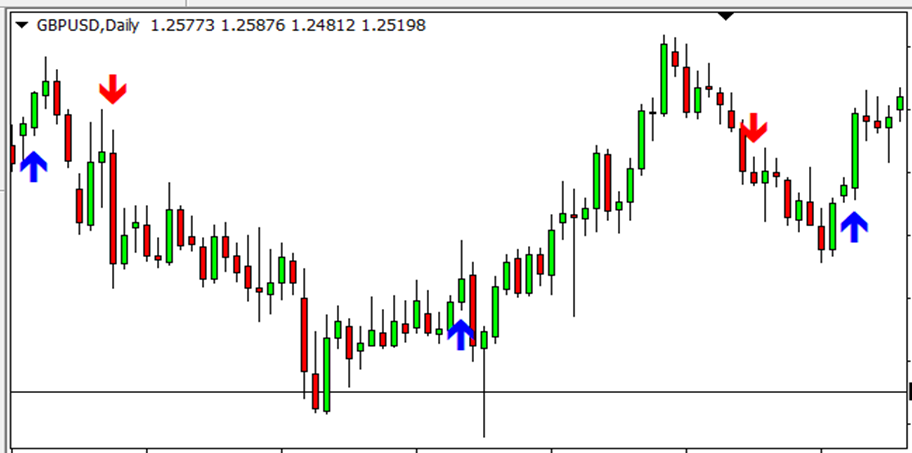
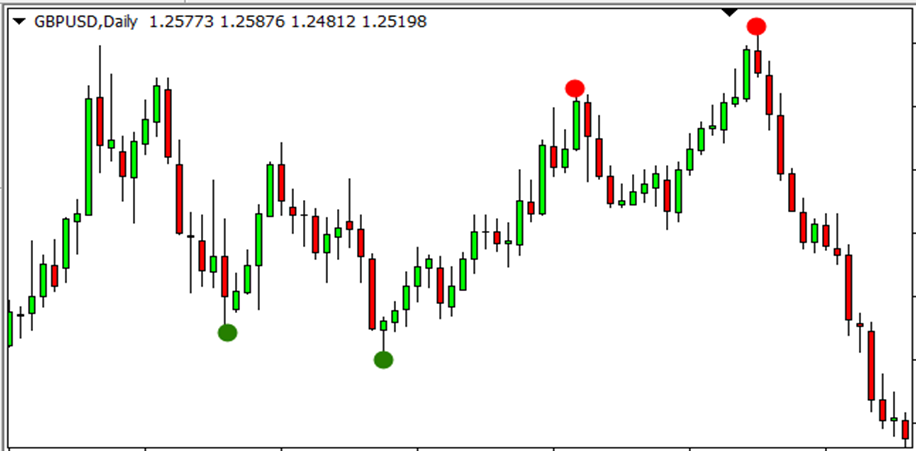
Type 1 – Buy & Sell Signals
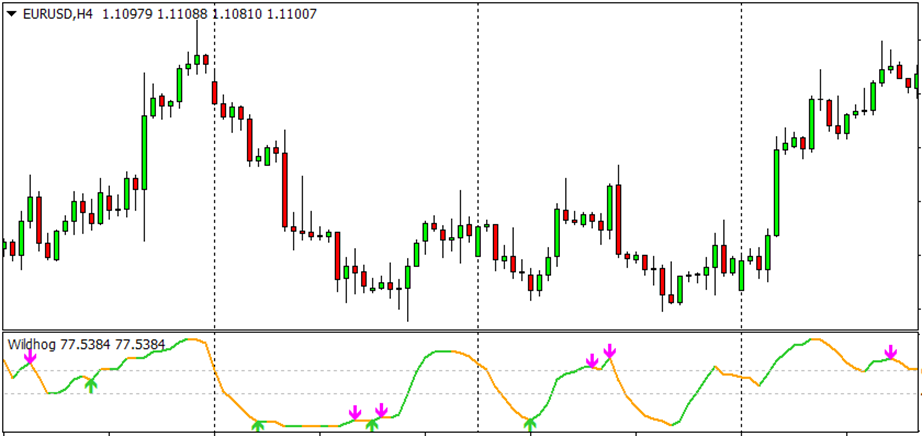
Arrows, dots or similar marks, one buffer for buys and one for sells (main chart or sub-window). Enter the two buffer numbers in inputs 3 and 4.
Signals in a sub-window work the same way:
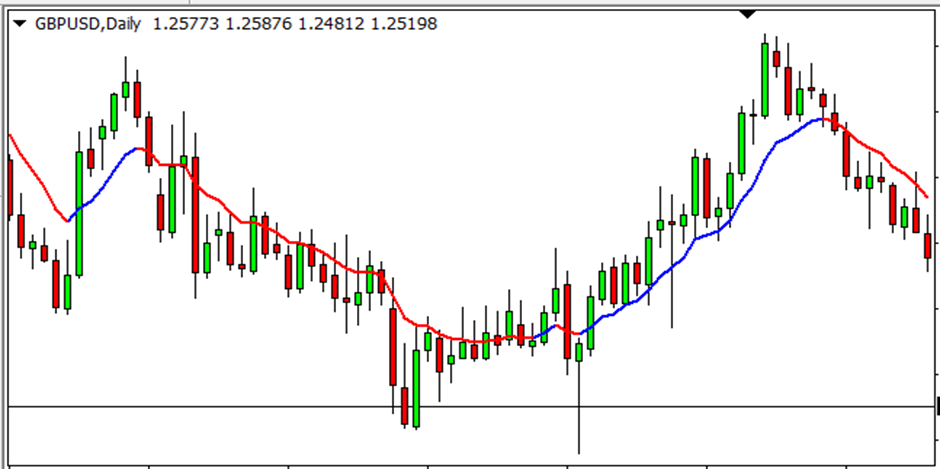
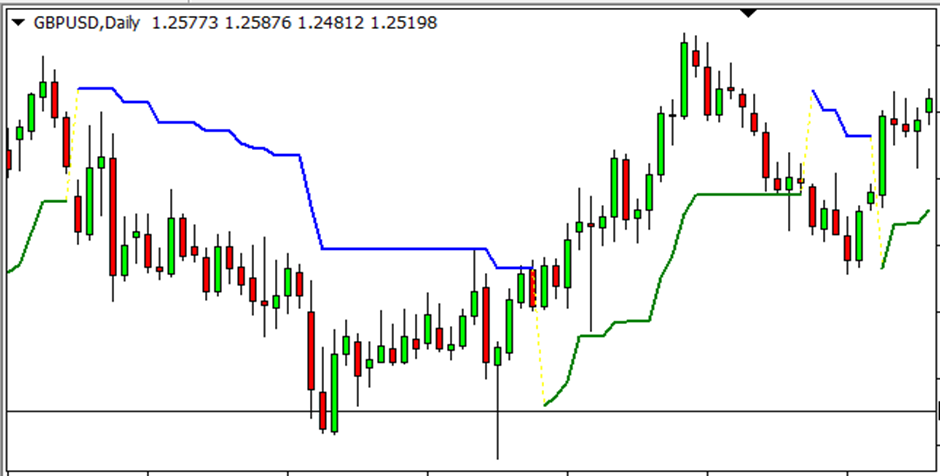
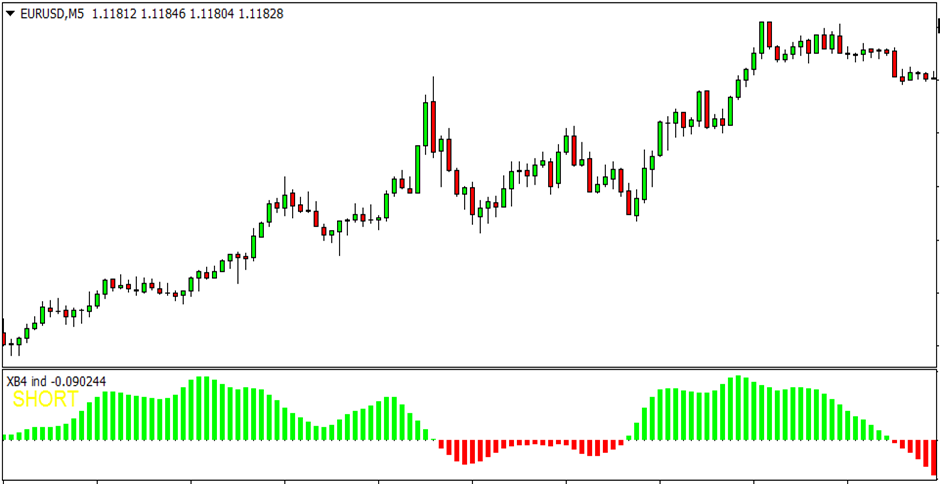
Type 2 – Two-coloured Line
One line that changes colour with the trend, drawn with two buffers. Input 3 = the rising (buy) colour’s buffer, input 4 = the falling (sell) colour’s buffer. A signal is the first candle of the new colour.
In a sub-window:
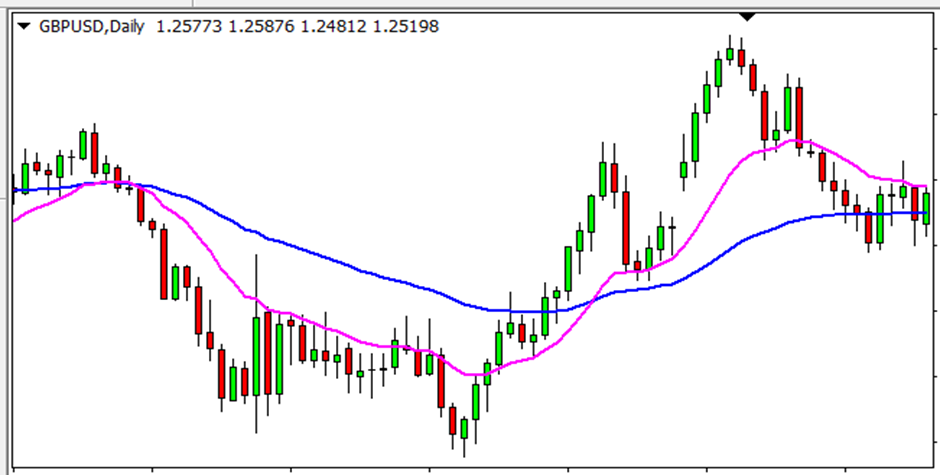
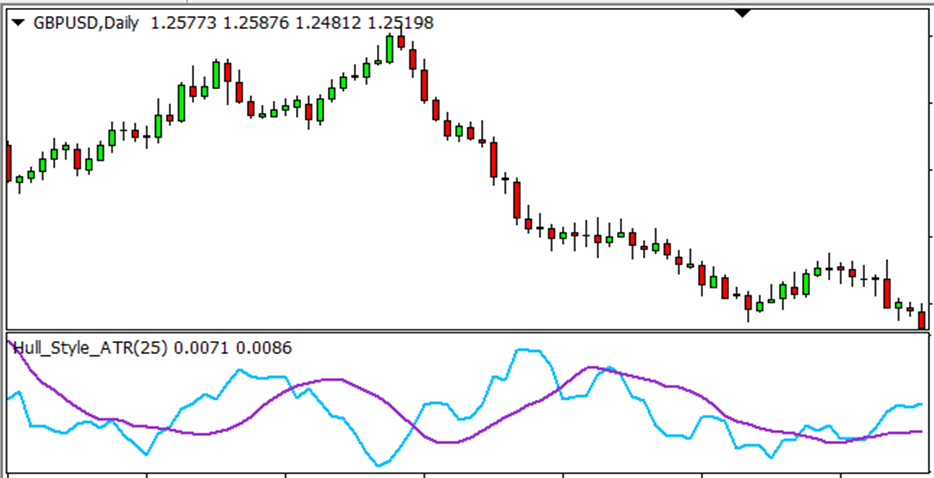
Type 3 – Two-line Cross
Two lines; a buy when the line in input 3 crosses above the line in input 4, a sell when it crosses below.
In a sub-window:
Type 4 – Chart Objects
The indicator draws objects (arrows, triangles, labels, lines …) on the chart. The EA reads them by name, colour and time (inputs 9-16), so you can use any indicator settings – but the indicator must be attached to the chart the EA runs on.

Objects in a sub-window work as well:

Some indicators first draw a pattern (e.g. trend lines) and an arrow a little later. The Inspector offers both: Option A trades the arrows, Option B trades the pattern lines (earlier entry).
Type 5 – Single Colour-changing Line (MT5 only)
One line drawn with a colour buffer: the line value in one buffer, its colour (0 = first colour, 1 = second …) in another – typical for MT5 Hull MA and similar indicators. Enter the colour buffer in input 4a and the buy/sell colour positions in inputs 3/4. The Inspector detects these indicators and lists all four inputs.
Repainting indicators
If an indicator moves or removes its signals after they appear (repaints), the EA may trade a signal that later disappears from the chart. Use closed candles (input 5 = 1, or a later candle such as 2) or, for objects, input 15 (Object Older Than) to wait until the signal is confirmed.
Indicator Inspector
The Inspector tells you which inputs to enter for your indicator. Use it on a live or demo chart:
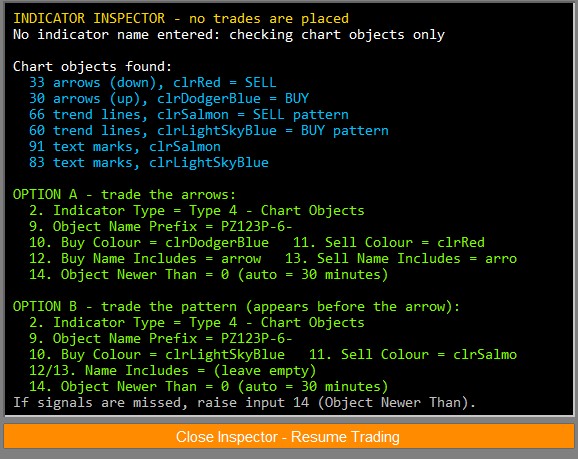
Example: the Inspector on a chart-object indicator, offering Option A (arrows) and Option B (pattern lines).
- Attach your indicator to the chart (needed for chart-object indicators; recommended for all).
- Attach the EA. Enter the indicator name in input 1 (leave it blank for chart-object indicators).
- Click Open Indicator Inspector under the HUD. The panel replaces the HUD and no new trades are opened while it is open (open trades are still managed).
- Copy the values under “ENTER THESE INPUTS” into the EA’s inputs, then click Close Inspector – Resume Trading.
It scans the last 300 candles with the indicator’s default settings and reports, for example: “Signal buffers found” with the buy and sell buffers (Type 1), “Two-coloured line found” (Type 2), “Two lines that cross found (12 crosses in the last 300 candles)” (Type 3), “Colour-changing line found” (Type 5, MT5), or the chart objects grouped by colour and kind with the Type 4 inputs (prefix, colours, name includes, Object Newer Than).
If the indicator only draws lines that never cross or change colour (bands, channels, levels, a single moving average), it shows “NO CLEAR ENTRY SIGNAL FOUND” and “We could not find a suitable buy/sell signal in this indicator, so it may not be supported”, followed by the supported types.
When the EA starts with an indicator name in input 1, it runs the same check: if your inputs 2-4 differ from what it found, the HUD shows “Inspector suggests: Type X, Buy Y, Sell Z”; if it found no usable signal, “Inspector: no clear entry signal found – may not be supported”.
Backtesting with Your Indicator
- Full version: attach the EA to a live or demo chart once (with internet access) so it can verify your license; after that the Strategy Tester works on that account. Otherwise the tester chart shows “FULL VERSION BACKTEST LOCKED”.
- Types 1, 2, 3 and 5 backtest normally – the EA loads the indicator itself.
- Indicator settings: “Settings from Chart (Live Only)” cannot be used in the tester; the EA uses input 8 instead (empty input 8 = the indicator’s default settings).
- Type 4 (chart objects) need the indicator on the tester chart: use Visual Mode and save a chart template named
tester.tplthat contains your indicator (attach the indicator to any chart > right-click > Template > Save Template >tester). The tester applies this template to its chart. - The news filter and FRZ Market Bias are off in the tester; the tester chart shows “Live server analytics unavailable in backtester”.
Quick Specifications
| Product name | FRZ Indicator Automater |
| Platform supported | MT4 and MT5 (MT5: hedging accounts) |
| Timeframes supported | Any – the chart’s timeframe or the one set in input 6 |
| Trading pair(s) | Any symbol your indicator works on (forex, metals, indices, crypto …) |
| Suitable market sessions | Any – set your own trading hours with inputs 46-47 |
| Recommended min. deposit | $500 for single trades with 0.01 lots, $1,000 with DCA (default). You can use cent accounts as well. |
| Minimum leverage | The higher, the better – use the highest leverage available. However, 1:50 for single trades and 1:100 with DCA can be recommended as bare minimums. Consider increasing your deposit if your leverage is only at the bare minimum. |
| VPS requirement | This software needs to run 24/7. A Windows VPS is recommended unless you can keep your own PC running continuously 24/7 – For a VPS, we can recommend this VPS provider. You can purchase the cheapest VPS Windows package with this provider (4GB RAM is usually enough as a minimum). More instructions on buying and setting up VPS are given on our VPS page. |
| Recommended broker | EA works on any broker that offers MetaTrader. However, we can recommend ICMarkets and if it is not available for your country, then we can recommend ICTrading. |
HUD / On-Chart Panel
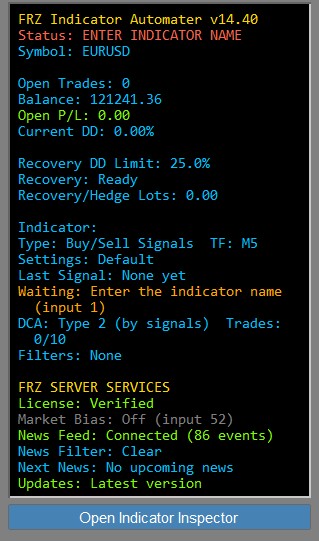
| HUD Item | Meaning |
|---|---|
| Status | Green “MONITORING” = ready and watching for signals. Other states: “WAITING FOR ACCOUNT LOGIN” (terminal still connecting), “ENTER INDICATOR NAME” (input 1 is empty), “INDICATOR NOT FOUND” (check input 1), “LOADING INDICATOR – PLEASE WAIT” (MT5, the indicator is still calculating), orange “RECOVERY MODE” (drawdown recovery running, no new signal trades), “FRIDAY CLOSE” (input 48 reached), red “MAX DD STOP – TRADING PAUSED” (input 81 reached – restart the EA to resume). |
| Symbol | The chart symbol the EA trades. |
| Open Trades / Balance / Open P/L / Current DD | This EA’s open trades on this symbol, the account balance, their profit/loss and their drawdown as % of the balance. |
| Recovery DD Limit / Recovery / Recovery/Hedge Lots | Input 79, whether recovery is Ready or Active, and the lots held by the recovery module. “Recovery: Off” when input 78 is false. |
| Indicator / Type / TF | Input 1, the indicator type and the timeframe it is read on. |
| Settings / Detected | Where the indicator settings come from (Default, From Chart, Custom List, or a fallback) and the values in use. |
| Last Signal | The last buy/sell signal and its candle time. |
| Inspector suggests … | Red: your inputs 2-4 differ from what the Inspector found. Orange “Inspector: no clear entry signal found – may not be supported”: see Indicator Inspector. |
| Waiting: … | Why the last signal was not traded, e.g. “Time filter”, “News”, “EMA filter”, “Trade already open”, “Market Bias (Bearish)”, “Market closed (trade session)”. |
| DCA / Filters | The DCA mode with trades used (e.g. 3/10) and the active filters. |
| ! … | A warning, e.g. a trade opened without the indicator’s SL. |
| FRZ SERVER SERVICES | License status; Market Bias (Off, the current bias and its source, “Not available for …”, “No clear bias today”, or a server problem with trades paused); News Feed (connected and number of events); News Filter (Clear / Paused) and Next News; Updates (latest version / new version available). In the Strategy Tester these show “Live/Demo only”; in the DEMO “Full version only”. |
| Open Indicator Inspector (button) | Opens the Inspector (live/demo charts). |
Other on-chart messages: “Loading… please wait” while the EA starts; in the DEMO, “DEMO: 12/30 trades used” and “DEMO limit reached (30 trades) – get the full version”; in the Strategy Tester a notice at the bottom right (“BACKTESTING NOTICE” or “DEMO VERSION”).
Input Settings
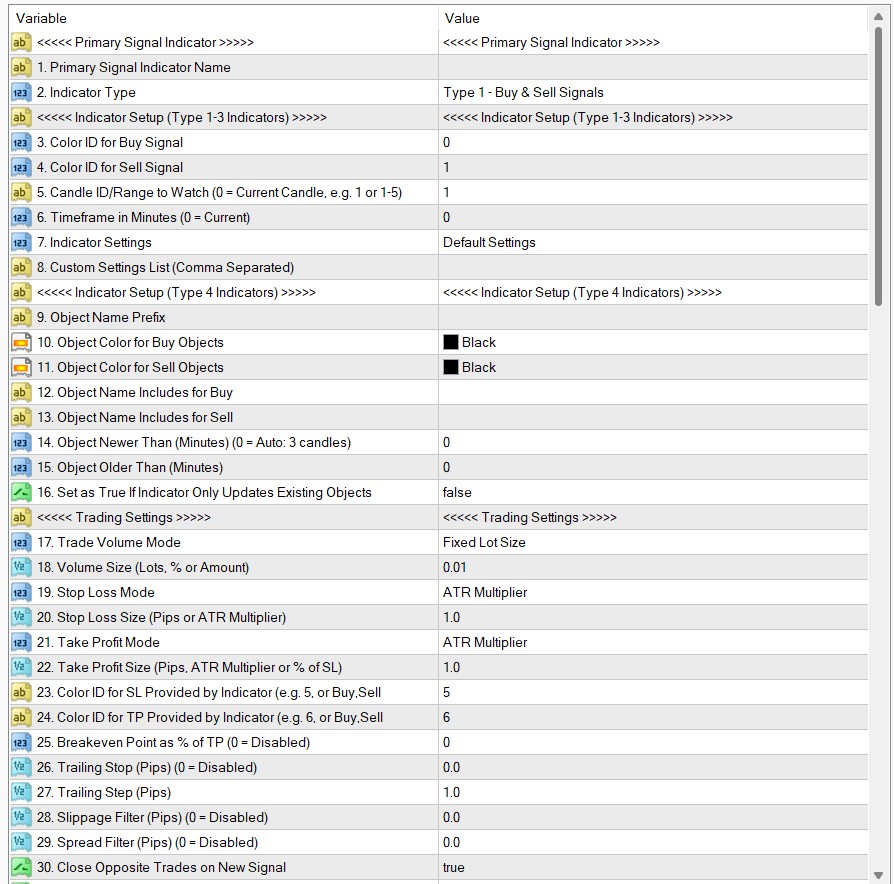
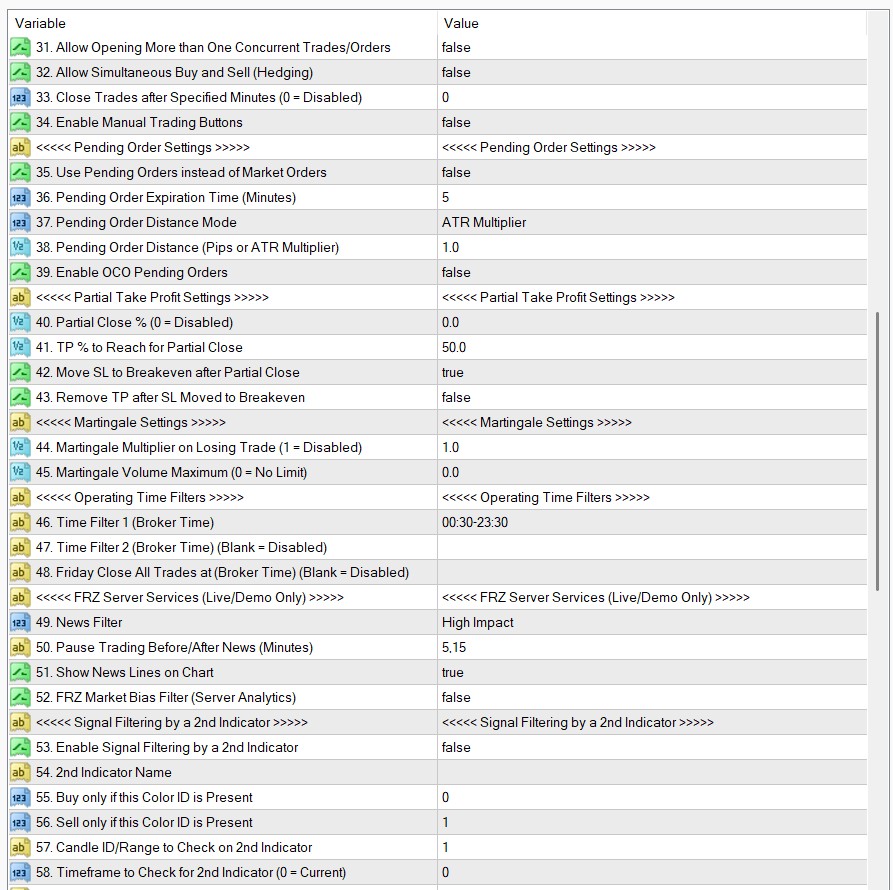
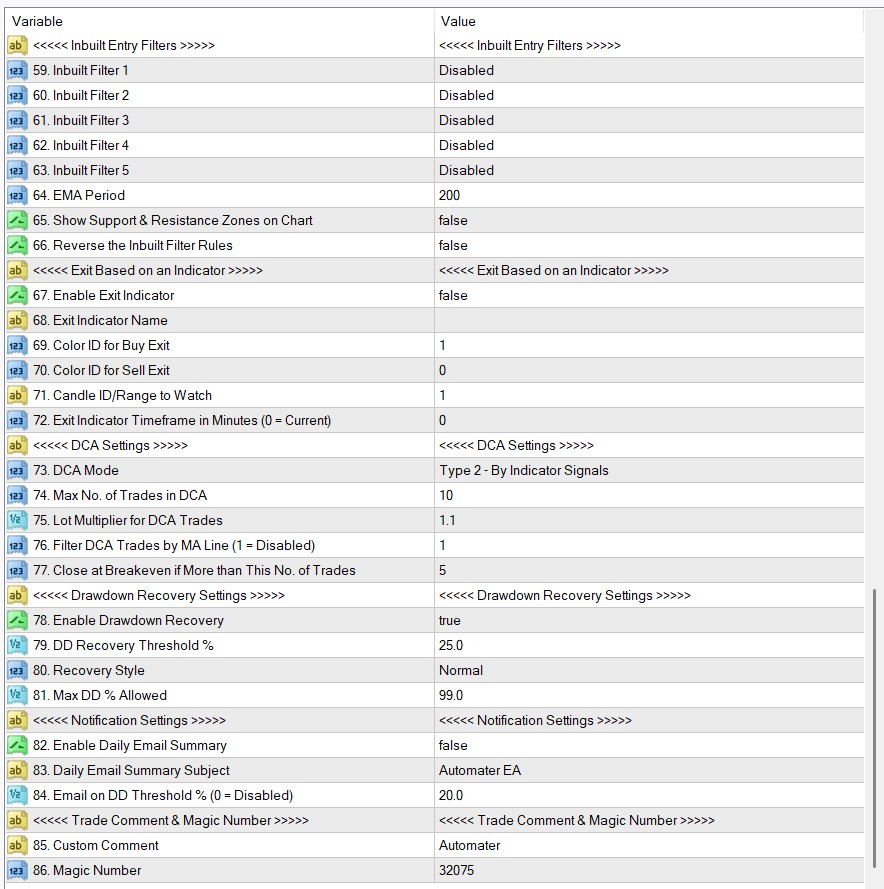
Screenshots from the MT4 version. The MT5 version shows the same inputs, plus input 4a (Colour Buffer Number) and Type 5 in input 2.
The full explanation of every input is on four pages. The numbers match the EA’s Inputs tab and are the same on MT4 and MT5 (MT5 adds input 4a for Type 5).
| Inputs | Group | Page |
|---|---|---|
| 1-16 | Primary Signal Indicator; Indicator Setup (Type 1-3 & 5); Indicator Setup (Type 4) | Setting Explanations (1-16) |
| 17-48 | Trading Settings; Pending Order Settings; Partial Take Profit; Martingale; Operating Time Filters | Setting Explanations (17-48) |
| 49-72 | FRZ Server Services; Signal Filtering by a 2nd Indicator; Inbuilt Entry Filters; Exit Based on an Indicator | Setting Explanations (49-72) |
| 73-86 | DCA Settings; Drawdown Recovery Settings; Notification Settings; Trade Comment & Magic Number | Setting Explanations (73-86) |
Set Files & Sample Indicator
Each release package includes 6 preset .set files covering common trading styles, plus a non-repainting sample indicator (Super Arrow Indicator) for practice and backtesting:
- Set file 1 – One Trade per Signal with TP & SL: Classic mode with ATR-based Stop Loss (3x) and Take Profit (1x), risking 0.1% of balance per trade.
- Set file 2 – One Trade per Signal with TP & SL + Martingale: Classic mode with 2.0x Martingale volume multiplier on losing trades.
- Set file 3 – One Trade per Signal with TP & SL + Hedging: Allows concurrent Buy and Sell positions when opposite signals appear (for hedging-enabled accounts).
- Set file 4 – Signal to Signal Trading – Close on Opposite Trade: Enters on a signal, holds the trade, and reverses on opposite signals (no fixed SL/TP, fixed 0.01 lot).
- Set file 5 – Entry Optimizing (DCA) Based on SL: Adds DCA averaging orders if price moves against the position by the SL distance; Take Profit recalculates across the basket.
- Set file 6 – Entry Optimizing (DCA) Based on Opposite Signals: Automater’s default DCA mode, adding recovery orders when subsequent indicator signals appear in the trade direction.
Note: Set files provide the background position-management settings. Simply load your desired set file, then enter your indicator name and buffer/color IDs. Set files saved with pre-v14.40 versions are not compatible.
Recommended Starting Setup
Start simple: one indicator with clear buy and sell arrows (Type 1) and the default DCA, then add filters one at a time.
- Input 1: your indicator; inputs 2-4: as the Inspector suggests.
- Keep the defaults: DCA Mode = Type 2 (input 73), Stop Loss and Take Profit = ATR Multiplier 1.0 (inputs 19-22), Drawdown Recovery on (input 78), Time Filter 00:30-23:30.
- Volume: 0.01 lots per $1,000 of balance (input 18) to start.
- Backtest a few months in the Strategy Tester, then run it on a demo account for a while.
- If too many signals lose, add one inbuilt filter (e.g. EMA Filter or Choppy Market Filter, inputs 59-63) and test again.
Troubleshooting
| Issue | What to check |
|---|---|
| EA is attached but opens no trades | Look at the HUD: the “Waiting:” row says why the last signal was skipped. Also check: AutoTrading/Algo Trading is on; the Inspector is closed (no trades while it is open); the time filter (default 00:30-23:30 broker time); news pause; the indicator name (HUD “INDICATOR NOT FOUND”); the buffer numbers (use the Inspector); “MAX DD STOP – TRADING PAUSED” (restart the EA); in the DEMO, the 30-trade limit. |
| A signal appeared but was not traded | With a single candle ID (input 5 = 1) a signal blocked by a filter or time window at that moment is skipped. Use a range such as 1-3 to keep it usable for longer. With “Trade already open”, allow more trades (input 31) or keep “Close Opposite Trades” on. |
| Trades in the wrong direction | Swap inputs 3 and 4. For filters used against the trend, see input 66. |
| “FRZ License – Not Licensed” popup | License your account number at frzsoftware.com/license, or transfer the license at frzsoftware.com/transfer. |
| “frzserver.com is not in your allowed URLs” | Add https://frzserver.com in Tools > Options > Expert Advisors (see WebRequest Setup). |
| Tester shows “FULL VERSION BACKTEST LOCKED” | Attach the full version to a live or demo chart once so it can verify the license, then backtest again on the same account. |
| MT5: “requires a hedging account” | Open a hedging account with your broker; netting accounts are not supported. |
| MT5 Journal: “cannot load [4002]” | The Custom Settings List (input 8) does not match the indicator’s inputs – include every input in order, including heading text inputs, or use Default Settings. |
| HUD: “LOADING INDICATOR – PLEASE WAIT” (MT5) | MT5 is still calculating the indicator – this can take longer on long chart histories or at the weekend. Trading starts automatically once it is ready. |
| Type 4: no trades in the backtest | Use Visual Mode with a tester.tpl template that contains the indicator (see Backtesting). Check the object colours (inputs 10-11 are Black by default) and Object Newer Than (input 14). |
| Breakeven, trailing stop, partial close or exit indicator do nothing | They are not used while DCA is on – set DCA Mode (input 73) to Off. Breakeven and partial close also need a take profit on the trade. |
| “Indicator gave no SL for last BUY – trade opened without SL” | The indicator had no valid SL level on the signal candle (input 23). Check the buffer number, or use Fixed Pips / ATR stop losses. |
| “Signal skipped: no SL from indicator for risk-based lot” | Risk-based lots need a stop loss; the indicator gave none for that signal. Use Fixed Lot Size or a Fixed Pips / ATR stop loss. |
| The EA does not start: “… (input NN) must be like …” | An input has the wrong format – the message names the input. Correct it as shown on the settings pages. |
| Old set file loads wrong values | Set files from older versions are not compatible. Enter the settings again and save a new set file. |
| Daily/drawdown emails not received | Set up email in Tools > Options > Email and send a test; emails are sent from live charts only. |
Get Support
Online AI chat: https://t.me/FRZSupportBot
Discord Forum: https://www.frzsoftware.com/discord
Useful Links
Recommended VPS: https://www.frzsoftware.com/getvps
Join VIP Club: https://www.frzsoftware.com/vipclub
Social Links: https://www.frzsoftware.com/socials
Disclaimer
Our software is provided “as is”, without any warranty or condition of any kind, express, implied or statutory. You are advised to do necessary testing on demo accounts before using the software on a live account. Trading carries a high level of risk to your capital and you should only trade with money you can afford to lose. Past performance of any trading system is not necessarily indicative of future results.